Windows 11 Bluetooth Suddenly Not Working Today? The One Hidden Power Shift That Usually Brings All Your Devices Back
You sit down with your coffee, wake your Windows 11 PC, and suddenly the Bluetooth mouse will not move, the keyboard will not pair, and your earbuds have vanished like they were never there. It is maddening, especially when you have already done the “proper” fixes. Reinstalled drivers. Ran the Windows troubleshooter. Restarted Bluetooth Services. Maybe even removed and re-added the device three times. And still nothing. If this sounds like Windows 11 bluetooth not working after update, there is a good chance the problem is not your mouse, not your earbuds, and not even the driver anymore. It is often a stuck Bluetooth controller that never fully reset after a sleep cycle, shutdown, or minor update. The good news is that the fix is usually simple. You need to force a real power reset so the Bluetooth hardware loses power completely and starts clean again. That hidden power shift is what brings many “dead” Bluetooth setups back.
⚡ In a Hurry? Key Takeaways
- The most effective fix is often a full hardware power reset, not another driver reinstall.
- Shut the PC down completely, disconnect power, and hold the power button to drain leftover charge before restarting.
- This is safe for most PCs and can save you from wiping Windows, buying a new adapter, or paying for a repair.
What is really happening here?
When Bluetooth breaks out of nowhere, especially after a small Windows update or driver change, the software side gets blamed first. That makes sense. But in a lot of cases, the Bluetooth chip itself is stuck in a weird state.
Think of it like a tiny device inside your PC that never fully woke up properly. Windows can still “see” it. Device Manager may even show it. But it will not actually talk to your mouse, keyboard, headphones, or phone the right way.
This is why the usual fixes can fail. You can reinstall the driver all day, but if the controller never really powers down, the glitch stays put.
The hidden power shift that usually fixes it
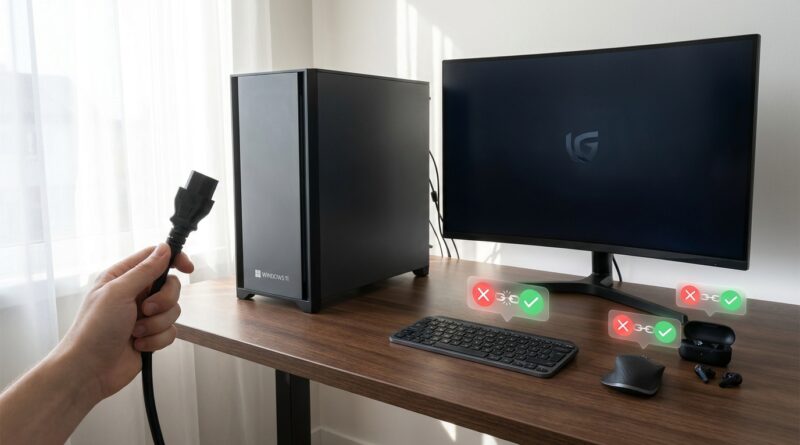
What you want is a true cold reset of the Bluetooth hardware. Not a normal restart. Not Sleep. Not even the standard Shut down that modern Windows sometimes treats like a half-hibernation.
For a desktop PC
Follow these steps in order:
- Shut down Windows fully.
- Turn off the power supply at the back of the PC if there is a switch.
- Unplug the power cable from the wall or from the PC.
- Wait 30 seconds.
- Press and hold the PC power button for 15 to 20 seconds.
- Plug the power back in.
- Start the PC and test Bluetooth before changing anything else.
That power-button hold is the part many people skip. It helps drain leftover power from the board so the Bluetooth controller actually resets.
For a laptop with a non-removable battery
- Shut the laptop down completely.
- Unplug the charger.
- Hold the power button for 20 to 30 seconds.
- Wait another 30 seconds.
- Plug the charger back in and turn the laptop on.
For a laptop with a removable battery
- Shut it down.
- Unplug the charger.
- Remove the battery if your model allows it.
- Hold the power button for 20 seconds.
- Reinsert the battery, connect power, and start up.
Why this works better than “Restart”
Windows 11 uses fast startup features that can make shutdown behave more like a partial sleep than a full power-off. That is handy when everything works. It is not so handy when a Bluetooth radio is frozen after an update.
A proper power drain clears the controller state. That is often the missing piece when you are dealing with Windows 11 bluetooth not working after update.
What to do right after the PC starts back up
Before you start uninstalling things again, keep it simple.
1. Check whether Bluetooth is back at all
Open Settings, then Bluetooth & devices. See if Bluetooth can be turned on normally. If the switch is back and your devices start appearing, you are probably in business.
2. Test one device first
Try your mouse or earbuds before reconnecting everything. If one device pairs cleanly, the controller has likely recovered.
3. Remove and re-pair only the problem device
If Bluetooth itself is alive but one gadget still refuses to connect, remove just that device and pair it again. A stuck pairing record can survive even after the hardware reset.
If the reset worked once, stop Windows from doing this again
If this started after an update, it is worth being a bit more careful next time. I would not tell you to stop updates completely, because that creates other problems. But I would suggest a little prep before major patches.
A good place to start is How to Stop Windows 11 From Randomly Restarting After Updates. Setting proper active hours and making a quick restore point before bigger updates can save you from hours of detective work later.
What if the full power reset did not fix it?
If Bluetooth is still missing or dead after the hardware reset, then move to the next layer. Now the software steps make more sense.
Check Device Manager
Right-click Start, then open Device Manager. Look under Bluetooth and also under Network adapters. If you see a warning icon, the driver may be damaged. If the Bluetooth adapter is missing completely, the issue may be deeper.
Turn off power saving for the adapter
In Device Manager, open the Bluetooth adapter properties. If there is a Power Management tab, uncheck “Allow the computer to turn off this device to save power.” Some systems get overly aggressive here.
Install the PC maker’s driver, not just Microsoft’s default one
If you have a Dell, HP, Lenovo, ASUS, Acer, or another brand-name PC, get the Bluetooth driver from that maker’s support page for your exact model. The generic driver is fine until it is not.
Check for BIOS or chipset updates if this keeps happening
This is not the first step, but repeated Bluetooth failures after updates can point to deeper power-management issues between Windows, the motherboard, and the wireless card.
One important note for USB Bluetooth adapters
If you use a small USB Bluetooth dongle, unplug it fully after shutdown, wait a few seconds, then plug it back in after the PC starts. Better yet, try a different USB port, ideally a USB 2.0 port if available. Some cheap dongles act strangely in certain ports or after sleep.
Signs this is a hardware fault, not just a stuck controller
Most of the time, the power reset is enough. But not always.
- The Bluetooth adapter never appears in Device Manager, even after reset.
- It disappears every few minutes no matter what driver you install.
- Wi-Fi and Bluetooth both fail together on a combo wireless card.
- A USB dongle gets unusually hot or disconnects constantly on multiple PCs.
At that point, you may be dealing with failing hardware. Still, it is worth trying the reset first because it rules out the most common fake “hardware failure” scenario.
At a Glance: Comparison
| Feature/Aspect | Details | Verdict |
|---|---|---|
| Normal restart | Refreshes Windows, but may not fully reset the Bluetooth hardware state. | Often not enough |
| Full power drain reset | Cuts leftover power and forces the controller to start clean. | Best first fix |
| Driver reinstall | Useful if the adapter is visible but corrupted, less useful if the controller is frozen. | Good second step |
Conclusion
If your Windows 11 Bluetooth stopped working today and all the usual fixes have done nothing, do not assume the PC needs a wipe or the adapter is dead. Bluetooth failures on Windows 11 really do spike after minor updates and driver changes, and most guides just send you in circles through the same menus. A full hardware-level power reset is the trick many people never get told about. It clears a stuck Bluetooth controller in a way a normal restart cannot. Try that hidden power shift first. It takes under five minutes, costs nothing, and can save you from replacing parts or booking a repair you probably do not need.