Old iPhone Or iPad Suddenly ‘Too Old’ For Apps Today? The One Hidden Store Setting That Usually Lets You Install Them Anyway
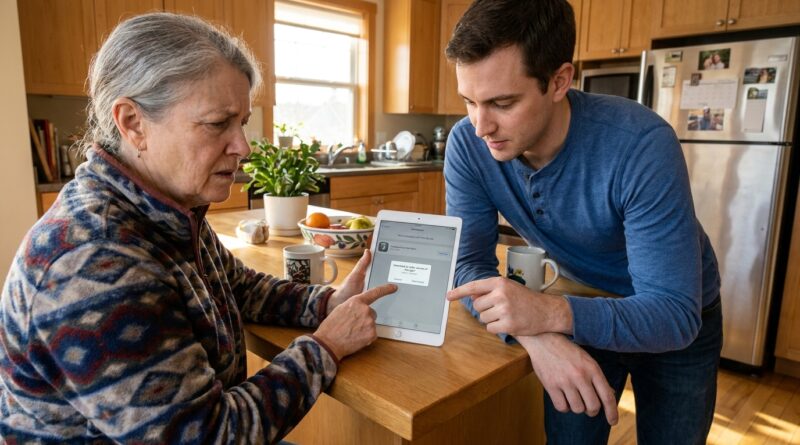
You open the App Store on an older iPhone or iPad, search for an app you know was there before, and suddenly it says “Not compatible with this device,” or the download button is just gone. That is the kind of tech problem that makes people feel cheated, and honestly, I get it. If a phone or tablet still turns on, holds a charge, and does the basics, it should not feel useless overnight. The good news is that in many cases Apple has not fully blocked you. There is a hidden App Store trick that often lets you install the last version of an app that still works on your older device. It is not obvious, and Apple does a poor job of explaining it, but it can keep an old iPhone or iPad useful for banking, streaming, kids’ apps, and smart-home controls a while longer. Here’s how to find it and what to do if it does not show up.
⚡ In a Hurry? Key Takeaways
- The direct fix is to download the app from your Purchased history, which often prompts Apple to offer the last compatible version for your old iPhone or iPad.
- If the app was never “owned” by your Apple ID, first download or “Get” it on a newer Apple device using the same Apple ID, then try again on the older one.
- This only works if the developer still allows older builds on Apple’s servers, so avoid wiping or restoring an old device unless you are sure you can get everything back.
The hidden App Store setting that usually fixes it
The trick is not really a normal setting toggle. It is the Purchased section of the App Store. That is where Apple often keeps a path to older app versions, even when the main app page says your device is not supported.
This is the answer to the common question: old iphone app not compatible anymore how to install older version. You usually do it through your account history, not by searching the app like normal.
How to find it on an older iPhone or iPad
Try these steps:
- Open the App Store.
- Tap your profile picture or account icon.
- Tap Purchased, or My Purchases.
- Find the app you want.
- Tap the cloud download icon.
If you are lucky, you will see a message like: “Download an older version of this app?” Say yes. That older build is usually the last one that still works with your version of iOS.
If the app is not in Purchased, do this first
This is the step most people miss.
If the app was never previously downloaded with your Apple ID, your older device may have no way to request that last compatible version. So first, on a newer iPhone, iPad, or even sometimes another family device signed into the same Apple ID, go to the App Store and tap Get for that app.
You do not even need to fully use it. You just need the app attached to your account history.
Then go back to the old iPhone or iPad, open Purchased, and try downloading it from there. In a lot of cases, that is what makes the older-version prompt appear.
Why this happens all of a sudden
Usually one of three things is going on.
1. The developer raised the minimum iOS version
Apps change over time. A banking app that once worked on iOS 12 may now require iOS 16 or later. On the main App Store page, Apple only shows the current version. That makes it look like your device is simply blocked, even if an older build still exists.
2. Apple’s App Store hides the fallback option
Apple does support last-compatible downloads in many cases, but it does not put that option front and center. You often have to go through Purchased, which is why it feels like a secret menu.
3. Restores are riskier now on older devices
This is the part families should pay attention to. Apple has been unsigning older iOS versions more aggressively. That means if an older iPhone or iPad gets wiped, reset, or fails during an update, getting back to the exact working setup you had may be impossible. The hardware may still be fine, but the software road back gets a lot narrower.
That is why an older device can feel one bad restore away from becoming e-waste.
What to do if the App Store still says no
Sometimes the Purchased trick does not work. Here are the most common reasons.
The developer removed old versions
Some app makers stop offering older builds entirely. If they pull them from Apple’s servers, there is nothing for your device to download.
The app now needs newer security features
Banking, payment, and some messaging apps may require newer iOS security tools that simply do not exist on older hardware. In those cases, the block is not just Apple being annoying. The app really may not run safely anymore.
The app was renamed or replaced
Sometimes an app disappears because the company launched a new version under a different listing. Search the company name, not just the old app name.
Your Apple ID is different
This trips up a lot of people helping parents or kids. If the app was “purchased” years ago under another Apple ID, it may not appear in your current Purchased list at all.
A few practical examples where this works well
This trick is most useful for apps that do not need the absolute latest iOS features.
- Streaming apps on an old iPad used as a kitchen TV
- Kids’ games on a hand-me-down iPhone
- Smart-home control apps for lights, plugs, or cameras
- Store loyalty apps or simple utility apps
It can also work for some banking apps, but those are the least predictable because banks update security requirements often.
Important warning before you reset anything
If the old device still has the apps you need, think twice before wiping it.
Seriously. Do not restore an older iPhone or iPad just because it is acting a little slow unless you have a clear plan. If Apple is no longer signing the older iOS version and the apps you rely on have moved on, a reset can turn a usable device into a much less useful one fast.
That does not mean never back it up. You should. It just means treat restores on older Apple gear as a last resort, not the first thing to try.
Other small things worth trying
Check your purchase history on another device
Sometimes the Purchased list is easier to browse on a newer iPhone or iPad with the same Apple ID.
Use Family Sharing if appropriate
If the app was downloaded by a family member and purchase sharing is enabled, you may be able to access it that way.
Visit the developer’s website
Some companies clearly list minimum iOS versions in their support pages, which can save you time.
Look for a web version
If the app is truly gone, check whether the service works in Safari. Many banks, video services, and smart-home platforms still offer decent browser access.
What this means for older Apple devices in real life
For a lot of households, an old iPhone or iPad is not a collector’s item. It is the spare device a child uses after school, the tablet a grandparent uses for video calls, or the phone someone keeps because replacing it is not in the budget this month.
That is why this stuff matters. When apps disappear, it is not just a geeky compatibility issue. It changes whether a still-working device remains useful at all.
And while Apple would probably prefer everyone move forward quickly, real families often need one or two more years from the hardware they already own.
At a Glance: Comparison
| Feature/Aspect | Details | Verdict |
|---|---|---|
| Main App Store page | Often shows only the newest version of the app, which may require a newer iOS version than your device has. | Usually not helpful for older devices. |
| Purchased or My Purchases menu | Can trigger Apple’s offer to download the last compatible version tied to your Apple ID. | Best first fix to try. |
| Factory reset or restore | May remove working apps and leave you unable to reinstall them if older iOS versions or app builds are no longer available. | Avoid unless absolutely necessary. |
Conclusion
If your old iPhone or iPad suddenly looks “too old” for apps it used to handle just fine, do not assume it is finished. In many cases, the fix is simply going through the hidden Purchased section of the App Store so Apple can offer the last compatible version. It is not perfect, and it will not save every app, especially ones with strict new security rules. But it often works well enough to keep core apps running on devices that are still useful to real people. With Apple unsigning older iOS versions more often, a lot of these devices are one bad restore away from turning into e-waste. That makes this little App Store trick more than a nerdy tip. It can buy families time, save money, and keep a daily-driver device going a bit longer instead of forcing an upgrade right now.