Android Apps Suddenly Not Getting Notifications Today? The One Hidden Battery ‘Boost’ Setting That Usually Brings Alerts Back In Minutes
Your Android notifications can stop working even when nothing seems wrong. That is what makes this so annoying. The phone has signal. The app is installed. Notifications look turned on. But messages, package updates, ride alerts, banking warnings, and even authenticator prompts show up late or not at all. If you have been searching for “android notifications not working today,” the usual advice to restart your phone or reinstall the app often misses the real cause.
On many Android phones, the hidden troublemaker is battery optimization. Brands like Samsung, Xiaomi, OnePlus, and even Google use aggressive power-saving tools that quietly put apps to sleep, block background activity, or limit mobile data when the screen is off. The good news is that you can usually fix this in a few minutes by changing one or two settings for the specific app that is going silent. Start with the app you cannot afford to miss, like WhatsApp, Gmail, your bank, or your delivery app, and work through the steps below.
⚡ In a Hurry? Key Takeaways
- The most common fix is to turn off battery optimization for the app that is missing alerts.
- Also check background data, unrestricted battery use, and any “sleeping apps” or “adaptive battery” lists.
- You do not need to factory reset your phone. Start with just the affected apps so battery life stays mostly normal.
Why notifications suddenly go quiet
Android makers are getting more aggressive about battery life. On paper, that sounds great. In real life, it can mean your phone decides an app does not need to stay awake in the background, even when that app is supposed to deliver time-sensitive alerts.
This is why the problem feels random. A chat app may work fine in the morning, then go silent by evening. A banking app may only alert you when you open it. A delivery app may send everything at once, 20 minutes late.
The key thing to know is this. Notification settings inside the app can be perfectly correct, and Android can still choke off the app behind the scenes.
First, check the obvious stuff in 60 seconds
Before digging into hidden battery menus, do these quick checks:
- Make sure Do Not Disturb is off.
- Open the app once and sign in again if needed.
- Go to Settings > Notifications > App notifications, then confirm the app is allowed.
- Check that Battery Saver or Power Saving Mode is not on.
- Make sure Wi-Fi or mobile data is working.
If all of that looks fine, move on to the setting that usually fixes it.
The hidden setting that usually brings alerts back
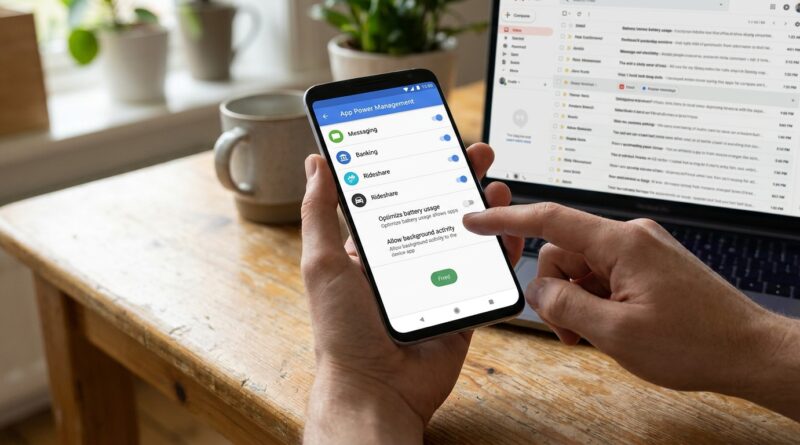
Look for the app’s battery settings and switch it from optimized or restricted to unrestricted, not optimized, or no restrictions, depending on your phone brand.
That tells Android, “Leave this app alone. Let it run in the background so it can receive alerts on time.”
You should do this only for important apps, not every app on your phone. Think messaging, email, banking, security, delivery, ride share, calendar, and authenticator apps.
How to fix it on Samsung phones
Turn off battery restrictions for one app
Go to Settings > Apps.
Tap the app that is missing notifications.
Tap Battery.
Select Unrestricted if you see it. If not, choose the option that allows full background activity.
Check Samsung Sleeping Apps lists
Go to Settings > Battery and device care > Battery > Background usage limits.
Open Sleeping apps and Deep sleeping apps.
If your important app is in either list, remove it.
You can also add the app to Never sleeping apps.
Check data settings too
Go to Settings > Apps > your app > Mobile data.
Turn on Allow background data usage.
If available, also turn on Allow data usage while Data saver is on.
How to fix it on Google Pixel phones
Change battery use for the app
Go to Settings > Apps > See all apps.
Tap the affected app.
Tap App battery usage.
Choose Unrestricted.
Check Adaptive Battery and Battery Saver
Go to Settings > Battery.
If Battery Saver is on, turn it off for testing.
If Adaptive Battery seems too aggressive, you can leave it on generally, but make sure the problem app is set to Unrestricted.
Allow background data
Go to Settings > Apps > your app > Mobile data & Wi-Fi.
Turn on Background data.
If Data Saver is on, also allow Unrestricted data usage for that app.
How to fix it on Xiaomi phones
Remove battery limits
Go to Settings > Apps > Manage apps.
Tap the app.
Tap Battery saver.
Choose No restrictions.
Turn on autostart if available
Still in the app settings, look for Autostart.
Turn it on. Xiaomi phones often need this for reliable notifications.
Check background data
Open Settings > Apps > Manage apps > your app > Restrict data usage.
Make sure Wi-Fi and mobile data are both allowed.
How to fix it on OnePlus phones
Set the app to unrestricted battery use
Go to Settings > Apps > App management.
Tap the app.
Tap Battery usage.
Select Allow background activity or choose the least restrictive battery option.
Check app auto-launch and optimization tools
OnePlus sometimes changes menu names between updates, but if you see options related to Auto-launch, Background activity, or App optimization, make sure the affected app is allowed.
Check mobile data in background
Go to the app’s info page and look for Data usage.
Allow background data and unrestricted data if those options appear.
If one app still will not alert you
Some apps have their own internal notification categories. Gmail, WhatsApp, Slack, banking apps, and delivery apps often do this.
Open the app itself and check its notification section. Make sure alert types like direct messages, transactions, deliveries, security notices, and account activity are turned on.
Then go back to Android settings and check the app’s notification categories there too. Sometimes “General notifications” are on, but the critical category is muted.
What not to do first
Do not factory reset your phone. Do not clear every app’s data unless you have to. And do not turn off all battery tools system-wide right away.
Start small. Fix the one or two apps that matter most. That usually solves the real-life problem without wrecking battery life.
If your phone is also low on storage, that can make apps behave badly in general. If you need help cleaning up safely, How to Stop iPhone and Android From Filling Up With Photos and Still Keep Everything Safe is a good next step. A nearly full phone can cause all kinds of weird delays.
Signs the fix worked
After changing the settings, send yourself a test message or ask a friend to ping you.
- If the alert arrives while the screen is off, you are on the right track.
- If alerts only arrive when you open the app, background restrictions are still blocking it somewhere.
- If nothing improves, update the app and Android itself, then test again.
When the problem is not your phone
Sometimes the app service itself is having issues. That can happen with chat platforms, email providers, banks, and delivery apps. If several people are complaining on the same day, the outage may be on their end.
But if only your phone is missing alerts, battery optimization is still the top suspect.
Best apps to exempt from battery optimization
You do not need to do this for games, shopping apps, or random tools. Save it for apps where a late alert can actually cause trouble:
- Messaging apps like WhatsApp, Signal, Telegram, Messenger
- Email apps like Gmail or Outlook
- Banking and fraud alert apps
- Authenticator apps and security tools
- Ride share and delivery apps
- Calendar and reminder apps
- Package tracking apps
At a Glance: Comparison
| Feature/Aspect | Details | Verdict |
|---|---|---|
| Main cause | Battery optimization, sleeping apps, and blocked background activity often delay or stop alerts. | Most likely issue if notifications “look enabled” but still fail. |
| Fastest fix | Set the affected app to Unrestricted, No restrictions, or the least restrictive battery mode, then allow background data. | Usually works within minutes. |
| Battery impact | Important apps may use a little more battery when allowed to run freely in the background. | Worth it for banking, messages, deliveries, and security alerts. |
Conclusion
If your Android notifications are not working today, you are not imagining it, and you are not alone. Push notification failures are showing up more often as Android phone makers push harder on battery optimization and AI-based app management. That sounds smart until your bank alert, ride pickup, package update, or two-factor code goes missing. The fix is usually not dramatic. It is just buried. Once you know where to tap on Samsung, Pixel, Xiaomi, or OnePlus, you can restore reliable alerts by changing per-app battery settings, background data access, and sleeping app lists. Start with your most important apps, test each one, and your phone should feel dependable again instead of random and flaky.