YouTube App Suddenly Not Working On Your TV Today? The One Hidden ‘Sign Out Reset’ That Usually Gets Videos Playing Again
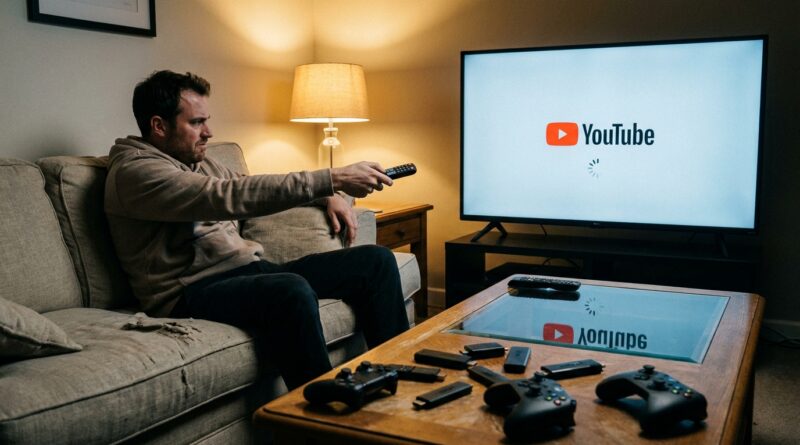
You know the scene. You finally get a quiet hour, open YouTube on the TV, and the app acts like it forgot how to be an app. Videos spin forever. The home screen will not load. The remote suddenly seems useless. Meanwhile, YouTube works perfectly on your phone, which somehow makes it more annoying. If you are searching for why the youtube app not working on smart tv today, the good news is this usually is not your Wi-Fi and it often is not a giant outage either. In many cases, the real problem is a stuck sign-in session or corrupted app cache on the TV or streaming stick itself. The fix that works surprisingly often is a simple sign out reset, followed by a force close or restart. It takes a few minutes, does not wipe your whole TV, and can save you from wasting the evening rebooting the router for no reason.
⚡ In a Hurry? Key Takeaways
- The fastest fix for YouTube not working on a smart TV today is to sign out of the YouTube app, close it fully, restart the TV or streaming device, then sign back in.
- If that fails, clear the YouTube app cache or reinstall the app before you touch your router.
- This reset is safe. You may need to log in again, but it usually fixes frozen logos, endless loading, and broken menus without changing your whole TV setup.
Why this happens even when your internet seems fine
Smart TV apps are a little more fragile than phone apps. They sit on top of TV software that does not always manage memory well, especially after updates or after the app has been left open for days.
That means the YouTube app can get stuck in a bad state. Common triggers include:
- A partial app update that did not finish cleanly
- A stale login token tied to your Google account
- Corrupted cache files stored on the TV
- A TV OS bug after sleep mode or quick start mode
- A temporary YouTube service hiccup that leaves the app session hanging
So yes, it can look like a network problem. But if Netflix works, your phone plays YouTube, and your TV still freezes on the YouTube logo, the app itself is the better suspect.
The hidden fix: the sign out reset
This is the routine I would tell a friend to try first. It is simple, fast, and it solves a surprising number of living-room YouTube meltdowns.
Step 1: Open YouTube settings on the TV
Launch the YouTube app if it will open at all. Move to the left-side menu, then go to Settings or your account icon.
Step 2: Sign out of your account
Choose Sign out. If there are multiple accounts on the TV, sign out of all of them if possible.
This matters because the account session itself is sometimes the part that is stuck, not the video stream.
Step 3: Close the app fully
Do not just tap Home and reopen it. Fully exit the app.
How you do this depends on the device:
- Roku: Press Home, highlight YouTube, press the star button, then look for remove or restart options if needed.
- Fire TV: Go to Settings, Applications, Manage Installed Applications, YouTube, then Force Stop.
- Android TV or Google TV: Settings, Apps, YouTube, Force Stop.
- Samsung or LG smart TVs: Return to the home screen, then use device care or app management if available to close background apps.
- Apple TV: Double-click TV/Home and swipe the YouTube app away.
Step 4: Restart the TV or streaming device
Use the device’s restart option if it has one. If not, turn it off and unplug it for 30 seconds, then plug it back in.
This is different from endlessly power-cycling the router. Here you are clearing the app’s temporary mess from the device that is actually misbehaving.
Step 5: Open YouTube again, then sign back in
Open the app fresh. Sign back in using the on-screen code or QR method.
If videos start playing again, you have confirmed that the issue was probably a stuck session or local app data problem.
If the sign out reset did not work
Do these in order. Stop when the app starts behaving.
1. Clear the YouTube app cache
This removes temporary files that may be corrupted. It does not usually delete the whole app.
- Android TV or Google TV: Settings, Apps, YouTube, Clear Cache
- Fire TV: Settings, Applications, Manage Installed Applications, YouTube, Clear Cache
If there is also a Clear Data option, use that only after cache clearing fails. It is more thorough, but you will need to sign in again.
2. Update the YouTube app
Check the app store on your TV or streaming device. If YouTube is waiting on an update, install it.
Also check for a system software update for the TV or stick itself. Old firmware can cause app crashes, freezing, or playback bugs.
3. Reinstall the app
Remove YouTube, restart the device, then install YouTube again. This is often the cleanest fix if the app files themselves are damaged.
4. Turn off quick start or fast boot temporarily
Some smart TVs never really shut down. They fake it. That can keep bad app states hanging around.
If your TV has a Quick Start, Instant On, or Fast Boot setting, turn it off, restart the TV, and test YouTube again.
5. Try YouTube while signed out
Open the app and play a public video before signing in. If it works signed out but breaks after login, that points right back to an account session issue.
How to tell if it is YouTube, your TV, or your internet
Here is the quick reality check.
It is probably a YouTube app problem if:
- YouTube fails on the TV, but works on your phone or laptop
- Other streaming apps on the TV work normally
- The app opens but freezes, hangs on the logo, or menus do not respond
It is probably a device problem if:
- Several apps are freezing, not just YouTube
- The TV itself feels slow, crashes, or ignores remote commands
- The issue started after a TV software update
It is probably an internet problem if:
- Nothing streams on the TV, not even other apps
- Wi-Fi drops across multiple devices in the house
- The TV shows network connection errors outside YouTube too
That last point matters because people often burn an hour restarting the modem when the trouble is really just one app with a bad memory of its last login.
Brand-specific notes that help
Samsung smart TVs
Go to Settings, Support, Device Care, then run a quick check if the TV offers it. Samsung sets can also benefit from a full cold boot by holding the power button on the remote until the TV restarts.
LG smart TVs
On webOS, closing apps and removing power for 30 seconds can clear a lot of strange app behavior. If YouTube still sticks, remove and reinstall the app from the LG content store.
Roku
Roku does not always expose cache controls, so restarting the system and reinstalling the channel is usually the better move. Go to Settings, System, System Restart.
Fire TV
Fire TV is one of the easiest platforms for this fix because Force Stop, Clear Cache, and Clear Data are all easy to find in app settings.
Google TV and Android TV
If YouTube is built in, you may not be able to fully uninstall it, but you can uninstall updates, clear cache, then let it update again.
What not to do first
When the youtube app not working on smart tv today, skip these as your opening move:
- Do not factory reset the whole TV right away
- Do not spend 45 minutes changing router channels unless other devices also have issues
- Do not assume a nationwide outage just because one app is frozen
- Do not keep opening and closing the app ten times hoping it magically clears itself
Start with the targeted fix. It is less stressful and usually much faster.
When you should suspect a real outage
Sometimes there really is a wider YouTube problem. If social media is full of reports, YouTube fails on multiple devices, and even the web version is acting strange, then yes, it may be on Google’s side.
But even during smaller service hiccups, a TV app can stay stuck long after the service has recovered. That is why the sign out reset is useful. It forces the app to start fresh instead of clinging to yesterday’s broken session.
A simple repeatable playbook for the next app meltdown
You can use this same order for almost any streaming app, not just YouTube:
- Sign out
- Force close the app
- Restart the TV or streaming stick
- Clear cache if needed
- Reinstall if needed
It is a much better plan than blaming the Wi-Fi every time the living room gets dramatic.
At a Glance: Comparison
| Feature/Aspect | Details | Verdict |
|---|---|---|
| Sign out reset | Signs you out, clears the current app session, then lets the app reconnect cleanly after a restart | Best first fix. Fast and low risk. |
| Clear cache or clear data | Removes temporary files, and in some cases resets app storage more deeply | Great second step if sign out alone does not help. |
| Router reboot | Only helps if multiple devices or apps are having connection trouble | Usually not the first thing to try for a YouTube-only TV problem. |
Conclusion
If YouTube suddenly stops working on your TV today, try not to jump straight to “the internet is down” or “the TV is broken.” Most of the time, the fix is much smaller than that. A dead-simple sign out reset, followed by a proper app close and device restart, often gets videos playing again because it targets the real trouble spot: stuck app sessions and junk data on the TV itself. That means less time fiddling with routers, fewer pointless support calls, and a calmer evening on the couch. Better still, once you know this routine, you can use it again the next time YouTube or any other streaming app decides to throw a fit.