Smart TV Keeps Dropping Wi‑Fi Today? The One ‘2G vs 5G’ Fix That Usually Stops The Constant Disconnects
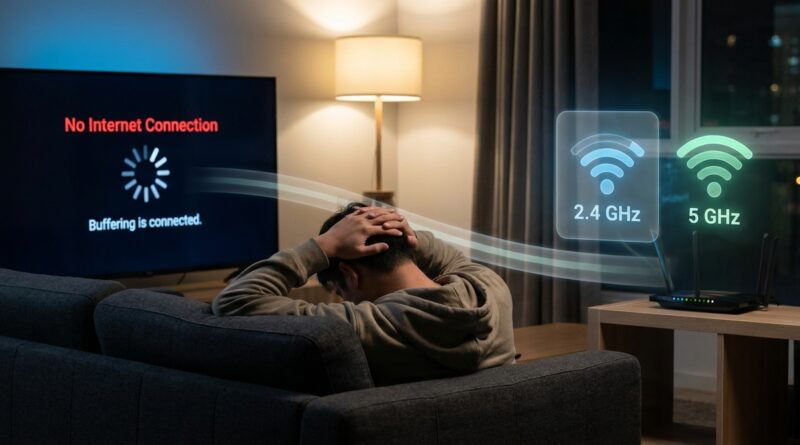
Your smart TV is finally free, dinner is ready, you hit play, and then the Wi‑Fi drops again. Few tech problems are more annoying because it feels random. Your phone works. Your laptop works. The TV acts like your internet has vanished. You restart the TV, restart the router, maybe even unplug everything like it is 2009, and for a little while it behaves. Then the buffering comes back. If your smart tv keeps disconnecting from wifi, the cause is often not the TV going bad. It is usually a Wi‑Fi settings problem, especially after a new router, ISP gateway, or mesh system was added. The most common fix is surprisingly simple. Split your Wi‑Fi into separate 2.4 GHz and 5 GHz network names, then connect the TV to the one it handles best. Older and cheaper TVs often get confused when one network name tries to manage both bands automatically.
⚡ In a Hurry? Key Takeaways
- The fix that most often works is splitting one combined Wi‑Fi name into separate 2.4 GHz and 5 GHz names, then reconnecting the TV manually.
- If that helps but the problem returns, reserve an IP address for the TV in your router settings so it stops getting bumped around.
- You do not need to factory reset everything first. This is a safe 10-minute troubleshooting step that often solves nightly disconnects for good.
Why this keeps happening now
A lot of homes changed networking gear recently without really changing anything on purpose. New ISP gateways, upgraded routers, and mesh systems are meant to make Wi‑Fi easier. For phones and tablets, they usually do.
Smart TVs are a different story. Many older sets, and even some newer budget models, have basic Wi‑Fi chips and very fussy software. They do not always handle band steering well. That is the feature where your router uses one Wi‑Fi name and quietly pushes devices between 2.4 GHz and 5 GHz.
That sounds smart. Sometimes it is. But some TVs drop out during that handoff, fail to reconnect cleanly, or decide the internet is gone even though the Wi‑Fi signal is still there.
The one 2.4 GHz vs 5 GHz fix that usually works
If your router currently shows just one Wi‑Fi name, like SmithFamilyWiFi, it may actually be combining both 2.4 GHz and 5 GHz under that one name.
The fix is to split them into two names, for example:
- SmithFamilyWiFi-2.4
- SmithFamilyWiFi-5
Then forget the old network on the TV and connect it manually to one of the new ones.
Which one should your TV use?
Start with 2.4 GHz if the TV is older, far from the router, or keeps dropping every few minutes.
Use 5 GHz if the TV is fairly new, close to the router, and supports it properly.
Here is the plain-English version:
- 2.4 GHz is slower, but it reaches farther and is often more stable for older TVs.
- 5 GHz is faster, but it has shorter range and can be less forgiving through walls.
For streaming, stable beats fast almost every time. A steady 2.4 GHz connection is much better than a flaky 5 GHz one.
How to split the Wi‑Fi bands
The exact steps depend on your router, but the process is usually similar.
Step 1: Log into your router or ISP gateway
Open a web browser and type your router address. Common ones are:
- 192.168.1.1
- 192.168.0.1
- 10.0.0.1
If that does not work, check the sticker on the router or your ISP app.
Step 2: Find Wi‑Fi settings
Look for sections called Wi‑Fi, Wireless, Bands, or Advanced Wireless Settings.
Step 3: Turn off “Smart Connect” or band steering
This is the feature that combines 2.4 GHz and 5 GHz into one network name. It may be called:
- Smart Connect
- Band Steering
- One Wi‑Fi Name
- Auto Join Bands
Step 4: Give each band its own name
Name them something obvious, like HomeWiFi-2.4 and HomeWiFi-5.
Step 5: Save changes and reconnect the TV
On the TV, go into network settings, forget the old Wi‑Fi network, and connect to the new 2.4 GHz network first.
How to tell what is actually dropping
This part matters because people often assume “the internet” is failing when it is really the TV losing its Wi‑Fi link.
If the TV says “not connected to Wi‑Fi”
That points to a wireless connection problem between the TV and router.
If the TV says it is connected to Wi‑Fi but has “no internet”
That often points to an IP address issue, router hiccup, or DNS problem.
If only one app buffers but others work
That may be an app issue, not a Wi‑Fi issue.
A quick test helps. When the TV drops, check whether your phone still works on the same Wi‑Fi in the same room. If yes, the internet is probably fine and the TV is the device losing its place on the network.
The second fix people miss: reserve an IP address for the TV
If splitting 2.4 and 5 GHz helps but the TV still randomly loses connection once in a while, reserve an IP address for it in the router.
This sounds technical, but it is simpler than it sounds. Your router hands out local addresses to devices. Sometimes a TV gets a new one, or handles renewals badly, and starts acting flaky. Reserving one address tells the router, “This TV always gets this same number.”
How to reserve an IP address
- Log into your router.
- Find DHCP, LAN, or Address Reservation settings.
- Look for your TV in the connected devices list.
- Choose Reserve or Assign Static DHCP.
- Save the setting and reboot the TV once.
This is especially useful on busy home networks with lots of phones, tablets, speakers, cameras, and game consoles.
Other settings worth checking if the TV still drops
Turn off “eco” or “quick start” network sleep features
Some TVs put the network adapter into a low-power state and fail to wake it properly. In TV settings, look for power saving, eco mode, or network standby options.
Update the TV software
It is boring advice, but it does matter here. TV makers quietly fix Wi‑Fi bugs in firmware updates.
Move mesh nodes carefully
If you recently added mesh Wi‑Fi, the TV may be bouncing between nodes or clinging to a weak one. If possible, place a node a bit closer to the TV, but not right beside it.
Avoid naming confusion
If you split the bands, make sure the old combined network name is gone. If the TV keeps reconnecting to an old saved network, forget it completely.
When 2.4 GHz is the better choice, even if it sounds “slower”
A lot of people hear “5 GHz” and assume it is always the better option. For TVs, that is not always true.
Streaming video does not need extreme speed as much as it needs consistency. A 4K stream often works better on a steady connection than on a faster one that drops for two seconds every ten minutes. If your TV is across the house, behind walls, or tucked inside a cabinet, 2.4 GHz is often the practical fix.
That is why this simple change works so often when a smart tv keeps disconnecting from wifi. You are not making the network fancier. You are making it easier for the TV to cope with.
When the problem is probably not Wi‑Fi
If disconnects continue even after splitting the bands and reserving an IP address, there may be another issue:
- The TV’s Wi‑Fi hardware may be failing.
- The router firmware may be buggy.
- The TV app itself may be freezing.
- Your ISP gateway may need a firmware update from the provider.
A very useful test is to plug the TV in with Ethernet, even temporarily. If it behaves perfectly on a cable, that strongly points back to Wi‑Fi handling rather than the TV apps or your internet service.
The quick 10-minute fix checklist
- Check whether the TV is losing Wi‑Fi or just losing internet.
- Log into the router and split 2.4 GHz and 5 GHz into separate names.
- Turn off Smart Connect or band steering.
- Forget the old network on the TV.
- Connect the TV to 2.4 GHz first.
- Reserve an IP address for the TV.
- Restart the TV once after making changes.
At a Glance: Comparison
| Feature/Aspect | Details | Verdict |
|---|---|---|
| 2.4 GHz Wi‑Fi | Longer range, better through walls, often more reliable for older smart TVs | Best first choice if disconnects are constant |
| 5 GHz Wi‑Fi | Faster speeds, shorter range, more sensitive to distance and obstacles | Good only if the TV is close to the router and stays stable |
| IP address reservation | Keeps the TV on the same local network address so it reconnects more cleanly | Smart second step if splitting bands helps but does not fully solve it |
Conclusion
If your smart tv keeps disconnecting from wifi, do not assume the TV is dying and do not settle for rebooting boxes every night. Right now, a lot of people are replacing routers, using ISP-supplied gateways, and adding mesh systems that quietly change how Wi‑Fi behaves. Older TVs are often the first things to complain. The good news is that the fix is usually simple. Check whether the TV is dropping Wi‑Fi or internet, split your 2.4 GHz and 5 GHz networks so the TV is not being pushed back and forth, and reserve an IP address so it stops losing its place on the network. That is a real fix you can do in about 10 minutes, and it has a much better chance of working than another round of unplugging everything and hoping for the best.