Android Phone Suddenly Overheating While Charging Today? The One Hidden ‘Cooldown Routine’ That Usually Stops The Thermal Spiral Fast
Your Android phone is not supposed to feel like a hand warmer every time you plug it in. If it suddenly started overheating while charging after an update, you are not imagining it, and you are definitely not the only one. Galaxy S24, S25, Pixel and other Android owners have been reporting the same ugly mix of heat, battery drain and slow charging right after recent software patches. That is frustrating, especially when you have already tried the obvious stuff like swapping the cable, changing the charger and closing apps. The good news is that this often is not a dying battery or a bad charger. It is usually your phone doing a messy round of background reindexing, app rebuilding and thermal re-learning after the update. There is a simple cooldown routine that often settles things down fast. The goal is not magic. It is to help your phone stop fighting itself while charging and get back to normal behavior.
⚡ In a Hurry? Key Takeaways
- Yes, an android phone overheating while charging after update is often caused by post-update background tasks, not instant battery failure.
- The fastest fix is a structured cooldown routine: cool environment, case off, optimized charging settings checked, app and battery usage reviewed, then one clean charge cycle.
- If the phone gets too hot to hold, shows a temperature warning, swells, or keeps overheating after 48 hours and Safe Mode testing, stop charging and get it checked.
Why this starts right after an update
Updates do more than add features or security fixes. They can trigger a bunch of behind-the-scenes cleanup jobs. Your phone may be rebuilding app caches, reindexing photos and files, scanning media, optimizing battery patterns and syncing cloud data all at once.
That means the charger is pushing power in while the phone is burning power hard in the background. The result is extra heat. Sometimes a lot of it.
That is why your battery percentage can seem to crawl upward or even drop while plugged in. Charging is happening. The phone is just spending the incoming power as fast as it gets it.
The hidden cooldown routine that usually stops the thermal spiral
This is the one-evening reset routine I would tell a neighbor to use before spending money on accessories or booking a repair.
Step 1. Stop panic charging
Unplug the phone. Let it rest for 15 to 20 minutes in a cool room. Take the case off, especially if it is thick rubber, leather or one of those shockproof bricks that trap heat.
Do not put the phone in the fridge or freezer. Extreme cold can cause moisture problems and stress the battery.
Step 2. Check for obvious heat traps
If you are charging on a bed, couch, blanket or car seat, move it. Soft surfaces hold heat in. Put the phone on a hard table or countertop.
Also check the charging port for lint. Pocket fuzz can make the cable fit badly and create charging weirdness. Use a flashlight. If you see compacted debris, clean it very gently with a wooden toothpick or soft brush. No metal pin.
Step 3. Restart the phone once
This sounds too simple, but after an update, one proper restart can stop a stuck service or app loop. Do not just lock and unlock the screen. Restart it fully.
Then leave it alone for five minutes after it boots up. Phones often kick off fresh background jobs immediately after a restart.
Step 4. Turn off the heavy extras for one charge cycle
For the next test charge, temporarily switch off the things that add heat:
- Fast charging or Super Fast Charging
- Wireless charging
- Hotspot
- 5G, if your signal is weak and the phone is hunting for a tower
- High brightness
- Gaming, video calls or camera use while charging
On Samsung, look in Settings, Battery, Charging settings. On Pixel and many other Android phones, look under Settings, Battery and connected device or charging options.
This is not forever. It is a test. You are trying to remove variables and let the phone cool down and relearn normal charging behavior.
Step 5. Find the app doing the damage
Go to Settings, Battery, Battery usage. Look for anything using an unusual amount of power since the update. Social apps, cloud backup apps, media editors, launchers and antivirus apps are common troublemakers.
If one app is way out of line, force close it, then update it from the Play Store. If it still behaves badly, clear its cache. If needed, uninstall and reinstall it later.
This same basic idea helps with performance messes too. If your phone has been acting clogged up after updates, our guide on CapCut Suddenly Laggy Or Not Exporting Today? The One Hidden Phone ‘Unclog’ That Usually Makes Your Edits Smooth Again explains why a phone can feel jammed up even when the charger is not the real villain.
Step 6. Update apps before blaming the charger
This is the part many people skip. After a system update, older apps may behave badly until they get their own update. Open the Play Store, tap your profile, then Manage apps and device, and install all pending updates.
An outdated app can sit in the background spinning its wheels for hours. That means heat, battery drain and poor charging.
Step 7. Do one clean, boring charge
Now plug the phone into a reliable wired charger. Not the cheapest spare from the junk drawer. Use a known good cable and adapter.
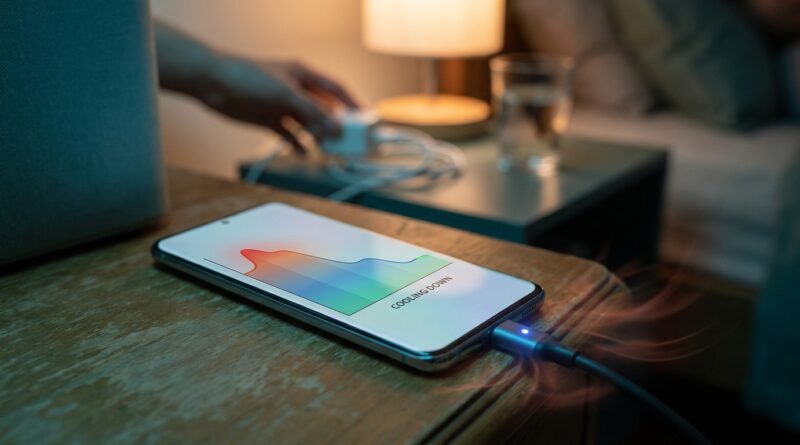
Then do nothing with the phone for 30 to 60 minutes. Screen off. No videos. No scrolling. No wireless charging pad. No car charger. Just a calm, wired charge on a hard surface.
This is the heart of the cooldown routine. You are giving Android a low-stress charging session so it can finish background optimization without constant extra heat.
Step 8. Watch the first 48 hours, not the first 10 minutes
This is important. Right after an update, phones can run warm for a day or two. That can be normal. What you want to see is a trend in the right direction.
If charging temperature improves by the next evening, and battery drain eases off, the phone was likely just working through post-update housekeeping.
What not to do
A lot of people make the problem worse with well-meant fixes.
- Do not keep unplugging and replugging every few minutes.
- Do not run heavy benchmark or cleaning apps while charging.
- Do not stack a hot phone on top of another device.
- Do not assume a stronger charger always means cooler charging.
- Do not keep using wireless charging if it is clearly adding heat.
Wireless charging is convenient, but it naturally creates more heat than wired charging. If your phone started overheating after an update, wireless may be pushing it over the edge.
When the charger is actually the problem
Most of the time, the update and background activity are the real cause. Still, accessories can play a role.
Signs of a charger or cable issue
- The cable feels loose in the port
- Charging cuts in and out
- The adapter gets hotter than the phone
- The problem happens on one charger only
- You are using an old, damaged or very cheap cable
If you have another trusted charger, test with that after the phone has cooled down. But do not buy three new chargers in a panic before doing the routine above.
How to test if an app or system process is stuck
Try Safe Mode
If your Android phone overheating while charging after update problem keeps happening, Safe Mode is a smart next step. Safe Mode starts the phone with only core system apps.
If the phone charges much cooler in Safe Mode, one of your installed apps is likely the culprit. If it still overheats badly, the issue is more likely system-level, hardware-related or tied to the update itself.
The exact Safe Mode steps vary by brand, but on many Android phones you press and hold the power menu, then touch and hold Power off until Safe Mode appears.
Settings worth checking on Samsung, Pixel and other Android phones
Battery protection features
Battery protection settings are helpful, but after an update it is worth checking that nothing changed. Look for:
- Adaptive Battery
- Battery Protection or charge limit settings
- Fast charging and fast wireless charging toggles
- Background app limits
If your phone is learning new battery patterns, it can behave oddly for a short time. That is another reason one calm charge cycle matters.
Thermal warnings in Device Care or Battery menus
Samsung users should peek at Device Care. Pixel users should review battery usage and app activity. If one app is burning through power while the phone sits still, you have your suspect.
When to worry for real
Warm is one thing. Dangerous is another.
Stop charging and get help if:
- The phone shows a temperature warning repeatedly
- It becomes too hot to comfortably hold
- The battery is swelling or the back panel is lifting
- You smell something chemical or see discoloration
- The phone overheats even when not charging
- The issue continues more than 48 hours after the update and after Safe Mode testing
That is the line where you stop troubleshooting at home and start thinking repair, warranty support or a battery inspection.
Why this routine works better than random fixes
The trick is that it treats the phone like a system, not just a charger problem. Heat while charging can come from charging speed, a case trapping warmth, stuck apps, weak signal hunting, cloud sync, indexing, or all of them at once.
This routine strips those factors away in a calm order. You cool the phone down. Reduce heat sources. Update apps. Check battery usage. Then give the device one simple charge session to stabilize itself.
That often does more good than buying a new cable every time the phone gets warm.
At a Glance: Comparison
| Feature/Aspect | Details | Verdict |
|---|---|---|
| Post-update heat | Often caused by background optimization, app updates, syncing and indexing during the first 24 to 48 hours | Usually normal if it improves quickly |
| Cooldown routine | Case off, cool surface, restart, disable fast or wireless charging, review battery usage, update apps, then do one clean wired charge | Best first fix before spending money |
| Red-flag overheating | Temperature warnings, swelling, chemical smell, severe heat, or no improvement after 48 hours and Safe Mode | Needs professional help |
Conclusion
If your Android phone suddenly started cooking itself while charging after an update, do not jump straight to worst-case thinking. Galaxy S24, S25, Pixel and other Android owners have been flooding forums with the same complaint lately, and in many cases the phone is not broken at all. It is just stuck in that messy post-update period where charging, syncing and background cleanup all collide. A calm, testable cooldown routine can often get things back under control in one evening, or at least tell you whether the problem is an app, a setting, an accessory or true hardware trouble. That saves money, saves stress and teaches you what to expect during the first 48 hours after the next big patch. In other words, you get your nightstand phone back instead of a tiny pocket furnace.