Facebook & Instagram Suddenly Not Loading Right Now? The One Outage ‘Safety Check’ That Usually Tells You If It’s You Or Them In 30 Seconds
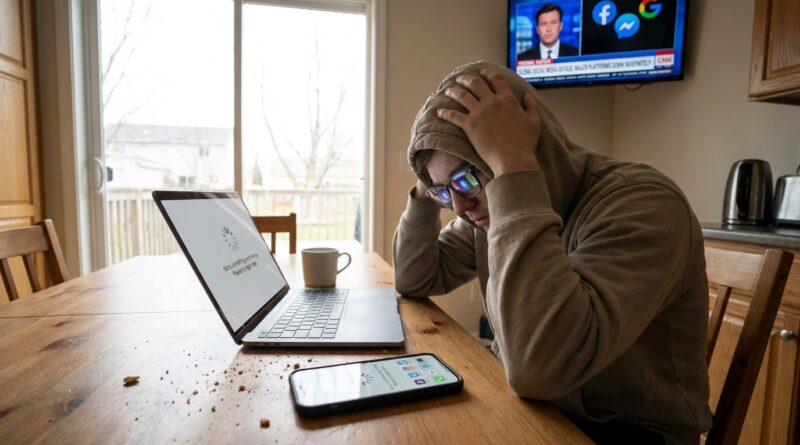
It is maddening. Facebook stops loading. Instagram shows a blank feed. Stories will not open, messages hang, and suddenly you are restarting your phone like it personally betrayed you. Most people do the same thing. They check Wi-Fi, reset passwords, delete apps, and poke through settings. The problem is, sometimes none of that is the issue. Sometimes Meta is simply having a bad day.
The fastest “safety check” is this. Open a service like Downdetector and search Facebook or Instagram. Then check if people on another network, or in another app, are reporting the same thing at the same time. If thousands of reports spike all at once, it is usually not your phone. It is them. That 30-second check can save you from making panicked changes you did not need to make. And once you know what you are dealing with, the next steps get much easier.
⚡ In a Hurry? Key Takeaways
- If Facebook and Instagram both fail at once, a widespread Meta outage is often more likely than a broken phone.
- Your fastest check is to look for a sudden spike in outage reports on a tracker like Downdetector before changing settings or deleting apps.
- Do not reset passwords, factory reset your phone, or remove security settings in a panic unless you have confirmed the problem is only on your device.
The 30-second check that usually tells you the answer
If you are wondering, “Is this a facebook instagram not working today outage or my phone?” do this first.
Step 1: Check an outage tracker
Open Downdetector or a similar outage-report site and search for Facebook and Instagram. You are looking for one thing. A sudden mountain-shaped spike in reports.
If the graph shoots up and comments are pouring in from other users saying “feed not loading,” “can’t log in,” or “messages broken,” that is a strong sign the issue is on Meta’s side.
Step 2: Check one more source
Do not stop at one website. Search social media, Reddit, or a quick news search for reports of Meta problems today. If people in different cities, on different phones, and with different internet providers are all seeing the same thing, that points away from your device.
Step 3: Test something outside Meta
Open YouTube, a news site, or any other app that needs the internet. If those work fine but Facebook and Instagram do not, your Wi-Fi probably is not the problem.
Why this matters before you start “fixing” things
When apps fail, people tend to assume they caused it. That leads to bad troubleshooting.
I have seen people:
- delete and reinstall apps for no reason
- reset account passwords during an outage
- log out of every device, then get locked out
- change network settings that were working perfectly well
- blame their phone and start shopping for a new one
If Meta is having login or feed problems, none of those moves will solve the root issue. Worse, they can create new problems after the outage is over.
Signs it is probably a Meta outage, not your phone
Here are the clues that usually point to “them, not you.”
Both Facebook and Instagram break at the same time
That is a big hint. Since both are under Meta, a shared backend issue can hit more than one app at once.
You can open the app, but content will not load
Blank feeds, endless spinning circles, failing comments, or stories that refuse to play often show up during service-side outages.
Login errors appear out of nowhere
If you know your password is right, but the app suddenly says it cannot log you in, that can be an outage symptom too.
Other apps work normally
If web pages, YouTube, email, and other apps all load fine, your internet connection is probably okay.
Lots of people are reporting the exact same issue
This is the biggest giveaway. Outages create patterns. Device problems usually do not.
Signs it might actually be your phone, Wi-Fi, or account
Not every Facebook or Instagram problem is a global outage. Sometimes it really is local.
Only one Meta app is failing
If Instagram is broken but Facebook works normally, the issue could still be service-side, but it could also be app-specific on your device.
Nothing else online is loading either
If Safari, Chrome, YouTube, and your banking app are all struggling too, check your Wi-Fi or mobile data first.
The app works on one device but not another
If Instagram loads on your tablet but not your phone, that leans more toward a device or app issue.
You are getting account-specific warnings
Password reset prompts, suspicious login alerts, or security challenges that only affect your account may mean a login or account problem rather than a public outage.
What to do if the outage check says “it’s them”
This is the easiest path, even if it is annoying.
Do as little as possible
Seriously. Wait. If there is a widespread outage, the safest move is not to keep tearing apart your settings.
Try the web version once
Open Facebook or Instagram in a browser. Sometimes the app is glitchy while the website partly works. Sometimes both are broken. Either way, it gives you another clue.
Keep an eye on official updates
Meta sometimes posts status updates through official channels, though not always quickly. News reports and large outage trackers often move faster in the first hour.
Give it time
Most big platform outages get worked on fast because millions of people are affected. That does not make it less frustrating, but it does mean the fix usually is not in your hands.
What to do if the outage check says “it might be your phone”
If there is no big spike in reports and the issue looks local, use this simple checklist.
1. Force close the app and reopen it
Not glamorous. Often effective.
2. Switch networks
Try Wi-Fi if you are on mobile data, or mobile data if you are on Wi-Fi. This quickly rules out one flaky connection.
3. Restart your phone
Yes, the old advice still works more often than people think.
4. Update the app
Go to the App Store or Google Play and check for updates. A buggy old version can act strangely.
5. Check if the service works in a browser
If the website works but the app does not, reinstalling the app may help. But only after the earlier steps.
6. Only then consider reinstalling
Reinstalling should be near the end, not the beginning. Make sure you know your login details before you remove anything.
The mistakes to avoid during a Meta outage
This is where people accidentally turn a temporary outage into an all-evening project.
Do not change your password just because login fails once
If the servers are struggling, password attempts may fail even when your password is correct.
Do not factory reset your phone
This should never be an early troubleshooting step for a social app issue.
Do not assume your account was hacked
Maybe. But during a known outage, broken logins are often just broken logins.
Do not keep tapping buttons over and over
Repeated retries can sometimes make account recovery more confusing later.
A calm rule of thumb for any big app outage
Use this simple order every time.
- Check outage reports.
- Test another website or app.
- See if others are complaining about the same thing.
- Only then start local troubleshooting.
That order saves time. It also saves you from fixing things that were never broken.
At a Glance: Comparison
| Feature/Aspect | Details | Verdict |
|---|---|---|
| Outage safety check | Look for a sudden spike on an outage tracker and matching complaints from other users. | Best first move. Takes about 30 seconds. |
| Local device troubleshooting | Restart app, switch networks, reboot phone, update app, then reinstall if needed. | Useful only after you rule out a widespread outage. |
| Panic actions | Password resets, deleting apps immediately, changing settings at random, factory resets. | Usually a bad idea unless you know the problem is yours alone. |
Conclusion
If Facebook and Instagram suddenly stop working, the smartest first step is not a reboot frenzy. It is a quick outage check. Meta’s services have had yet another wave of login and feed issues today, and that means millions of people are stressing over phones, Wi-Fi, and passwords they did not actually break. Knowing how to separate “my device is broken” from “the service is on fire” saves time, prevents bad changes made in a panic, and gives you a calm checklist you can reuse whenever any big platform starts acting up. Sometimes the best fix is simply confirming it is not your fault, then waiting it out.