Android Apps Suddenly Keep Crashing Today? The One Hidden WebView Update That Usually Stops It In Seconds
If a bunch of Android apps suddenly started crashing today, you are not imagining it, and your phone probably is not dying. It is especially annoying when completely different apps all start acting up at once. One closes the second you tap it. Another freezes on the logo. A third just spins forever. That usually points to a shared Android system component going wrong, not every app breaking on its own. In many of these cases, the hidden troublemaker is Android System WebView, or sometimes Google Play Services, especially right after a recent Play Store or system update. The good news is that this is often a quick fix. You usually do not need a factory reset, and you definitely should not rush out to replace the phone. A quick check for a stuck WebView update, a forced update, or clearing the right app data can often stop the crashes in a couple of minutes.
⚡ In a Hurry? Key Takeaways
- If many unrelated Android apps started crashing after an update, Android System WebView or Google Play Services is often the real cause.
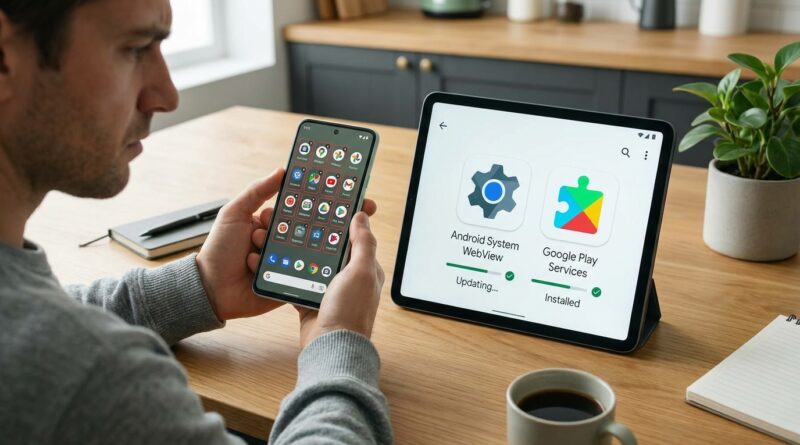
- Open the Play Store and manually update Android System WebView, Google Chrome, and Google Play Services, then restart the phone.
- This fix is safe and usually avoids drastic steps like factory resetting your phone or deleting everything.
Why so many apps can break at the same time
When one app crashes, it is usually that app. When five or ten unrelated apps start crashing together, that is different.
Many Android apps rely on shared system parts to show web content, sign you in, load account data, process links, or connect with Google features. Two of the biggest ones are Android System WebView and Google Play Services. If either one gets stuck during an update, partially installs, or ends up with corrupted data, regular apps can suddenly fall apart.
That is why the usual advice of clearing every app cache one by one often wastes your time. The real problem may be underneath all of them.
The most common fix: update Android System WebView
If you are searching for an android apps keep crashing after update fix webview, this is the first place to look.
Step 1: Open the Google Play Store
Tap your profile picture in the top right, then tap Manage apps & device. After that, tap Updates available if you see it.
Step 2: Look for these three items
Check whether any of these are waiting for an update:
- Android System WebView
- Google Chrome
- Google Play Services
On some phones, WebView and Chrome work closely together. If WebView is broken and Chrome is outdated, updating only one of them may not be enough. Update all three if possible.
Step 3: Install the updates manually
Tap Update beside each one. If you do not see them in the updates list, search for each app directly in the Play Store and check if the button says Update.
Step 4: Restart your phone
Yes, the boring step matters here. After the updates finish, restart the phone so Android reloads those system components cleanly.
If WebView says it is already updated
Sometimes the Play Store says everything is current even when something is clearly wrong. That can happen if an update installed badly or the app data got scrambled.
Try uninstalling WebView updates
Go to Settings > Apps. Tap the menu that shows system apps if needed. Find Android System WebView.
Then do this:
- Tap Uninstall updates if that option appears
- Go back to the Play Store
- Search for Android System WebView
- Tap Update again
This sounds a little scary, but it is usually safe. You are not removing the whole system component forever. You are rolling it back briefly, then installing a fresh copy.
Do the same for Chrome if needed
If WebView is tied closely to Chrome on your phone, you can also try uninstalling Chrome updates, then updating Chrome again from the Play Store.
Check Google Play Services too
WebView gets most of the attention, but Google Play Services can cause similar chaos. If apps are crashing at launch, hanging during sign-in, or getting stuck after showing a Google account screen, this is worth checking.
How to refresh Google Play Services
Go to Settings > Apps > Google Play Services. Then:
- Tap Storage & cache
- Tap Clear cache
- If problems continue, tap Manage space or Clear storage, depending on your phone
Then head back to the Play Store and make sure Google Play Services is fully updated. Some phones hide the Play Services listing, so you may need to search the web for the direct Play Store page if it does not appear normally.
How to “uncorrupt” only the apps that are still broken
If the shared system piece was the main problem, most apps should recover after the WebView or Play Services fix. But a few apps may still have leftover bad data from all the failed launches.
That is when you want to reset just the affected apps, not the whole phone.
Do this for each app still crashing
Go to Settings > Apps > [App Name] > Storage & cache.
- Tap Clear cache first
- If that does not help, tap Clear storage or Clear data
Be aware that clearing storage may sign you out of that app or reset its preferences. It usually will not erase your account itself, but you may need to log back in.
If you want a broader step-by-step guide for that process, this Advice For Tech walkthrough is useful: How To Fix Apps That Keep Crashing Or Freezing On Your Phone Without Wiping It Clean.
What if the Play Store itself seems stuck
This happens more often than people think. The fix may be waiting in the Play Store, but the Play Store is having its own little meltdown.
Refresh the Play Store app
Go to Settings > Apps > Google Play Store > Storage & cache.
- Tap Clear cache
- Tap Clear storage if needed
Then reopen the Play Store, let it settle for a minute, and search again for WebView, Chrome, and Google Play Services.
Signs this is a WebView problem and not a dying phone
Here are the clues I look for:
- Several unrelated apps crash on the same day
- The trouble started right after a Play Store or Android update
- The phone itself still turns on and works normally in menus
- Web-heavy apps fail more often than simple offline apps
- Reinstalling one app helps briefly, then the problem returns
That pattern usually points to a shared software issue, not failing hardware.
When to try Safe Mode
If the updates above do not help, booting into Safe Mode can tell you whether a third-party app is colliding with the system. In Safe Mode, downloaded apps are temporarily disabled.
If your built-in apps stop crashing in Safe Mode, one of your installed apps may be causing the mess. Security apps, cleaners, ad blockers, and battery savers are common suspects.
If apps still crash even in Safe Mode, that leans more toward a system component problem or a buggy update from the phone maker.
What not to do yet
- Do not factory reset your phone as a first step
- Do not install random APK files from sketchy websites
- Do not assume the battery or storage chip is failing just because apps are crashing
- Do not keep reinstalling every app one by one before checking WebView and Play Services
Those are all bigger, riskier moves. This problem is often much smaller than it looks.
At a Glance: Comparison
| Feature/Aspect | Details | Verdict |
|---|---|---|
| Android System WebView check | Manually update, or uninstall updates and reinstall from the Play Store if apps started crashing after a recent update. | Best first fix in mass app-crash situations. |
| Google Play Services refresh | Clear cache or storage, then make sure Play Services is updated if sign-in or Google-linked apps are failing. | Very worthwhile if WebView looks normal. |
| Clearing data for only broken apps | Resets leftover corrupted app files without wiping the entire phone. | Good cleanup step after fixing the root cause. |
Conclusion
If your Android phone suddenly turned into a crash machine today, take a breath before doing anything drastic. There has been a fresh wave of users in the last day reporting that multiple unrelated Android apps started crashing or refusing to open right after recent system or Play Store updates, and a lot of the usual advice still boils down to “clear cache and hope for the best.” The better move is to check the shared pieces first, especially Android System WebView, Chrome, and Google Play Services. Then, if needed, clean up only the apps that are still acting broken. That approach is faster, safer, and a lot less painful than wiping your phone or replacing it over what is often a two-minute maintenance fix. In other words, your phone is probably not done for. It just needs the right update nudged back into place.