Why Your Phone’s Battery Suddenly Dies By Midday (And The Hidden Setting That’s Probably To Blame)
Your phone was fine yesterday, and now it is limping toward 10 percent before lunch. That is maddening, especially when you have not changed how you use it. You are not suddenly streaming more video, playing heavier games, or spending hours on GPS. Yet after a recent app or system update, the battery graph looks like it fell off a table. The good news is this usually does not mean your battery is ruined. More often, one app is misbehaving in the background, a new setting got switched on, or the phone is re-indexing and syncing far more than it should. Before you factory reset, buy a new charger, or start shopping for a replacement, there are a few simple places to look. One hidden culprit shows up again and again. Background activity and notifications that keep waking your phone when it should be resting.
⚡ In a Hurry? Key Takeaways
- Sudden battery drain after an update is usually caused by a runaway app, aggressive background activity, or a setting that keeps waking the phone.
- Check your per-app battery usage first, then limit background refresh, notifications, location access, and battery-unrestricted apps.
- Do not rush to factory reset or replace your phone. In many cases, a few targeted changes fix it within minutes.
Why this keeps happening after updates
If you are searching for how to fix sudden phone battery drain after update, here is the plain-English version. Big updates often change how apps behave. Some apps have to re-sync photos, rebuild search indexes, reconnect to cloud services, or request permissions again. Most of that settles down in a day or two.
The problem starts when one app does not settle down. It keeps checking for updates, pinging servers, tracking location, or firing off notifications. That repeated activity creates what many people think of as a battery mystery. It is usually not a mystery at all. It is one process refusing to go to sleep.
If your phone also feels hot, that is another clue. Battery drain and heat often travel together. If that sounds familiar, this guide on How To Stop Your Phone From Overheating After The Latest Update (Without Babying It All Day) pairs nicely with the steps below.
The hidden setting that is probably to blame
On both iPhone and Android, the setting to watch is background activity. The exact name changes depending on the phone.
On iPhone
Look for Background App Refresh. Go to Settings > General > Background App Refresh. If a recently updated app is chewing through battery, turning this off for that app can make a huge difference.
On Android
Look for settings like Background usage, Allow background activity, Unrestricted battery, or Battery optimization. Usually you will find them under Settings > Battery or Settings > Apps > [App Name] > Battery.
The trap is simple. After an update, some apps end up allowed to run freely in the background, send frequent notifications, or ignore battery optimization. That is great for instant alerts. It is terrible for battery life.
First, check what is actually using your battery
Do this before changing a bunch of settings. You want evidence, not guessing.
On iPhone
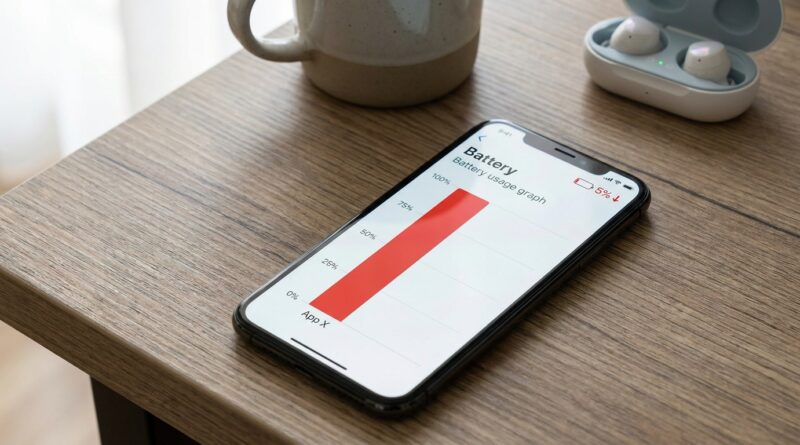
Go to Settings > Battery. Wait a few seconds for the graph and app list to load. Look for apps with unusually high percentages. Tap Show Activity if available. This helps you see whether the app was active on screen or grinding away in the background.
On Android
Go to Settings > Battery > Battery usage, or on some phones Settings > Device Care > Battery. Check which apps are at the top. Pay attention to apps with lots of background time, not just screen time.
If you see a weather app, social app, shopping app, mail app, or even a keyboard app sitting near the top, that is your lead. Those should not normally outrun your screen, camera, or maps unless something is off.
What to do if one app is the obvious problem
1. Force close it, then restart your phone
Yes, the old advice still works sometimes. A bad app process can get stuck after an update. Close the app completely, then restart the phone. This clears temporary junk without wiping anything important.
2. Update the app
App developers often rush out a fix once complaints start rolling in. Check the App Store or Play Store for an app update. If the battery drain started right after a system update, developers may already be patching compatibility issues.
3. Turn off background activity for that app
This is the big one. If the app does not need to run all day, do not let it. Social apps, shopping apps, food delivery apps, and casual games are common offenders.
4. Reduce notifications
Every notification can wake the phone, light the screen, vibrate, connect to data, and keep the app active. One chatty app can quietly drain battery all morning. Try turning off non-essential notifications for the worst offender.
5. Reinstall the app
If the app still behaves badly, delete it and install it again. Corrupted cache files or a messy update can cause runaway battery use. Reinstalling often resets that.
How to spot wake-locks without getting too technical
You may hear people talk about wake-locks. That sounds complicated, but the idea is simple. A wake-lock is when an app keeps the phone awake when it should be resting.
Signs of a wake-lock problem include:
- Your battery drops fast even when the phone is in your pocket
- The phone feels warm while idle
- Battery usage shows lots of background activity
- Drain continues even in low-use periods like overnight
On most phones, you do not need a special tool to act on this. If an app shows heavy background use and your phone never seems to sleep, limit its battery access, turn off background refresh, reduce location permissions, or uninstall it for a day and see if the drain stops.
Other settings worth checking right now
Location access
After updates, some apps ask for location again or switch to more aggressive tracking. Set location to While Using the App instead of Always where possible.
Mail fetch and sync
If your mail app is set to fetch constantly, it can hammer battery. On iPhone, check Settings > Mail > Accounts > Fetch New Data. On Android, check sync frequency in your mail app settings.
5G and weak signal areas
This one catches people out. If you are in a weak coverage area, your phone works harder to hold a signal. After an update, network behavior can change a bit. If battery drain is brutal in one building or neighborhood, try switching to LTE for a day and compare.
Always-on display and raise-to-wake
These are handy features, but they add up. If the update made your phone more eager to wake the screen, turning these off can buy you hours.
Auto-downloads and cloud sync
Photos, backups, music libraries, and file syncing can explode after updates. Open your cloud apps and see whether they are still processing old items in the background.
When to wait it out, and when not to
If the update landed today, give it a little time. Phones sometimes need 24 to 48 hours to finish housekeeping after a major system update. Indexing, app optimization, and photo analysis all use extra power at first.
But if the battery is still diving after a day or two, or one app is clearly dominating the battery page, do not wait forever. That is when you step in and start trimming background access.
What not to do
Do not start with a factory reset. It is a huge time sink and often does nothing if the real problem is one bad app update.
Do not buy a new charger hoping it will fix daytime battery drain. Charging speed and battery drain are different problems.
Do not assume your battery suddenly became old overnight. Batteries wear down gradually. A cliff-drop right after an update almost always points to software.
A simple fix order that works for most people
- Check battery usage by app
- Identify the top offender
- Update that app
- Restart your phone
- Turn off background activity for that app
- Cut back its notifications and location access
- Reinstall it if needed
- Only then consider broader steps like resetting settings
At a Glance: Comparison
| Feature/Aspect | Details | Verdict |
|---|---|---|
| Per-app battery stats | Shows which app is actually using the most power, and whether it is screen use or background use. | Start here first. It saves the most time. |
| Background activity settings | Controls whether apps can keep syncing, refreshing, or waking the phone behind the scenes. | Most likely fix for sudden post-update battery drain. |
| Factory reset | Wipes the phone and takes time to set everything back up, with no guarantee it solves an app bug. | Last resort only. |
Conclusion
If your phone battery suddenly started dying by midday after an update, you are not imagining it, and you probably do not need a new phone. Battery drain spikes always follow big app and OS updates, and the real fix is usually much smaller than people fear. Check per-app battery stats. Look for background activity, wake-lock behavior, and notification abuse. Then trim the apps that are acting like they own your battery. That focused approach can bring relief today, save you from hours of pointless troubleshooting, and put you back in control the next time an update quietly trashes battery life.