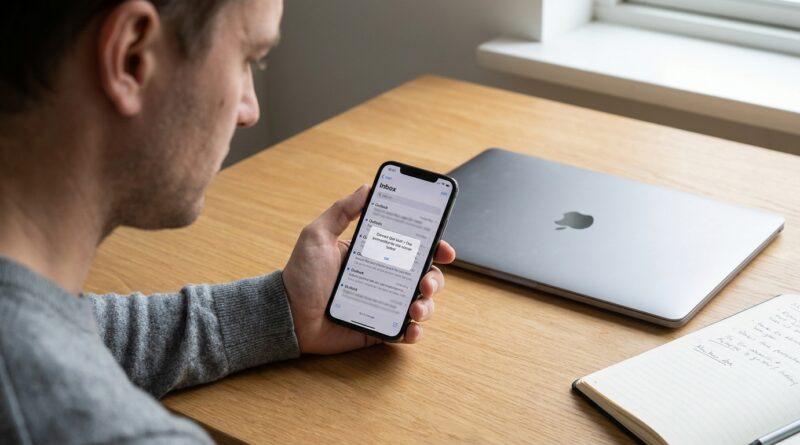
iPhone Mail Suddenly Says ‘Cannot Get Mail’ With Outlook Or Hotmail? Here’s The Fix Microsoft Forgot To Explain
Your iPhone says “Cannot Get Mail.” Outlook or Hotmail stops syncing. You try your password, and it still fails. That is maddening, especially when webmail works fine and you know the account itself is not dead. For a lot of people, this is not user error at all. It is usually a sign that the connection between Apple’s Mail app and Microsoft’s sign-in system has gone stale, broken, or been blocked by a behind-the-scenes authentication change. The good news is that your email is usually still safe on Microsoft’s servers. The fix is often simpler than the scary warning makes it sound. In most cases, the fastest solution is to remove the Microsoft account from the iPhone Mail app, restart the phone, and add the account back using the proper Outlook.com option so Apple and Microsoft can rebuild the secure login link from scratch.
⚡ In a Hurry? Key Takeaways
- The best way to fix Outlook or Hotmail “Cannot Get Mail” on iPhone Mail app is usually to delete the account from Mail and add it back using the Microsoft Outlook.com sign-in flow.
- Before removing anything, make sure your email is still visible at Outlook.com in a browser, then turn Mail sync back on after re-adding the account.
- This normally does not delete your actual email, because your messages live on Microsoft’s servers, not just on your iPhone.
What’s actually going wrong?
If you are searching for a fix outlook hotmail cannot get mail iphone mail app issue, here’s the plain-English version.
Your iPhone Mail app does not usually store and manage a Microsoft account all by itself. It relies on a secure sign-in token that Apple gets from Microsoft. If that token expires, gets corrupted, or no longer matches Microsoft’s current security rules, Mail can suddenly stop syncing even though your password is correct.
That is why people often see messages like “Cannot Get Mail,” “Account error,” or “Account not authenticated.” It feels random, but it usually comes down to the app needing a fresh approval from Microsoft.
First, do these quick checks
1. Make sure Microsoft’s email service is actually working
Open Safari and sign in at Outlook.com. If your inbox loads there, that is a good sign. Your account is alive, your password is probably correct, and the problem is likely the iPhone Mail connection.
2. Check whether you recently changed your password
If you changed your Microsoft password on another device, your iPhone may still be trying to use old credentials or an old security token.
3. Confirm Mail is enabled for that account
Go to Settings > Apps > Mail > Mail Accounts, or on some iPhones Settings > Mail > Accounts. Tap your Outlook or Hotmail account and make sure Mail is toggled on.
4. Restart the iPhone
Yes, it is basic. Yes, it still helps sometimes. A restart can clear a stuck sync process or frozen account check.
The fix that works most often
If webmail works but the Apple Mail app does not, the cleanest fix is to remove the account from the iPhone and add it back.
Important: removing the account from your iPhone usually does not delete the actual mailbox from Microsoft’s servers. Your email, folders, and contacts should still exist online. Still, if you keep notes or contacts synced only through that account, double-check what is stored where before you remove it.
How to remove the Outlook or Hotmail account from iPhone Mail
- Open Settings.
- Tap Apps, then Mail. On some versions of iOS, tap Mail directly.
- Tap Mail Accounts or Accounts.
- Select your Outlook, Hotmail, or Microsoft account.
- Tap Delete Account.
Now restart your iPhone
This step matters more than people think. Restarting helps clear out old account sessions and gives you a cleaner re-add process.
Add the account back the right way
- Go back to Settings > Mail > Accounts or Settings > Apps > Mail > Mail Accounts.
- Tap Add Account.
- Choose Outlook.com or Microsoft Exchange, depending on what your account is using.
- Sign in through Microsoft’s official login page when it appears.
- Approve any two-factor authentication prompts.
- Make sure Mail is switched on before saving.
If you use a personal address like Outlook.com, Hotmail.com, or Live.com, start with Outlook.com. If it is a work or school Microsoft 365 account, Microsoft Exchange may be the better choice.
If adding the account back still fails
Try Microsoft Exchange instead of Outlook.com
Sometimes one sign-in path behaves better than the other, especially with work accounts or older setups. If Outlook.com does not work, remove the account again and try adding it as Microsoft Exchange.
Check for two-step verification issues
If your Microsoft account has two-factor authentication turned on, the sign-in must complete through Microsoft’s current approval screen. If the iPhone Mail setup never reaches that screen, or loops back to the password box, the saved auth session may still be broken.
In that case, remove the account again, restart, and retry on a strong Wi-Fi connection.
Make sure iOS is up to date
Go to Settings > General > Software Update. If your iPhone is running an older iOS version, Mail may not be handling Microsoft’s latest authentication methods very gracefully.
Turn Mail sync off and back on
If the account appears to be there but still is not updating:
- Go to the account settings.
- Toggle Mail off.
- Wait a few seconds.
- Toggle Mail back on.
Try the Outlook app as a temporary workaround
If you need access right now and Apple Mail is still fighting you, download Microsoft Outlook from the App Store and sign in there. It is not everybody’s favorite solution, but it can get your inbox moving again while you sort out the built-in Mail app.
What not to do
Do not keep hammering the password box
If webmail works, the password may not be the real problem. Re-entering it ten times usually does not fix a broken token.
Do not manually guess server settings unless you have to
For Outlook.com and Hotmail accounts, manual mail server tinkering is usually not the best route on iPhone. Let Apple and Microsoft use the official sign-in process first.
Do not panic about losing all your email
This is the big fear, and it is understandable. But in most cases, removing the account from the phone only removes the synced copy on that device. Your real mailbox stays on Microsoft’s servers.
Why this keeps catching people off guard
What makes this problem so annoying is that nothing obvious changed on your end. You did not drop the phone in the sink. You did not forget your password. Email just stopped.
That is why so many people end up bouncing between Apple support pages, Microsoft forums, and random message boards looking for one clear answer. The hidden culprit is often an authentication handoff that stopped playing nicely. Once you rebuild that connection, Mail usually comes back to life.
At a Glance: Comparison
| Feature/Aspect | Details | Verdict |
|---|---|---|
| Fastest reliable fix | Delete the Outlook or Hotmail account from iPhone Mail, restart the iPhone, then add it back using Outlook.com or Exchange. | Best first move |
| Risk to your email | Messages usually stay safe on Microsoft’s servers as long as the mailbox still works on the web. | Low risk for most users |
| Fallback option | Use the Microsoft Outlook app if Apple Mail still refuses to authenticate. | Good temporary workaround |
Conclusion
If your Outlook or Hotmail account suddenly stops working in Apple Mail, you are not imagining it, and you are definitely not the only one. A big chunk of iPhone and iPad users rely on the built-in Mail app, so when a quiet authentication change breaks that link, it can feel like your whole routine just slammed into a wall. The good news is that this usually is fixable without losing your messages. In most cases, checking webmail, removing the account, restarting the device, and adding the account back through the proper Microsoft sign-in flow gets things working again. That is the clearest path through a problem that Apple and Microsoft often explain badly, if they explain it at all.