
Google Photos Suddenly Saying ‘Storage Full’ Even When It’s Not? The One Hidden Sync Reset That Usually Frees Space In Minutes
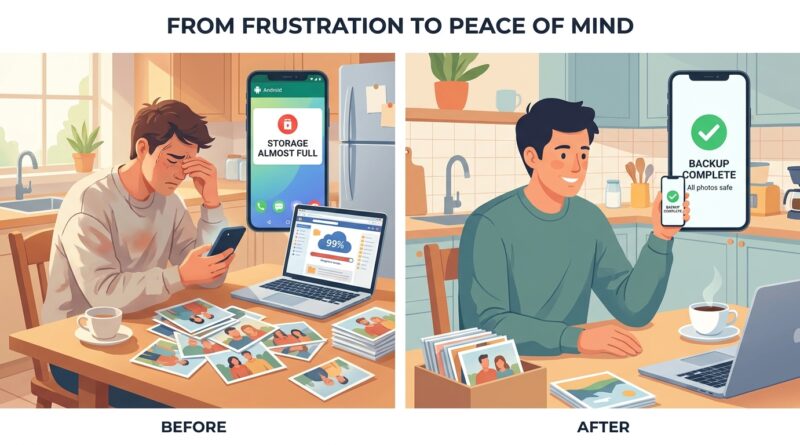
You open Google Photos, tap backup, and get that maddening message saying your storage is full. Meanwhile, you know it is not. Maybe you just paid for more Google One space. Maybe Drive looks mostly empty. Either way, Photos acts like you have hit a wall, the backup icon spins forever, and new pictures stay trapped on your phone. It is frustrating because this feels less like a storage problem and more like Google forgot to update its own math. The good news is that, in many cases, that is exactly what happened. A hidden sync reset usually forces Google Photos to refresh your account status and start behaving normally again. Better still, it is safe, it does not delete your photos, and it often works within minutes. Before you start deleting memories you want to keep, try this reset first.
⚡ In a Hurry? Key Takeaways
- The fastest fix for “google photos storage full but not” is usually signing out of the Google Photos app account, force-closing the app, then signing back in so storage status refreshes.
- Also check Google One storage, the correct Google account, and whether Photos is stuck waiting on Wi-Fi, battery saver, or app cache issues.
- This reset is generally safe because it refreshes syncing status, not your photo library itself, so you usually do not need to delete anything first.
Why Google Photos says storage is full when it really is not
This issue usually comes down to one of three things.
First, Google Photos may still be showing old storage info. You upgraded your plan, freed up space, or switched accounts, but the app has not caught up yet.
Second, the app may be connected to a different Google account than the one with the paid storage. That happens more often than people think, especially on phones with work and personal accounts signed in together.
Third, backup can get stuck in a half-synced state. The app keeps checking storage, never gets a clean answer, and just spins.
That is why this problem feels so weird. It is not always about actual storage. It is often about a stale account view.
The one hidden sync reset that usually frees things up
This is the fix I would try before anything else.
Step 1: Confirm which Google account Photos is using
Open Google Photos. Tap your profile picture in the top right. Look at the email address shown there.
Make sure it matches the Google account that has your extra storage plan. If it does not, switch to the correct account first.
Step 2: Check your real storage status outside the app
Go to one.google.com/storage or open the Google One app.
If you have plenty of space there, that tells you the problem is likely the Photos app not updating properly.
Step 3: Turn backup off temporarily
In Google Photos, tap your profile picture, then Photos settings, then Backup. Toggle Backup off.
Wait about 15 to 30 seconds.
Step 4: Sign out of the Google Photos app view
Tap your profile picture again and choose to use Photos without an account, if your phone shows that option. On some devices, you may instead switch to another account and then back again.
The goal is simple. Break the stuck sync state.
Step 5: Force close the app
On Android, open Recent Apps and swipe Google Photos away. You can also go to Settings, Apps, Photos, then Force Stop.
On iPhone, swipe up from the app switcher and close Photos completely.
Step 6: Reopen Photos and sign back into the correct account
Open the app again. Sign back into the Google account that has your storage plan. Then turn Backup back on.
In many cases, this is the moment the storage meter refreshes and backup starts moving again.
Why this works
Google Photos keeps a local view of your account status so it does not have to re-check everything every second. Usually that is helpful. Sometimes it is the problem.
If the app has cached old storage info, or if the account token got stuck mid-sync, turning backup off, breaking the account session, and reopening the app forces Photos to ask Google for fresh storage data.
Think of it like refreshing a web page that is showing an old number. You are not changing the actual storage. You are making the app look again.
If the reset does not work, try these next
1. Restart your phone
Yes, the boring advice still matters. A full restart clears temporary app and network weirdness.
2. Check if backup is waiting on conditions
Google Photos may pause backup if:
- You are on mobile data and backup is set to Wi-Fi only
- Battery Saver or Low Power Mode is on
- The phone is too hot
- The app is restricted from running in the background
Open Photos, tap your profile picture, and look for any status note under backup.
3. Clear the app cache on Android
Go to Settings, Apps, Photos, Storage, then tap Clear Cache.
Do not tap Clear Data unless you are comfortable signing in again and waiting for app settings to reload. Cache is the safer first move.
4. Update Google Photos
An outdated app can keep old bugs around. Check the Play Store or App Store for updates.
5. Make sure Google Drive is not misleading you
Google storage is shared across Google Photos, Drive, and Gmail. So your Drive may look empty, but Gmail attachments or trash can still count.
Check the storage breakdown in Google One to see what is really using space.
6. Empty trash if needed
Deleted items in Photos, Drive, and Gmail can still take space until trash is emptied or expires.
If you are close to the limit, this can make a real difference.
What not to do yet
Do not start mass-deleting photos the minute you see the warning.
If the issue is a stale sync status, deleting pictures will not fix the app bug. It just creates stress and can lead to accidental losses.
Also, do not assume buying even more storage will solve it. If Google Photos has not refreshed your current plan correctly, a bigger plan can still leave you staring at the same message.
When this is really a backup issue, not a storage issue
Sometimes the storage warning is just the symptom. The bigger problem is that your library is stuck and new pictures are not being scanned properly. If that sounds familiar, this guide on Google Photos Suddenly Not Backing Up New Pictures Today? The One ‘Stuck Library’ Refresh That Usually Gets Everything Uploading Again is worth a look. It helps when the app sees your photos but refuses to move them into the cloud.
How to tell the fix worked
You will usually notice one or more of these signs:
- The storage bar updates to show your real available space
- The “storage full” warning disappears
- Backup status changes from stuck or spinning to uploading
- New photos start showing the backed up status
If you just upgraded storage, give it a few minutes after the reset. It often catches up pretty quickly once the app is forced to re-check.
When to contact Google support
If all of this fails, and Google One clearly shows free space, it may be time to contact Google support through the Google One app.
That is especially true if:
- You were charged for a storage upgrade that still is not reflected after several hours
- Your account shows different storage totals on different devices
- Photos works on the web but not on your phone app
Take screenshots of the Google One storage page and the Google Photos warning before reaching out. That saves time.
At a Glance: Comparison
| Feature/Aspect | Details | Verdict |
|---|---|---|
| Hidden sync reset | Turn backup off, break the account session, force close Photos, then sign back in and enable backup again. | Best first fix. Fast and usually safe. |
| Checking real storage | Use Google One or one.google.com/storage to confirm whether you actually have free space. | Important reality check before deleting anything. |
| Deleting photos right away | Removes memories but may not fix a stale storage reading or stuck backup state. | Usually a bad first move. |
Conclusion
If Google Photos is suddenly insisting your storage is full when it clearly is not, you are not imagining things, and you are definitely not the only one. This problem is showing up more often as people move to bigger camera files and paid cloud plans, only to get blocked by confusing storage warnings that make them feel cheated out of space they already have. The good news is that the fix is often simple. A safe sync reset can force the app to refresh its account view and get backup moving again without making you purge your photo library in a panic. That kind of quick, repeatable fix matters because it gives you immediate relief and, just as important, confidence that your pictures are actually protected where they belong.