Google Photos Suddenly Not Backing Up New Pictures Today? The One ‘Stuck Library’ Refresh That Usually Gets Everything Uploading Again
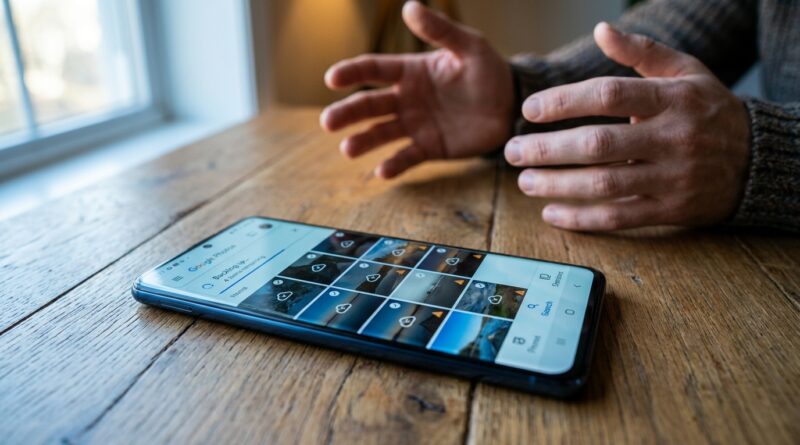
You take a few photos, open Google Photos, and expect that little “Backed up” note to appear. Instead, nothing. Or worse, some pictures upload while others just sit there like they do not exist. It is maddening, especially if Google Photos is your only copy of family pictures, trip shots, receipts, or work images. The good news is that this problem is often not a total backup failure. It is usually a stuck library scan. In plain English, Google Photos can see your account just fine, but it has stopped properly re-checking your phone’s photo folders for new items. The fix that helps most people is not deleting your cloud library. It is forcing Google Photos to refresh what is on the device, then checking which folders are actually included in backup. That usually gets those missing photos noticed and uploaded again without touching what is already safely stored online.
⚡ In a Hurry? Key Takeaways
- The most common fix for google photos not backing up all photos today is to trigger a fresh device-library rescan by checking backup settings, reviewing device folders, and refreshing app access to your photos.
- Open Google Photos, go to your profile photo, Photos settings, Backup, then Device folders, and make sure the folders where your pictures actually land are turned on.
- This refresh does not delete photos already in the cloud, but always verify a few recent pictures at photos.google.com before cleaning anything off your phone.
Why this happens in the first place
Google Photos backup sounds simple, but a lot is going on in the background. The app has to see your Google account, have permission to access photos, scan local folders, decide which folders are included in backup, and then upload when your network and battery settings allow it.
If even one of those pieces gets stuck, you get the classic symptom. The app opens normally, older photos are there, but today’s pictures never get the “Backed up” label.
That is why restarting the phone sometimes does nothing. The real problem is often not the phone. It is that Google Photos has stopped properly refreshing your on-device library.
The one “stuck library” refresh that usually works
Step 1: Confirm backup is actually on
Open Google Photos. Tap your profile picture in the top right. Tap Photos settings, then Backup.
Make sure Backup is turned on for the correct Google account. This sounds obvious, but many people have more than one Google account signed in and the app may be backing up to the wrong one.
Step 2: Check the backup status message
Still in Google Photos, tap your profile picture again and look at the status line near the top. It may say things like:
- Waiting for Wi-Fi
- Getting ready to back up
- Backing up photos
- Backup complete
- Out of storage
If it says out of storage, the fix is different. You need to free Google account space or buy more storage. If it says getting ready to back up for a long time, that is the stuck-library clue.
Step 3: Review Device folders. This is the big one
Go to Photos settings, then Backup, then Back up device folders or Device folders, depending on your phone.
This is where a lot of “missing” photos are hiding in plain sight. Your camera shots may be going into one folder, but screenshots, WhatsApp images, edited pictures, downloads, or photos from another camera app may be landing somewhere else.
Turn on backup for every folder you actually care about.
Then do this simple trick. Turn one affected folder off, wait a few seconds, then turn it back on. This often forces Google Photos to rescan that folder and notice the files it skipped.
That is the stuck-library refresh most people need.
Step 4: Open the missing photos from inside the phone’s gallery
After re-enabling the folder, open a few missing pictures directly on your phone. Sometimes this nudges Android or iPhone to update file indexing and helps Google Photos see them as new items to process.
Then switch back to Google Photos and give it a minute on Wi-Fi.
Step 5: Check permissions
If the refresh did not help, make sure Google Photos still has full access to your images.
On Android: Go to Settings, Apps, Photos, Permissions, then confirm it can access photos and videos.
On iPhone: Go to Settings, Google Photos, Photos, then choose All Photos.
Limited access on iPhone is a very common reason recent pictures do not upload.
How to force a cleaner refresh without deleting your cloud library
If the folder toggle did not do it, try a slightly deeper reset that is still safe.
On Android
Go to Settings, Apps, Google Photos, Storage, then tap Clear cache.
Do not start with Clear data unless you are comfortable signing back in and waiting for the app to rebuild its local view. Clearing cache is the gentler step and often enough.
After that, reopen Google Photos, connect to Wi-Fi, and return to Backup and Device folders to confirm the right folders are still enabled.
On iPhone
There is no direct clear-cache button for most apps. Instead, close Google Photos completely, reopen it, and re-check Photos access in iPhone settings. If needed, remove and reinstall the app, but only after making sure you know which Google account it uses.
Reinstalling does not delete what is already in the cloud. It only removes the app from the phone.
Quick checks people often miss
Battery saver and background limits
If your phone is in battery saver mode, background uploads may be slowed or paused.
On Android, some brands are especially aggressive about putting apps to sleep. If Google Photos is restricted in battery settings, it may not finish scanning new files until you open the app manually.
Mobile data settings
Inside Google Photos backup settings, look for whether mobile data is allowed for photos or videos. If not, uploads may wait forever if you are rarely on stable Wi-Fi.
File type or file size issues
Very large videos, files still being edited, or images saved by certain third-party apps can take longer or fail quietly. Check whether the problem is happening with all photos or just one type of file.
Account storage is full
Google Photos backup stops when your Google account storage fills up. Check Google One storage if your status message suggests this.
How to tell which photos are still not backed up
This part matters. Do not trust the spinner alone.
Open a recent photo in Google Photos on your phone. Swipe up or tap the three-dot menu. Look for its backup status. If it is safe, you should see something like Backed up.
You can also go to photos.google.com in a browser and check whether your newest shots appear there. That browser check is the best reality test because it confirms the photo is in the cloud, not just visible on your phone.
If you are planning to clear space later, this is also a good time to read How to Stop iPhone and Android From Filling Up With Photos and Still Keep Everything Safe. The smartest tip in that guide is to verify backup with a random photo before you delete anything. That one habit saves a lot of regret.
If only some folders back up and others never do
This is usually a folder-selection problem, not a full Google Photos failure.
Common folders that people assume are included, but often are not, include:
- Screenshots
- Downloads
- WhatsApp Images
- Instagram saves
- Edited photos from third-party camera apps
- Scanner app folders
Go back to Back up device folders and check them one by one. If you do not see the folder at all, open that folder in your phone’s file manager or gallery first, then reopen Google Photos. Sometimes the folder needs to be “seen” by the system before Photos lists it.
When reinstalling helps, and when it does not
People often reinstall Google Photos first. Sometimes it helps. Often it just wastes time.
Reinstalling is most useful when the app itself is glitching, permissions are confused, or the local app database is out of sync. It does not fix a full Google storage problem, and it does not automatically turn on backup for the folders you forgot to include.
That is why the folder check comes first. It is faster, and it targets the real issue more often.
At a Glance: Comparison
| Feature/Aspect | Details | Verdict |
|---|---|---|
| Most common cause | Google Photos is signed in, but the app is stuck scanning your phone library or the right device folders are not enabled. | Check Backup and Device folders first. |
| Best quick fix | Open Photos settings, confirm backup, then toggle the affected device folder off and back on to trigger a fresh rescan. | Usually the fastest safe fix. |
| What is safe to try | Checking permissions, clearing cache on Android, reopening the app, and verifying cloud copies in a browser will not erase your online photos. | Good troubleshooting steps before deleting anything. |
Conclusion
If google photos not backing up all photos today has you nervous, you are not overreacting. This is exactly the kind of problem people notice only after something important is missing. Start with the simple stuff that actually matters. Confirm the right account, check the backup status message, and most of all, review and refresh your device folders so Google Photos does a clean rescan of the library on your phone. In many cases, that is enough to get everything moving again without touching the photos already in the cloud. Then do one last peace-of-mind check at photos.google.com and make sure your newest and most important shots are really there. A few minutes of checking now is much better than finding out later that the only copy of a family memory never uploaded at all.