
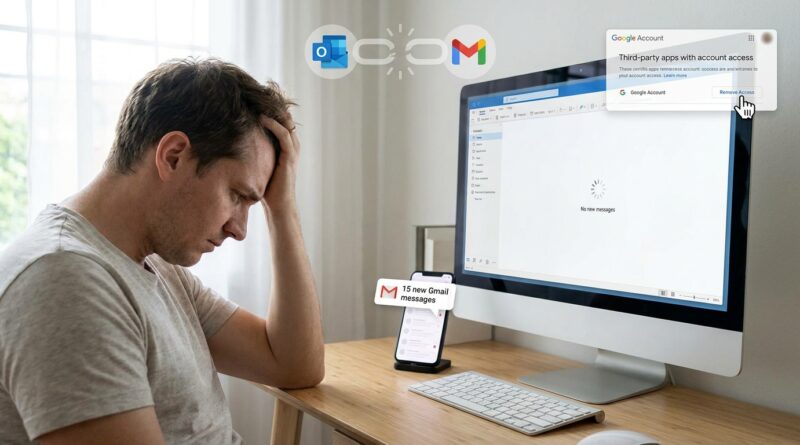
Microsoft Outlook Suddenly Stopped Syncing Your Gmail Today? The One Hidden Google Permission Reset That Usually Brings Every Email Back
You open Outlook, hit Send/Receive, and nothing happens. No obvious warning. No dramatic error. Just a strangely frozen Gmail inbox while your phone keeps happily pulling in new messages. It is maddening, especially when everything worked fine yesterday and you have done nothing wrong. If you are searching for why Outlook suddenly stopped syncing Gmail today, the most common fix is not reinstalling Outlook or deleting your account. It is usually a quiet Google permission problem.
Google sometimes resets, expires, or questions the connection that lets Outlook access your Gmail. Outlook may still show your old messages, which makes it look half alive, but new mail stops coming in. The good news is that a simple permission refresh inside your Google Account often brings everything back within minutes. It is low risk, easy to try, and much safer than tearing your whole mail setup apart before you need to.
⚡ In a Hurry? Key Takeaways
- The most common fix is removing Outlook’s access inside your Google Account, then signing back in so Google issues a fresh permission.
- Before deleting any mail profile, check Google Security, Outlook account status, and IMAP settings first.
- This is a low-risk reset that usually restores syncing without wiping old mail or rebuilding Outlook from scratch.
What usually happened
When Gmail works on your phone but not in Outlook on your PC, the issue is often not your internet, not your password, and not a broken mailbox.
It is usually the trust link between Google and Outlook. Outlook needs Google’s approval to read and sync your Gmail through IMAP and modern sign-in. If Google changes a security rule, spots an old token, or expires access after an update, Outlook can lose that approval quietly.
That is why this problem feels so weird. Outlook may open normally. Your old emails are still there. Folders still show up. But new mail stops arriving.
The one hidden Google permission reset that usually fixes it
The goal is simple. Remove Outlook’s current access from your Google Account, then let Outlook ask for permission again.
Step 1: Open your Google Account security settings
Go to your Google Account page and sign in with the Gmail account that is not syncing.
Then open Security.
Step 2: Find third-party access or connected apps
Look for a section called something like Your connections to third-party apps and services, Third-party apps with account access, or Apps with access to your account. Google changes the wording now and then, but it is the same idea.
You are looking for Microsoft Outlook, Microsoft Office, or a similar Microsoft app entry.
Step 3: Remove Outlook’s access
Click the Microsoft or Outlook entry and remove that access.
Do not panic. This does not delete your Gmail messages. It simply tells Google to stop trusting that old Outlook connection.
Step 4: Close Outlook and reopen it
Shut Outlook down fully. If you want to be extra safe, wait 10 to 15 seconds, then reopen it.
Step 5: Sign back in when Outlook prompts you
Outlook should ask you to sign in to your Gmail account again. Use the normal Google sign-in page, complete any two-step verification, and approve the access request.
Once that fresh permission is granted, Outlook usually starts syncing again within a minute or two.
If Outlook does not prompt you right away
Sometimes Outlook needs a little nudge.
Try this inside Outlook
Go to File, then Account Settings, then Account Settings again. Click your Gmail account and choose Repair if that option appears.
If you see a sign-in prompt, complete it. Then click Send/Receive.
Also restart your PC
Yes, it is the classic advice. But in this case it can help clear a stuck sign-in window or an old cached token.
Check this before you blame Outlook
If the permission reset does not fix it, run through these quick checks.
Make sure IMAP is still enabled in Gmail
Open Gmail in a browser. Click the gear icon, then See all settings, then Forwarding and POP/IMAP. Make sure Enable IMAP is turned on.
If IMAP is off, Outlook cannot sync mail properly.
Look for a Google security alert
Google may have flagged a recent sign-in or blocked access until you confirm it was really you. Check your Gmail inbox and Google Account notifications for any security warning.
Verify your app password situation if you use older Outlook setups
If your Google account uses 2-Step Verification and your Outlook version is older, you may have originally connected it with an app password instead of the newer Google sign-in screen. If that app password was revoked, syncing can stop.
In that case, you may need to create a new app password in your Google Account and update Outlook with it.
Why this fix is better than deleting the account first
A lot of people jump straight to the big scary fix. Remove the Gmail account from Outlook. Add it again. Rebuild everything. Sometimes that works, but it is overkill if the real problem is just a stale Google permission.
Starting with the permission reset is smarter because it is fast, low risk, and does not usually disturb your existing folders, local mail cache, or Outlook layout.
Think of it like reissuing a key, not replacing the whole front door.
What not to do
There are a few things I would avoid at first.
Do not immediately delete your Outlook profile
That can create more work than needed, especially if you have multiple mail accounts or carefully organized folders.
Do not keep hammering Send/Receive for half an hour
If Google access has been cut off, Outlook cannot brute-force its way back in.
Do not assume Gmail is down
If the Gmail app and webmail are working, your mailbox is fine. The problem is usually the Outlook connection.
When this trick works best
This fix is especially common after a password change, a Google security check, a Microsoft Office update, a new PC sign-in, or a long period where Outlook stayed signed in without needing fresh approval.
It is also common in home offices and small businesses where one Gmail account has been humming along in classic Outlook for years with no trouble, until one random morning it simply stops.
If it still will not sync
If the Google permission reset fails, move to these next steps in order:
1. Run Outlook’s built-in repair
Use File > Account Settings > Account Settings, select the Gmail account, then choose Repair if available.
2. Remove and re-add just the Gmail account
Only do this after trying the permission reset first. For many people, this is the second-best option, not the first.
3. Create a new Outlook profile
This is for stubborn cases where Outlook’s local profile is damaged. It is more work, so save it for later.
4. Update Outlook
Older Outlook builds can have a harder time with changing Google sign-in rules.
At a Glance: Comparison
| Feature/Aspect | Details | Verdict |
|---|---|---|
| Google permission reset | Remove Outlook access in Google Security, then sign in again from Outlook | Best first fix |
| Deleting and re-adding Gmail | Rebuilds the account connection but takes more time and can be disruptive | Use only if reset fails |
| Creating a new Outlook profile | Useful for damaged Outlook profiles, but it is the most involved option here | Last resort before deeper support |
Conclusion
If Outlook suddenly stopped syncing Gmail today, there is a very good chance Google quietly dropped or expired the permission Outlook was using. That is why this issue feels so random. The mailbox is still there. Gmail still works elsewhere. Only Outlook is left out in the cold. The good news is that a simple permission reset often fixes it in minutes. For the many home users and small offices still running Gmail through classic Outlook, this is the practical middle path. It avoids the nuclear option of deleting and re-adding everything, gets mail flowing again fast, and gives you a safe trick to remember the next time Google or Microsoft changes the rules behind the scenes.