Windows 11 Emoji Panel GIFs Just Stopped Working? The One Hidden ‘GIF Engine’ Shift That Usually Brings Them Back
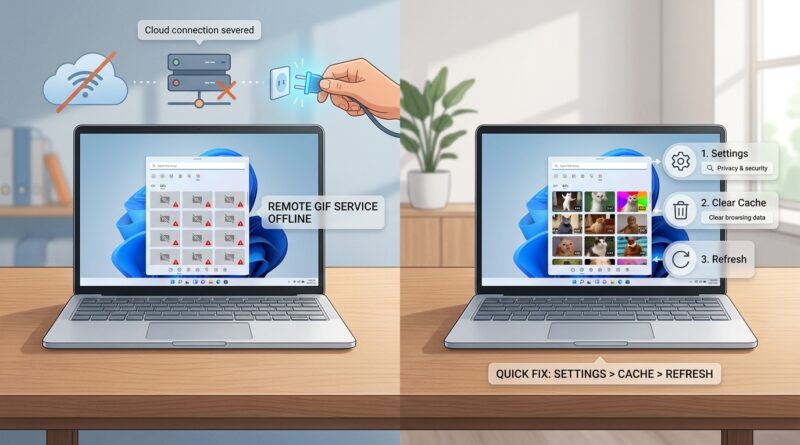
You press Windows plus period, click GIF, and every result is just a sad grey box. That is maddening, especially when you use quick reactions all day in Teams, Slack, or customer chats and suddenly the one lightweight tool you rely on looks broken. The annoying part is that this often does not come from a big Windows 11 failure at all. It is usually a quiet switch in the online GIF source that the emoji panel depends on. The panel itself still opens. Emojis still work. Kaomoji still work. Only GIFs die. That is the clue. If you are searching for “windows 11 gif emoji panel not working today,” the good news is you usually do not need to reinstall Windows, roll back updates, or spend your weekend chasing random fixes. There is a safer way to confirm what changed, then get usable GIF search back fast.
⚡ In a Hurry? Key Takeaways
- When Windows 11 GIF search shows only grey boxes, the most common cause right now is a broken or blocked online GIF source, not a damaged emoji panel.
- The quickest low-risk fix is to confirm your internet and privacy settings, then switch to an alternate GIF source in apps like Teams or Slack while Windows refreshes its backend connection.
- You do not usually need to uninstall updates, reset your PC, or reinstall chat apps. Start with service checks and panel-specific troubleshooting first.
What is actually happening?
The Windows 11 emoji panel is part local tool, part online service. When you open it with Windows plus period, the panel itself comes from Windows. But GIF search depends on Microsoft pulling results from an internet-based provider.
That means one awkward truth. The panel can look fine while the GIF tab is effectively empty.
If emojis, symbols, clipboard history, and kaomoji still work, but GIFs are all blank, it usually points to a service-side problem, a blocked connection, or a stale cache tied to that GIF feed.
The hidden “GIF engine” shift people are running into
Over the last few days, many users seem to have been hit by a quiet backend change. That could mean Microsoft changed how the panel talks to its GIF provider, changed endpoints in the background, or refreshed the content source in a way that some systems did not handle cleanly.
You never get a helpful message saying that. You just get grey boxes.
That is why so many people assume a bad Windows update broke everything. Sometimes updates do cause weird side effects. But in this case, the pattern matters more than the timing.
Signs this is a GIF service swap issue, not a full Windows problem
You are probably dealing with this specific issue if most of these are true:
- The emoji panel opens normally with Windows plus period.
- Regular emojis and symbols still insert correctly.
- The GIF tab loads categories or placeholders, but images stay blank or grey.
- Your chat apps work normally otherwise.
- The issue started suddenly, with no app reinstall or settings change on your side.
That combination strongly suggests the GIF source connection is the weak link.
How to confirm it before you start “fixing” random things
Before changing system settings, do three simple checks.
1. Test whether only the Windows panel is affected
Open Teams, Slack, Discord, or another app with its own built-in GIF picker.
If that app can still search and insert GIFs normally, your internet is fine and your PC is not generally blocking animated content. The problem is likely limited to the Windows emoji panel’s own GIF feed.
2. Check whether emojis still work from the same panel
Press Windows plus period and insert a regular emoji into Notepad or a chat window.
If that works, the panel itself is alive. Again, that points away from a major Windows input failure and toward the online GIF portion only.
3. Try another network if possible
If you can, switch from office Wi-Fi to a phone hotspot for one quick test.
If GIFs suddenly come back, your network, DNS filter, firewall, or security tool may be blocking the new GIF source.
The low-risk fix path that usually works
This is the order I would use for a normal user who just wants their GIFs back without making a mess.
Step 1. Fully close the apps where you use the panel
Close Teams, Slack, Outlook, browsers, and any app where you were trying to insert GIFs.
Then open Task Manager and make sure the app is really closed.
Why this helps: some apps keep an old panel session hanging around and do not refresh cleanly when the online source changes.
Step 2. Restart Windows Explorer
Press Ctrl plus Shift plus Esc to open Task Manager.
Find Windows Explorer.
Right-click it and choose Restart.
This refreshes parts of the Windows shell without rebooting your whole PC. It is a small fix, but it often nudges stuck UI components back to life.
Step 3. Sign out of Windows, then sign back in
If Explorer restart does not do it, sign out of your Windows account and sign back in.
This is often enough to force the emoji panel to rebuild its session and request fresh online content again.
Step 4. Check privacy and online content settings
Go to Settings > Privacy & security and also Settings > Time & language if needed.
Make sure Windows is allowed to use online services and cloud-based features related to typing, search, and content where available.
Names vary a bit by build, so look for options related to:
- Online speech recognition
- Cloud content or cloud suggestions
- Optional connected experiences
If these were disabled by policy, privacy tools, or a “debloat” app, GIF search may stop working because it cannot reach the remote service it depends on.
Step 5. Turn off VPN, ad blocker, or filtering DNS for one test
This is a big one.
A backend source change often means the panel is now calling a different web domain or content delivery network. Your VPN, Pi-hole, NextDNS, company firewall, or security suite may be blocking it without telling you clearly.
Temporarily disable those tools, or switch to a plain connection, then test the GIF tab again.
If it works, you have your answer. The panel itself is fine. The new GIF source is being filtered.
Step 6. Run Windows Update, but do not roll anything back yet
Go to Settings > Windows Update and install pending updates.
This sounds generic, but it matters here for a different reason. Small configuration patches and platform updates sometimes restore service compatibility after a backend change.
Just do not jump straight to uninstalling updates unless you have evidence that an update specifically caused the break.
What not to do right away
When people search “windows 11 gif emoji panel not working today,” they often find very dramatic advice. Most of it is overkill.
- Do not reset your PC.
- Do not reinstall Microsoft Teams or Slack just for this.
- Do not use registry cleaners.
- Do not uninstall a pile of Windows updates blindly.
If the GIF issue is caused by a remote source change, none of those heavy fixes really address the root problem.
If you need GIFs back today, use a practical workaround
Let’s be honest. Sometimes the cleanest answer is to work around the problem while Microsoft catches up.
Best temporary options
- Use the built-in GIF picker inside Teams or Slack instead of the Windows panel.
- Use a browser tab with Tenor, Giphy, or your company-approved image source.
- Save a few go-to reaction GIFs locally for copy and paste during the day.
This is not glamorous, but it keeps your workflow moving.
When the issue is caused by your network
If the panel works on your hotspot but not on office or home Wi-Fi, the culprit is probably one of these:
- DNS filtering
- Corporate firewall rules
- VPN content restrictions
- Ad or tracker blocking lists that now catch the new GIF host
If you are on a work device, do not try to bypass company policy permanently. Instead, show IT the pattern:
- Windows emoji panel opens
- GIFs are blank only on company network
- Hotspot test works
That gives them something useful to check instead of “it’s broken.”
When to suspect a Microsoft-side issue
You should lean toward a Microsoft-side problem if:
- The issue appeared for many users at roughly the same time.
- It affects multiple PCs on different networks.
- Only the Windows panel GIF tab is broken.
- Everything else online works fine.
In that case, your best move is to avoid destructive troubleshooting and use a temporary alternate GIF source until the service settles down.
At a Glance: Comparison
| Feature/Aspect | Details | Verdict |
|---|---|---|
| Blank GIFs but emojis still work | Usually means the panel is fine, but the online GIF feed is failing or blocked. | Most likely a service or connection issue |
| Works on hotspot, fails on Wi-Fi | Points to DNS filtering, VPN rules, firewall blocks, or security software interfering with the new GIF source. | Check network tools before touching Windows |
| Reinstalling apps or rolling back updates | Heavy-handed and often useless if the issue is tied to a backend provider change. | Last resort, not first step |
Conclusion
If your Windows 11 GIF emoji panel stopped working today, the most likely story is not that your whole PC suddenly broke. It is that the hidden online “GIF engine” behind that panel changed, and your system did not make the transition cleanly. The smart move is to confirm the pattern first, test another network, refresh Explorer and your sign-in session, and check whether privacy tools or filtering are blocking the new source. That gives you a focused, low-risk path instead of a long weekend of random fixes. And if the panel still refuses to cooperate, switching to the built-in GIF pickers in Teams or Slack can keep work moving while Microsoft sorts out the cloud side. Small problem, yes. But when you use it all day, getting control back matters.