Your Smart Home Lights Suddenly Not Responding Today? The One Router Setting That Brings Them Back Instantly
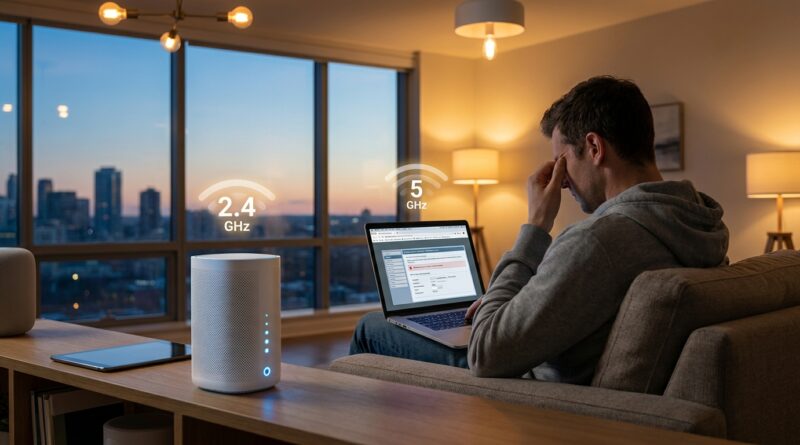
You are not imagining it. If your smart bulbs, plugs, speakers, or sensors all started acting weird overnight, while your laptop and phone still browse the web just fine, that is maddening. It also usually points to the router, not to every gadget in your house suddenly dying at once. A lot of people are seeing this right now after quiet firmware updates pushed by internet providers to their modem-router boxes. The most common culprit is a router setting that combines your 2.4GHz and 5GHz Wi-Fi into one “smart” network and keeps steering devices between them. That sounds helpful, but many smart home devices hate it. The fastest fix is to log into your router and split the Wi-Fi bands into separate names, then connect your smart home gear to the 2.4GHz network only. It is boring, yes. But it works far more often than factory-resetting ten light bulbs and shouting at Alexa before coffee.
⚡ In a Hurry? Key Takeaways
- The one router setting to check first is band steering, Smart Connect, or combined 2.4GHz/5GHz Wi-Fi. Turn it off and give 2.4GHz its own network name.
- Reconnect smart lights, plugs, and speakers to the 2.4GHz network only, then reboot the router and your smart hub or speaker.
- Do not replace your devices yet. This is often caused by a silent ISP router update, not failing hardware.
Why this is happening all at once
When one smart bulb goes offline, it is usually just that bulb. When half your smart home stops responding on the same day, something bigger changed.
The pattern showing up in forums and support threads is pretty consistent. Internet still works. Phones are fine. TVs may be fine too. But smart home gear, especially older or cheaper devices, starts dropping offline, vanishing from apps, or refusing to join routines.
That usually means your router changed how it handles Wi-Fi. Many ISP routers update themselves in the background. After that update, they may turn on features like:
- Band steering
- Smart Connect
- Single SSID for both Wi-Fi bands
- WPA3 mixed security
- Client isolation or stricter IoT settings
The biggest troublemaker is the first one. Smart home devices often only support 2.4GHz properly, or they get confused when the router keeps trying to manage both bands under one network name.
The one setting that usually fixes it
Turn off Smart Connect or band steering
Router brands use different names, but the idea is the same. Your router is trying to be clever by putting 2.4GHz and 5GHz under one Wi-Fi name and moving devices around automatically.
That is fine for phones and laptops. It is not fine for many smart bulbs, plugs, doorbells, and speakers.
What you want to do:
- Open your router app or log into the router in a web browser.
- Find Wi-Fi settings.
- Look for Smart Connect, band steering, or a setting that combines 2.4GHz and 5GHz.
- Turn that setting off.
- Rename your Wi-Fi so you have two separate networks, for example: HomeWiFi-2.4 and HomeWiFi-5.
- Connect your smart home devices to the 2.4GHz network only.
If your devices were already saved to the old combined network, some may reconnect on their own after the split. Others may need to be re-added in their app.
How to do this without making a bigger mess
Step 1: Find your router settings
Use your provider’s app if they have one. Xfinity, Spectrum, AT&T, Verizon, and others usually let you manage Wi-Fi there. If not, look on the router label for an address like 192.168.1.1 or 192.168.0.1.
Sign in with the admin password. If you have never changed it, it may be printed on the router.
Step 2: Split the Wi-Fi bands
Make sure 2.4GHz and 5GHz each have their own name. Keep the passwords simple and identical if you want, but the names should be different. That way your smart devices can stay parked on 2.4GHz instead of getting nudged somewhere they do not belong.
Step 3: Check security mode
If splitting the bands helps only a little, look at security settings next. Some router updates switch to WPA3 or WPA2/WPA3 mixed mode. Older smart home gear may fail on that.
If you see the option, set the 2.4GHz network to WPA2-Personal temporarily and test again. That alone can bring fussy bulbs and plugs back to life.
Step 4: Reboot in the right order
After saving settings:
- Reboot the router.
- Reboot any smart home hub, speaker, or bridge.
- Power cycle the smart device, or remove and re-add it in its app if needed.
This order matters more than most support pages admit.
Which devices are most likely to break after a router update
Not all smart home devices react the same way. The most sensitive ones tend to be:
- Budget smart plugs and bulbs
- Older Alexa-compatible and Google Home-compatible devices
- Wi-Fi cameras that only use 2.4GHz
- HomeKit accessories with older Wi-Fi chips
- Devices that were hard to set up the first time
If a device says “offline” but still has power, do not assume it is dead. It is often just stuck after the router changed the rules.
What not to do first
When people panic, they usually do three things. All three waste time.
Do not factory reset everything at once
If the router is still the problem, resetting ten devices just gives you ten devices that still cannot reconnect properly.
Do not buy a replacement bulb or speaker yet
When multiple brands fail together, hardware failure is very unlikely.
Do not trust “internet is working” as proof the router is fine
Your phone and laptop are much better at handling modern router changes than tiny smart gadgets are.
If splitting the bands did not fully fix it
There are a few other settings worth checking.
Disable AP isolation or guest network mode
If your devices are on a guest network, they may not be allowed to talk to each other. That breaks scenes, speakers, and hubs.
Turn off Wi-Fi 6 features on 2.4GHz if your router allows it
Some routers let you set older compatibility modes for 2.4GHz. If you see a setting for 802.11 b/g/n compatibility, that can help older smart devices.
Reserve IP addresses for problem devices
If one or two devices keep disappearing, assign them a DHCP reservation in the router so they always get the same local IP address.
Check the hub, not just the device
Philips Hue, Aqara, and some other systems depend on a hub or bridge. If the bridge lost its network connection after the update, all the accessories behind it look broken too.
Why vendor support advice often feels useless
Most device makers only see their own product. So their scripts tell you to reset the bulb, reset the app, reinstall the app, or move the device closer to the router.
That can help in normal situations. It does not help much when an ISP update quietly changed your Wi-Fi behavior for the whole house.
The search term people are effectively living right now is smart home devices not responding after router update, and the reason is simple. This is not one brand failing. It is a shared networking problem.
A simple test to confirm the router is the culprit
If you want quick proof, try this:
- Create a separate 2.4GHz network on the router.
- Reconnect just one problem smart plug or bulb to that network.
- Wait 10 minutes.
If that one device becomes stable while the others remain flaky, you have your answer.
When it is worth calling your ISP
Call your provider only after you have checked the Wi-Fi settings above. Ask whether a firmware update was pushed recently and whether they can:
- Disable Smart Connect remotely
- Split the Wi-Fi bands
- Roll back advanced security settings
- Put the gateway in bridge mode if you use your own router
Be specific. If you just say “my lights are offline,” you will end up in the usual restart-the-modem loop.
At a Glance: Comparison
| Feature/Aspect | Details | Verdict |
|---|---|---|
| Combined Wi-Fi bands | One network name for 2.4GHz and 5GHz, often managed by Smart Connect or band steering | Convenient for phones, bad for many smart home devices |
| Separate 2.4GHz network | Gives smart bulbs, plugs, and speakers a stable network they can consistently use | Best first fix across brands |
| Factory resetting devices | Erases setup and often does not solve the actual router compatibility problem | Use only after router settings are corrected |
Conclusion
If your smart home went sideways overnight, you are in very crowded company. A huge number of recent complaints today trace back to silent modem or router updates from ISPs, not to a mysterious mass death of smart bulbs and plugs. The good news is that the fix is usually concrete and repeatable. Turn off Smart Connect or band steering, split your Wi-Fi into separate 2.4GHz and 5GHz networks, and move your smart home gear onto 2.4GHz. That simple change can stabilize lights, plugs, speakers, and scenes across brands without replacing hardware or wasting an hour on support scripts. It is not glamorous, but it is the kind of practical fix that gets your house working again fast.