MacBook Trackpad Suddenly Stops Clicking After The Latest macOS Update? Here’s The One Reset That Usually Brings It Back
Your MacBook trackpad choosing the morning after a macOS update to stop clicking is a special kind of stress. The cursor still moves. Taps may even work. But the proper click feels gone, gestures get flaky, and suddenly every forum post is telling you that Apple might need to replace the whole top case. That is enough to make anyone assume the hardware has failed. The good news is that if your macbook trackpad not clicking after Sonoma update problem started right after installing Sonoma, there is a decent chance the trackpad itself is fine. What often breaks is how macOS is identifying and loading the trackpad settings. Before you spend money, there is one reset that is worth trying first. It takes about 10 to 20 minutes, does not open the laptop, and in a surprising number of cases it brings the click back.
⚡ In a Hurry? Key Takeaways
- The fix that often works is deleting the trackpad and input preference files, then restarting so macOS rebuilds them from scratch.
- Do the reset before agreeing to a repair, especially if the problem started right after a Sonoma update and taps still register.
- This is a low-risk software fix, but back up your Mac first if you can, because you will be removing system preference files.
Why this happens after a Sonoma update
On newer MacBooks, the trackpad does not really “click” in the old mechanical sense. It uses haptic feedback to feel like a click. That means software plays a big part in whether the click feels normal, weak, delayed, or completely dead.
After some Sonoma updates, a few Macs seem to come back with confused input settings. The system can misread the built-in trackpad, load the wrong preference values, or keep using damaged settings files from the older version of macOS. That is why standard advice like resetting SMC or NVRAM often does nothing, especially on Apple silicon Macs where those old fixes are less relevant than they used to be.
If your cursor still moves and tap-to-click works sometimes, that is actually a hopeful sign. It points more toward a software or settings issue than a dead trackpad.
The one reset that usually helps
The fix is to remove the trackpad-related preference files so macOS creates fresh ones on reboot.
This sounds scarier than it is. You are not deleting your files or wiping the Mac. You are clearing out preference files that may have been corrupted during the update.
Before you start
You will want either a USB mouse, a Bluetooth mouse that is already paired, or keyboard navigation turned on. If the trackpad is acting wild, having another way to click around makes this much easier.
If you can, save your work and do a quick backup first.
Step-by-step reset
1. Open Finder.
2. In the menu bar, click Go, then Go to Folder.
3. Paste this path and press Return:
~/Library/Preferences/
4. Look for these files and move them to the Trash:
com.apple.AppleMultitouchTrackpad.plist
com.apple.driver.AppleBluetoothMultitouch.trackpad.plist
com.apple.preference.trackpad.plist
5. Now go to this folder:
/Library/Preferences/
6. If you see either of these, move them to the Trash too:
com.apple.AppleMultitouchTrackpad.plist
com.apple.driver.AppleBluetoothMultitouch.trackpad.plist
7. Restart your Mac.
8. After restart, go to System Settings > Trackpad and re-enable the options you like, such as tap to click, force click, scrolling, and gestures.
What this reset actually does
It forces macOS to stop using the old trackpad config files and build brand new ones. If Sonoma carried over a broken hardware profile or damaged settings from before the update, this often clears it up.
If you want the faster Terminal version
If you are comfortable using Terminal, you can remove the same files with a few commands.
Open Terminal and paste these one at a time:
rm ~/Library/Preferences/com.apple.AppleMultitouchTrackpad.plist
rm ~/Library/Preferences/com.apple.driver.AppleBluetoothMultitouch.trackpad.plist
rm ~/Library/Preferences/com.apple.preference.trackpad.plist
Then run:
sudo rm /Library/Preferences/com.apple.AppleMultitouchTrackpad.plist
sudo rm /Library/Preferences/com.apple.driver.AppleBluetoothMultitouch.trackpad.plist
Restart the Mac when you are done.
If a file is not there, Terminal may say so. That is fine. Just move to the next command.
What to check before you assume it is hardware
Make sure “Tap to Click” is not fooling you
Sometimes people think the click has died when tap-to-click is doing all the work. Open System Settings > Trackpad and test with tap-to-click both on and off. If the haptic click still feels dead but pointer movement is normal, it still may be a software issue.
Test in Safe Mode
Safe Mode loads only the basics. If the trackpad behaves better there, a background extension or cached setting may be involved.
On Apple silicon Macs, shut down fully, then press and hold the power button until startup options appear. Select your startup disk, hold Shift, then click Continue in Safe Mode.
If clicking returns in Safe Mode but not in normal boot, that is another clue that your hardware may be okay.
Create a new user account
This is a good test if you are stuck. Create a temporary macOS user account and log into it. If the trackpad works there, the problem is likely inside your main user profile settings, not the Mac itself.
When this fix works best
This reset has the best chance when:
- The issue started right after a Sonoma update.
- The cursor still moves.
- Taps or some gestures still work.
- The trackpad feels inconsistent rather than completely dead.
- Apple diagnostics do not show a hardware fault.
It is less likely to help if the trackpad is swollen upward, the Mac has liquid damage, or the battery is physically pushing into the trackpad from below. In those cases, stop and get the machine checked. A swollen battery is not something to ignore.
If the click is still gone after the reset
If deleting the preference files did not help, do these next:
1. Install the latest Sonoma patch
Apple sometimes fixes input bugs quietly in point releases. Go to System Settings > General > Software Update and check again.
2. Reinstall macOS without erasing your data
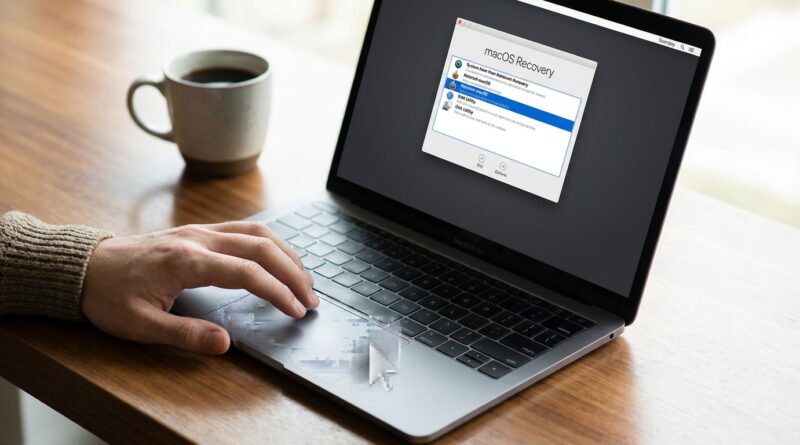
Boot into Recovery and reinstall macOS over your current system. This keeps your files in place but refreshes system components. It is often worth trying before paying for parts.
3. Run Apple Diagnostics
Shut down the Mac, then start it using Apple Diagnostics. If it flags trackpad or sensor hardware, you have something concrete to show support.
4. Ask Apple to test before replacing the top case
If you end up at the Genius Bar, be very specific. Tell them the problem started immediately after a Sonoma update, and that pointer movement or tap input still works. Ask whether they can rule out software before quoting a full top-case replacement.
Why Apple support can jump straight to expensive repairs
To be fair, the top case on many MacBooks includes several integrated parts, so service options can get expensive fast. But support staff also work from symptoms, and “trackpad not clicking” often lands in the hardware bucket first.
That is why trying this software reset matters. If your MacBook trackpad not clicking after Sonoma update issue is really just macOS holding onto bad preference files, you can save yourself a lot of money and a week without your laptop.
At a Glance: Comparison
| Feature/Aspect | Details | Verdict |
|---|---|---|
| Preference file reset | Deletes trackpad-related .plist files so Sonoma rebuilds clean settings on restart. | Best first fix. Fast, safe, and often effective. |
| SMC/NVRAM reset | Older generic advice that may not address Sonoma mis-detecting trackpad settings, especially on newer Macs. | Worth knowing, but not the main fix here. |
| Top-case replacement | Expensive hardware repair often suggested when clicking fails completely. | Last resort. Try software fixes and diagnostics first. |
Conclusion
If your trackpad went strange right after Sonoma and the usual reset advice got you nowhere, do not assume your MacBook is headed for an expensive repair. There has been a fresh wave of people dealing with flaky or dead-feeling trackpads after recent updates, and a fair number of those cases look more like macOS getting the hardware profile wrong than an actual broken trackpad. Removing the trackpad preference files and letting the system rebuild them is one of the simplest things you can try, and it often takes less than 20 minutes. For students, remote workers, and anyone who cannot be without their laptop, that is a very worthwhile shot before booking service. Best case, your click comes back and your stress level drops immediately. Worst case, you go into a repair appointment knowing you ruled out the easy software fix first.