Android Apps Just Got A New ‘Security Check’ Screen? What It Means And How To Quickly Spot A Fake
You tap update on a normal Android app, maybe your bank, your favorite game, or a delivery app, and suddenly Google Play throws a warning at you. It is annoying. It is also a little scary, especially when the message sounds serious but does not explain much in plain English. If you have been wondering, “android app install security warning what does it mean,” the short answer is this. Google is checking apps and app makers more aggressively, and your phone is showing more of those checks instead of hiding them in the background. Most of the time, that is a good thing. The trick is knowing the difference between a real Google Play warning and a fake screen trying to rush you into tapping Allow, Install anyway, or turning off protection. Once you know a few signs, you can spot trouble fast and avoid the junk without overthinking every update.
⚡ In a Hurry? Key Takeaways
- Most new Android install warnings mean Google Play is doing extra checks on the app or developer, not that your phone is infected.
- If a screen asks you to disable Play Protect, install from a browser pop-up, or rushes you with fake urgency, back out immediately.
- The safest move is to install or update only from the real Google Play Store page and double-check the app name, developer, reviews, and permissions.
Why You Are Seeing More Android Security Warnings
Google has been tightening up how Android apps get verified. That includes checking developers more closely, scanning apps for malware, and warning users more often when something looks off.
So if you are seeing extra prompts during an install or update, that does not automatically mean the app is dangerous. It can simply mean Google is being more visible about its security checks.
That said, scammers also know people are getting used to these alerts. So they copy the look and tone of real Android warnings. That is where people get tripped up.
What A Real Google Play Security Screen Usually Looks Like
It appears inside Google Play or Android settings
A real warning usually shows up while you are in the Play Store, or as a standard Android system prompt. It should feel like part of the phone, not like a random web page or a pop-up floating over another app.
It explains the issue in plain terms
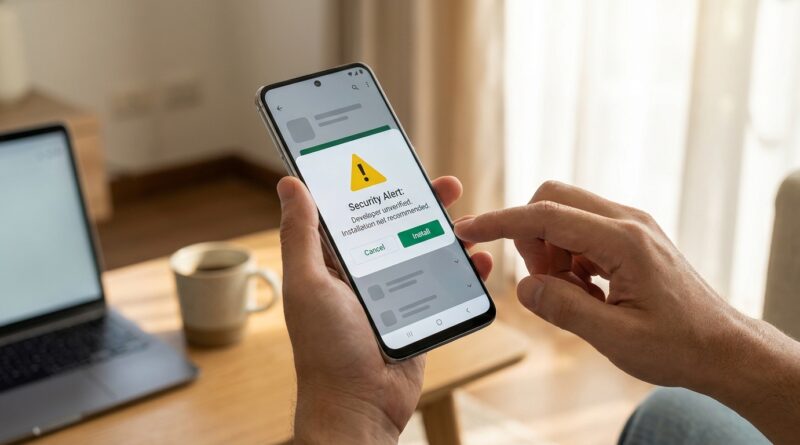
Real prompts tend to say things like the app is from an unknown source, the app may be harmful, or Play Protect has blocked the install. The wording is not always friendly, but it is usually direct.
It gives you a clear choice
You will often see options like Cancel, Install anyway, Learn more, or settings related to app installs. That does not mean you should always continue. It just means the prompt itself is more likely to be real.
How To Quickly Spot A Fake
1. It shows up in your browser, not the Play Store
If you tapped a link in a text, ad, email, or sketchy website and got a warning screen there, be careful. A lot of fake install prompts are just web pages dressed up to look official.
If you are ever unsure, close the page and open the Play Store yourself. Search for the app manually. Do not trust the link that brought you there.
2. It pressures you to act fast
Fake warnings love panic. “Your phone is infected.” “Update now or lose access.” “Tap allow to remove virus.” Real Google Play alerts are usually calm and specific. Scam screens are dramatic.
3. It asks you to turn off security features
This is a huge red flag. If a prompt tells you to disable Play Protect, allow unknown apps from your browser, or give broad accessibility access for no good reason, stop there.
Some advanced apps do need special permissions, but a mainstream app like a bank, social app, or simple game should not need a weird detour through security settings just to install.
4. The app name or developer looks slightly off
Scam apps often use lookalike names. One extra letter. A missing space. A strange developer name that does not match the real company. That is worth checking every time.
5. The warning has bad grammar or odd design
Not every scam screen looks sloppy, but many do. Weird spacing, blurry icons, broken English, or giant flashing buttons are all clues that something is off.
The 30-Second Safety Check Before You Tap Install
Here is the quick routine I recommend to friends and family.
Check where the install started
If it started in the official Play Store app, that is safer than starting from a random link.
Check the developer name
Tap into the app listing and look at who made it. Does it match the company you expect?
Check reviews and download count
A well-known app with millions of downloads is easier to verify than a copycat with 500 installs and a pile of one-star complaints.
Check permissions after install, not just before
Even a real app can ask for too much. If a flashlight app wants your contacts and microphone, that is your cue to uninstall it.
When It Is Fine To Continue
In many cases, a warning is just Android being cautious. If the app is from the real Play Store, the developer is correct, the app is well known, and the warning is a standard Play Protect or system notice, you are probably fine to continue.
That is especially true for updates to apps you already use, assuming the listing still looks normal and the permissions have not suddenly become excessive.
When You Should Back Out Right Away
Leave immediately if any of these happen:
- The app install started from a text link, ad, or unofficial website.
- The prompt asks you to disable security checks.
- The app is pretending to be your bank, carrier, or a government service but the developer name does not match.
- The screen claims your phone is infected and pushes a “cleaner” or “security” app.
- The app wants unusual permissions that do not fit its job.
What About “Unknown App” Or “Install Unknown Apps” Warnings?
This one confuses a lot of people. Android shows this when you try to install an app outside the Play Store, often from a browser, file manager, or messaging app. It is not always malware, but it is riskier because Google has less control over what you are installing.
If you were not specifically trying to sideload an app, you should not be seeing this at all. Back out.
If you were trying to install something outside Play Store on purpose, make sure you trust the source completely. For most people, the safest answer is simple. Stick with Play Store whenever possible.
If You Think The Warning Is Fake
Do not tap through it. Close the browser tab or app. Then do these three things:
- Open the real Google Play Store and search for the app yourself.
- Run Play Protect by opening Play Store, tapping your profile, then Play Protect.
- Restart your phone if the pop-up keeps coming back.
If the phone is acting weird after that, uninstall any recent apps you do not trust. You can also review your notification access, accessibility settings, and default browser permissions.
And if the issue turns out not to be security at all, but a service glitch, it is worth checking whether the app itself is having problems. We saw that kind of confusion recently with Instagram. If that sounds familiar, Instagram Still Broken After Yesterday’s Outage? Here’s How To Tell If It’s Just You (And Actually Fix It) can help you tell the difference between a broken app and a phone problem.
One Small Habit That Helps More Than People Realize
Slow down for five seconds before tapping. That is it.
Scam screens work because they catch people in a rush. You just want to update your app and move on. But five seconds is usually enough to notice, “Wait, why am I in a browser?” or “Why is this asking for strange access?”
At a Glance: Comparison
| Feature/Aspect | Details | Verdict |
|---|---|---|
| Warning source | Real alerts usually appear in the Play Store or Android system settings. Fake ones often appear in a browser, ad, or random pop-up. | Play Store or system is safer. Browser pop-up is suspicious. |
| Message tone | Real warnings are direct and boring. Fake ones use panic, countdowns, or claims your phone is infected. | Pressure tactics usually mean back out. |
| What it asks you to do | Legit prompts may ask for confirmation. Fake ones often want you to disable Play Protect, install from unknown sources, or grant odd permissions. | If it weakens security, do not continue. |
Conclusion
These new Android install warnings are frustrating, but they are not random. Google is pushing harder on developer verification and surfacing more security checks to cut down on malicious apps. That means regular people are now seeing prompts that used to stay hidden in the background. The good news is you do not need to be a tech expert to handle them. If the app comes from the real Play Store, the developer checks out, and the warning looks like a normal Android prompt, you are usually fine. If the screen feels pushy, asks you to turn off protection, or appears outside the Play Store, trust your gut and back out. A simple pause and a quick check can save you from malware, scams, and a whole lot of stress.