iPhone Suddenly Overheating And Dying Fast After The Latest iOS 26.5.1 Update? The One Background Toggle That Usually Calms It Down In 5 Minutes
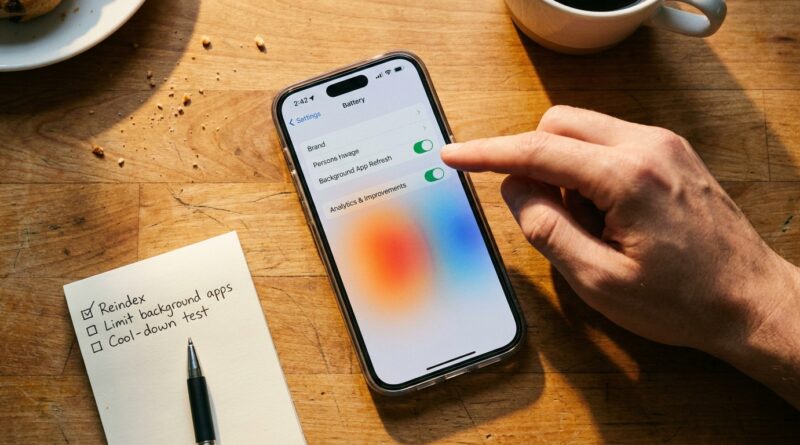
If your iPhone started running hot and losing battery fast right after iOS 26.5.1, you are not imagining it. This has been a real complaint from a lot of iPhone 16 and iPhone 17 owners. The annoying part is that the usual tricks, like closing apps, turning off Bluetooth, or even doing a reset, often do not help for long. What usually works better is calming down what the phone is doing in the background right after a big update. The one setting I would start with is Background App Refresh. Not fully forever, just temporarily and strategically. In many cases, switching it to Wi-Fi only, or off for the worst offenders, gives the phone room to finish post-update indexing and syncing without cooking itself. The good news is you do not need to wipe your phone again. You just need a cleaner recovery plan that targets the real cause of this update-related drain.
⚡ In a Hurry? Key Takeaways
- The fastest ios 26.5.1 battery drain overheating fix is usually changing Background App Refresh from “Wi-Fi & Mobile Data” to “Wi-Fi” or turning it off for heavy apps like Instagram, TikTok, Photos, and shopping apps.
- After that, give your iPhone 5 to 15 minutes on a charger with the screen off so iOS can finish indexing and syncing without extra heat from active use.
- This does not delete your data, and it is much safer than factory-resetting again unless your battery health or hardware is already failing.
Why this happens right after an iOS update
Big iPhone updates do more than install a few files. They kick off a bunch of background work. Your phone may re-index photos, messages, Notes, Spotlight search, on-device AI features, mailboxes, and app data. It can also re-check permissions and cloud sync jobs.
That is why your iPhone can feel normal for a little while, then suddenly get hot while doing something simple like scrolling Instagram or reading email. The app you are using is not always the real problem. It is often just the thing on screen while the phone is also doing heavy work behind the scenes.
Apple’s usual advice is to wait a few days. Sometimes that is fair. But if your battery is dropping 15 to 20 percent before lunch, you need something more useful than “give it time.”
The one background toggle that usually helps first
Set Background App Refresh to Wi-Fi or trim it app by app
Go to Settings > General > Background App Refresh.
You will usually see three choices:
- Off
- Wi-Fi
- Wi-Fi & Mobile Data
If your iPhone is overheating after iOS 26.5.1, the best first move is usually this:
- Change it from Wi-Fi & Mobile Data to Wi-Fi, or
- Leave the master setting on, but turn it off for the apps most likely to churn in the background
The reason this works is simple. Right after an update, iOS is already busy. When every social app, photo app, retail app, and streaming app is also waking up in the background over mobile data, the phone never really gets a quiet minute to settle down.
Apps I would target first:
- TikTok
- Photos or cloud photo apps
- Google Photos
- Shopping apps
- Food delivery apps
- Streaming and podcast apps
- Games with constant sync
If you want the simplest test, turn Background App Refresh fully off for 24 hours. If the heat and drain calm down fast, you found the main trigger. Then you can turn it back on only for the apps that actually need it.
The 5-minute reset sequence that works better than random tinkering
This is the field-tested order I would use before doing anything drastic.
1. Plug the phone in
Use a normal charger. You do not need a special one. Charging gives iOS a stable power source to finish background tasks without stealing as much from the battery.
2. Change Background App Refresh
Set it to Wi-Fi, or turn off the biggest offenders app by app.
3. Turn off Low Power Mode if it is already on
This sounds backward, but Low Power Mode can sometimes make troubleshooting harder because it changes what the phone is allowed to do. Let the phone finish its update cleanup properly first, while plugged in.
4. Turn off the two radios most likely to add noise
For the next 5 to 15 minutes, turn off:
- Wi-Fi Assist at Settings > Cellular > Wi-Fi Assist
- Bluetooth if you are not actively using earbuds, a watch, or car audio
You do not need to live with these off forever. This is just to cut down extra background chatter while the phone settles.
5. Leave the screen off
This part matters. Put the phone down for 5 to 15 minutes. If you keep picking it up to check battery percentage, you are adding heat with every unlock, refresh, and app open.
6. Restart once after the cool-down
Not three times. Once is enough.
For many people, this is the point where the phone stops feeling like a pocket heater.
What to check in Battery settings before you blame the hardware
Open Settings > Battery and look at two things.
Battery usage by app
If one app is wildly ahead of everything else, especially with a lot of Background Activity, that is your suspect. Remove its Background App Refresh permission first. If the app is still a problem, log out and back in, or reinstall it later.
Battery Health
If your battery health is already very low, an iOS update can make the weakness much more obvious. If you are under roughly 80 percent maximum capacity, the update may not be the whole story.
Still, if the problem started right after iOS 26.5.1, do not jump straight to a battery replacement. Software is the more likely cause when the timing is that exact.
Other settings that help during the post-update “learning phase”
Photos sync
If you use iCloud Photos and just updated, your phone may be re-checking a huge library. Open Photos, let it finish if it says syncing or curating, then stop poking at it for a while.
Mail fetch
Go to Settings > Apps > Mail > Mail Accounts > Fetch New Data. If you have several accounts, switching from Push to Fetch temporarily can reduce background wake-ups.
Location Services
Check Settings > Privacy & Security > Location Services. If a bunch of apps quietly flipped back to “Always,” change them to While Using unless you truly need constant tracking.
Always-On Display
On supported iPhones, this is usually not the main cause, but while you troubleshoot heat, turning it off for a day can make the battery pattern easier to read.
What not to do
A lot of battery advice online makes people work harder than the phone.
- Do not keep force-closing every app. That can actually make things worse because apps have to cold-start again.
- Do not factory-reset twice in one weekend unless you have ruled out simple background problems first.
- Do not install battery saver profiles or sketchy “cleaner” apps. iPhones do not need them.
- Do not panic if the first 24 hours are messy. The goal is to stop the runaway drain, not expect perfect battery life ten minutes after updating.
When “wait a few days” is actually reasonable
If your phone is only a little warmer than usual and battery life is just mildly off, iOS may genuinely need a day or two. This is especially true if:
- You updated from an older version, not just a tiny point release
- You have a massive photo library
- You restored a lot of apps recently
- You are syncing many mail accounts or cloud files
But if the phone is too hot to hold comfortably, drains heavily overnight, or burns battery while idle, that goes beyond normal settling. That is when the ios 26.5.1 battery drain overheating fix steps above are worth doing right away.
When it is time to escalate
If you have done the Background App Refresh cleanup, given the phone a proper cool-down window, and checked Battery usage, but the phone is still overheating after 48 hours, move to the next level:
- Update every major app from the App Store
- Remove and reinstall the top battery-draining app
- Reset Settings > General > Transfer or Reset iPhone > Reset > Reset All Settings
- Contact Apple Support if heat happens even in Safe, simple tasks like messaging or standby
Reset All Settings does not erase your photos, apps, or messages. It does reset things like Wi-Fi passwords, wallpapers, keyboard dictionary, and some preferences. It is annoying, but it is still much less painful than a full wipe.
A simple playbook to use after every future big iPhone update
If this update burned you once, save yourself the stress next time.
- Update when you can leave the phone on a charger for a while
- Expect background work for the first day
- Set Background App Refresh to Wi-Fi for that day
- Limit heavy social and cloud apps for a few hours
- Check Battery usage before changing ten random settings
That gives you a repeatable system instead of the usual guessing game.
At a Glance: Comparison
| Feature/Aspect | Details | Verdict |
|---|---|---|
| Background App Refresh | Switching from Wi-Fi & Mobile Data to Wi-Fi, or disabling it for heavy apps, reduces constant post-update syncing and background wake-ups. | Best first fix |
| Factory Reset | Can help in rare cases, but it is time-consuming and often does not fix update-related indexing and app behavior on its own. | Last resort |
| 5 to 15 Minute Cool-Down on Charger | Lets iOS finish background tasks with less heat from active use, especially after radios and refresh settings are trimmed. | Surprisingly effective |
Conclusion
If iOS 26.5.1 turned your reliable iPhone into a hot, half-day battery mess, you are in very good company. A lot of iPhone 16 and 17 owners are seeing the same thing, and “just wait” is not much comfort when your battery is disappearing by lunchtime. The good news is you usually do not need to wipe the phone again or dig through obscure tools. A simple, concrete sequence that focuses on re-indexing, Background App Refresh tiers, and temporarily calming down radios can often get your phone back to normal today, without losing data. Better still, once you know this pattern, you have a repeatable playbook for every future big iOS update. That means less guessing, less frustration, and a much better chance your phone starts acting like your phone again.