Windows 11 Just Killed Your Wi‑Fi After The Latest Update? The One Network Stack Reset That Usually Brings It Back In 2 Minutes
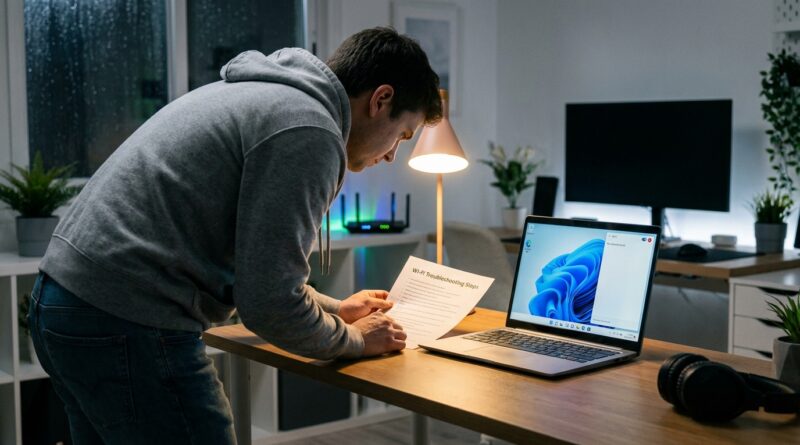
You install a Windows 11 update, restart, and suddenly your PC acts like Wi‑Fi never existed. No wireless toggle. No nearby networks. Maybe even a cheerful little globe icon telling you that you are offline while your phone, TV, and tablet are all connected just fine. It is maddening, especially because Windows often gives you no useful clue about what actually broke.
The good news is that this “windows 11 update no wifi option” problem is often not a dead Wi‑Fi card and not a router problem. On a lot of home PCs, the update seems to leave part of the network stack in a bad state. That means key services are set to start automatically, but they are not actually running. In many cases, a quick check of those services and one targeted network reset brings wireless back in about two minutes. Let’s do the simple fixes first, in the right order, without jumping straight to a reinstall.
⚡ In a Hurry? Key Takeaways
- If a Windows 11 update left you with no Wi‑Fi option, the fastest fix is usually restarting key network services, then running a small netsh reset.
- First confirm your router is fine by checking another device, then restart WLAN AutoConfig, DHCP Client, and Network Connections on your PC.
- This is far safer and faster than reinstalling Windows, and it is a useful recovery pattern for future mystery network failures too.
First, make sure it is really your PC
Before changing anything, check one simple thing. Can another device in your home get online through the same Wi‑Fi?
If your phone or tablet connects normally, your router is probably fine. That points the finger back at the Windows 11 update and your PC’s network stack.
If every device is offline, stop here and reboot the router first. There is no point fixing Windows if the whole network is down.
What this Windows 11 bug usually looks like
This issue tends to show up in a few familiar ways:
- The Wi‑Fi toggle disappears from Quick Settings.
- No wireless networks appear at all.
- Settings shows Wi‑Fi as missing or grayed out.
- Troubleshooter gives vague messages but fixes nothing.
- Services such as DHCP or WLAN say “Automatic” but are not running.
If that sounds familiar, you are in the right place.
The 2-minute fix that usually brings Wi‑Fi back
Step 1: Open Services
Press Windows + R, type services.msc, then press Enter.
This opens the list of background services Windows depends on.
Step 2: Find and restart these three services
Look for these entries one by one:
- WLAN AutoConfig
- DHCP Client
- Network Connections
For each one:
- Double-click it.
- Make sure Startup type is set to Automatic.
- If the service is not running, click Start.
- If it is running, click Stop, wait a few seconds, then click Start.
This alone is sometimes enough. Check your Wi‑Fi icon after restarting those services. If the wireless toggle comes back, you are done.
Step 3: Run the targeted network reset
If the services look fine but Wi‑Fi is still missing, do the small reset that fixes the stack itself.
Right-click the Start button and choose Terminal (Admin) or Command Prompt (Admin).
Run these commands one at a time:
netsh winsock reset
netsh int ip reset
ipconfig /release
ipconfig /renew
ipconfig /flushdns
Now restart your PC.
When Windows comes back up, check for the Wi‑Fi option again. In a lot of cases, this is the point where the missing wireless toggle suddenly returns and the available networks list fills back in.
Why this works
Think of the network stack as the plumbing behind your internet connection. The Wi‑Fi adapter is the faucet you can see, but services like WLAN AutoConfig and DHCP are the valves behind the wall. After some cumulative updates, those valves can get stuck. Everything looks normal on paper, but water does not flow.
Restarting the services wakes those pieces back up. The netsh reset then clears out damaged network settings and rebuilds the basics Windows needs to talk to your Wi‑Fi adapter properly.
If the Wi‑Fi switch is still missing
Check Device Manager
Right-click Start, choose Device Manager, then expand Network adapters.
Look for your wireless adapter. It may include names like Intel Wi‑Fi, Realtek Wireless LAN, Qualcomm, MediaTek, or something similar.
- If you see a small down arrow, right-click and choose Enable device.
- If you see a yellow warning icon, right-click and choose Uninstall device, then restart the PC so Windows can reinstall it.
Try a full shutdown
Fast Startup can sometimes leave hardware in a weird half-awake state. Shut the PC down fully, wait 30 seconds, then power it back on.
Use the older service-first fix if needed
If your symptoms started right after a recent patch and the wireless service itself seems to be the main problem, our guide on Windows 11 June 2026 Update Just Killed Your Wi‑Fi? The One Service Fix That Brings It Back Without Reinstalling Windows walks through the service side of the problem in a bit more detail.
What not to do yet
When Wi‑Fi disappears after an update, people often jump to the most painful fixes first. Try to avoid these unless the steps above fail:
- Do not reinstall Windows right away.
- Do not factory reset the PC as your first move.
- Do not pay for remote support before checking services and running the reset.
- Do not keep clicking the troubleshooter over and over expecting a different result.
Most of the time, this is a software-level jam, not a hardware death sentence.
When you should consider rolling back the update
If none of the above works, and the problem appeared immediately after the latest update, uninstalling that update is a reasonable next step.
Go to Settings > Windows Update > Update history > Uninstall updates.
Remove the most recent cumulative update, restart, and test Wi‑Fi again. If wireless comes back, you have strong proof the update caused the issue.
That said, try the service restart and netsh reset first. They are faster, cleaner, and much less disruptive.
At a Glance: Comparison
| Feature/Aspect | Details | Verdict |
|---|---|---|
| Router check | Test another phone, tablet, or TV on the same Wi‑Fi before blaming the PC. | Best first step. Fast and rules out the obvious. |
| Service restart | Restart WLAN AutoConfig, DHCP Client, and Network Connections in Services. | Usually the quickest fix for a missing Wi‑Fi option. |
| netsh reset | Resets Winsock and IP settings, then refreshes network basics after reboot. | Excellent second step before considering uninstalling updates or reinstalling Windows. |
Conclusion
If a Windows 11 update left you with no Wi‑Fi option, try not to panic and definitely do not assume your laptop’s wireless hardware is dead. Today’s cumulative Windows 11 updates are quietly breaking wireless on a wave of home PCs, with the Wi‑Fi switch vanishing and services like DHCP and WLAN set to automatic but not actually running. The calm, practical path is to confirm your router is fine, force-restart the three key services, and then run the targeted netsh reset. That gives regular people a realistic shot at fixing the machine in minutes, without a full reinstall or an expensive support call. Better still, once you know this pattern, you can use it again the next time Windows throws one of these mystery network meltdowns instead of just mashing Troubleshoot and hoping for the best.