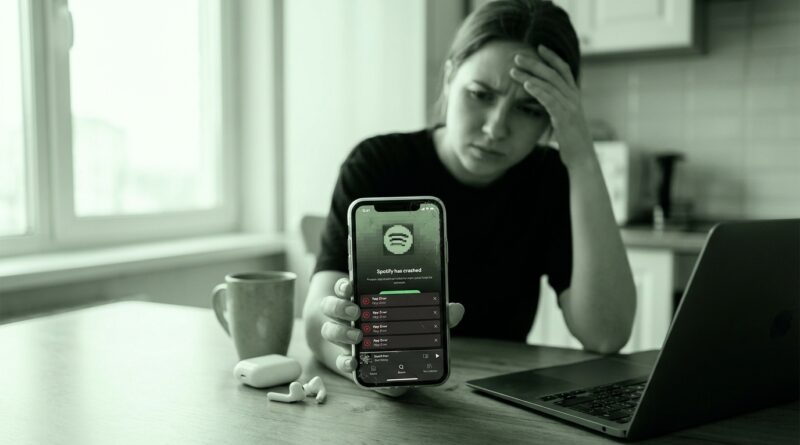
Spotify Keeps Crashing After The Latest Update? The One Playback Toggle That Usually Stops It In Minutes
If Spotify started freezing, stuttering, or flat-out closing itself right after the latest update, you are not imagining it. A lot of people have run into the same mess on both iPhone and Android. It is extra annoying because music apps are supposed to be the simple part of your day. You press play, put your phone in your pocket, and move on. Instead, Spotify crashes when you open another app, scroll your library, or lock your screen. The good news is that the fix usually is not as dramatic as wiping your whole phone or waiting around for the next patch. For many people, the fastest spotify keeps crashing after update fix is turning off one playback setting, clearing Spotify’s cache, and checking whether your phone is choking the app in the background. That takes a few minutes, and it often gets playback stable again the same day.
⚡ In a Hurry? Key Takeaways
- The setting most worth turning off first is Spotify’s Canvas feature, because it is tied to extra animation and background loading that can trigger crashes on some phones after updates.
- After that, clear Spotify’s cache and make sure battery saver or background restrictions are not shutting the app down when your screen is off.
- These steps are safe, quick, and usually do not delete your playlists or account data, though downloaded songs may need to be re-saved if you go further and clear app storage.
Start with the playback toggle that fixes it most often
If Spotify became unstable right after an update, the first thing I would switch off is Canvas. That is the short looping video animation that plays behind some songs. It looks nice when things are working. When they are not, it can be one more thing loading, buffering, and using memory in the background.
How to turn off Canvas in Spotify
Open Spotify, tap your profile picture, then go to Settings and privacy. Look for Playback or scroll until you see Canvas. Turn it off.
Then fully close Spotify and open it again. Play a few tracks. Try locking your screen. Open another app. Scroll your library. For a lot of people, this is the first setting that makes Spotify behave normally again.
If you also see options like Autoplay, Crossfade, or very high streaming quality, it is worth turning those down temporarily too. The goal here is simple. Strip Spotify back to the basics and see if stability returns.
Clear Spotify’s cache, not your whole account
Cache files help apps load faster, but after a buggy update they can also become part of the problem. Clearing the cache is one of the safest ways to reset Spotify without tearing everything down.
On iPhone
Open Spotify, go to Settings and privacy, then Storage. Tap Delete cache.
On Android
You can do the same inside Spotify through Settings and privacy then Storage and Delete cache. If that does not help, you can also go to your phone’s Settings, then Apps, Spotify, Storage, and clear Cache.
This does not delete your account or playlists. It just removes temporary files that may have gone bad during the update.
Check if your phone is killing Spotify in the background
A lot of crashes are not true crashes. Sometimes the phone is aggressively shutting Spotify down to save battery or memory. That makes it look like the app is broken when it is really being squeezed by system settings.
On Android
Go to Settings, then Apps, then Spotify. Check these areas if your phone has them:
- Battery. Set Spotify to Unrestricted or Not optimized if possible.
- Mobile data and Wi-Fi. Make sure background data is allowed.
- Pause app activity if unused. Turn that off for Spotify.
On iPhone
Open Settings, then General, then Background App Refresh. Make sure it is on for Spotify. Also check Low Power Mode. If it is enabled, switch it off for a test and see whether playback stops crashing or pausing.
If your phone is low on storage, background apps get even less breathing room. If that sounds familiar, this guide on The Best Way to Free Up Space on a Full Android Phone Without Deleting Your Favorite Photos is a smart place to start, especially on Android.
Turn off a few extra features until Spotify settles down
If Canvas did not solve it completely, go one step further. Right now, stability matters more than fancy extras.
Settings worth testing one by one
- Turn off Autoplay
- Set streaming quality to Automatic or Normal
- Turn off Crossfade
- Turn off Gapless if your version shows it
- Disable Data Saver only if it seems to be causing odd buffering behavior
Why do this one by one instead of all at once? Because you want to find the real trigger. If Spotify becomes stable after disabling one feature, you can leave the others alone.
If you use downloads, check your storage next
Downloaded songs and podcasts are great until they pile up after several updates and your phone starts struggling. If Spotify crashes while opening playlists or switching between online and offline content, storage pressure may be part of the problem.
Inside Spotify, go to Settings and privacy, then Storage, and look at how much space downloads are using. If your phone is nearly full, remove a few old podcast downloads or offline playlists you do not need right now.
This is especially true on mid-range Android phones with limited free space. They can get jumpy after a large app update.
When to reinstall, and when not to bother yet
People jump straight to reinstalling because it sounds like the big fix. Sometimes it works. Sometimes it just wastes ten minutes and forces you to log back in and re-download everything.
Try reinstalling only after you have:
- Turned off Canvas
- Cleared Spotify’s cache
- Checked battery and background permissions
- Reduced extra playback features
If you do reinstall, make sure you know your login details first. Also remember that downloaded songs will likely need to be downloaded again.
How to tell if the update itself is the problem
If Spotify worked perfectly before the latest update and suddenly started crashing on both Wi-Fi and mobile data, across different headphones or speakers, there is a good chance the app update introduced a bug. That is not unusual. It happens.
Signs it is probably the update and not your phone:
- The crashes started within a day or two of updating
- Other apps on your phone work fine
- Spotify breaks in the same way on home Wi-Fi and cellular
- You are seeing lots of fresh complaints online from both iPhone and Android users
At that point, your best move is damage control. Use the stable settings above, update the app again if a small follow-up patch appears, and keep your setup simple until Spotify smooths things out.
A good quick test routine
If you want a simple repeatable spotify keeps crashing after update fix, do this in order:
- Turn off Canvas
- Restart Spotify
- Clear Spotify cache
- Allow background activity and remove battery restrictions
- Lower streaming quality and turn off Crossfade or Autoplay
- Test playback with screen locked, while browsing, and while switching apps
This order matters because it starts with the least disruptive fixes first.
At a Glance: Comparison
| Feature/Aspect | Details | Verdict |
|---|---|---|
| Canvas toggle | Disables looping animated visuals that can add extra load after a buggy update. | Best first fix to try |
| Clear cache | Removes temporary files without deleting your account or playlists. | Safe and often effective |
| Battery and background permissions | Stops the phone from shutting Spotify down when the screen is off or another app is open. | Important if playback dies in the background |
Conclusion
If Spotify has suddenly become a crashy mess after the latest update, you do not have to just shrug and wait for a patch. Over the last few days there has been a real spike in complaints on both iOS and Android, and the usual advice of “reinstall the app” is not always the fastest answer. In many cases, the practical fix is much simpler. Turn off the playback extras that are most likely to misbehave, especially Canvas. Clear Spotify’s local cache. Then make sure your phone is not strangling the app with battery or background limits. That combination gives a lot of people a working player again today, which is what matters when you need Spotify for commuting, workouts, or focus. Start with those steps, test after each one, and you have a solid, repeatable spotify keeps crashing after update fix instead of crossing your fingers for the next release.