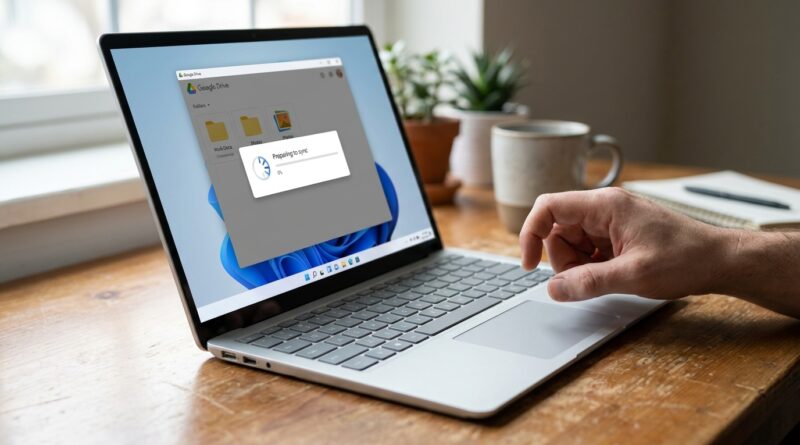
Google Drive Sync Suddenly Stuck On “Preparing To Sync”? Here’s The One Setting That Actually Gets Your Files Moving Again
When Google Drive gets stuck on “Preparing to sync” in Windows 11, it feels weirdly personal. Your internet looks fine. The files were syncing yesterday. Now the app just sits there, spinning, doing absolutely nothing while your workday slips away. If you are a freelancer waiting on client uploads, a student trying to send an assignment, or a remote worker locked out of shared folders, this bug can turn into a real problem fast.
The good news is that this usually is not a sign that your files are gone. Most of the time, Google Drive for desktop is hanging on one of a few specific trouble spots: a stuck cache, a bad mirrored folder setting, one corrupt file, or a permission issue in Windows 11. The setting that fixes it most often is switching your folder mode, or resetting the local DriveFS cache, which clears the traffic jam without wiping your cloud files. Here’s a focused 10-minute recovery plan that gets to the real causes, instead of sending you in circles with the usual “try restarting” advice.
⚡ In a Hurry? Key Takeaways
- The most effective fix for Google Drive stuck on preparing to sync in Windows 11 is to switch between Stream files and Mirror files, then restart Drive.
- If that does not work, clear the hidden DriveFS cache and check for one file or folder name that is blocking the whole queue.
- Your cloud files usually stay safe during this process, as long as you do not manually delete files from drive.google.com.
The one setting that actually gets Google Drive moving again
If Google Drive is stuck on preparing to sync on Windows 11, the first thing I would check is whether Drive is set to Stream files or Mirror files.
This sounds small, but it matters a lot. When Drive for desktop gets hung up, changing this setting often forces the app to rebuild its local sync logic and stop chewing on a broken queue.
How to switch it
Open Google Drive for desktop from the system tray. Click the gear icon, then Preferences. Select Google Drive. You should see the choice between Stream files and Mirror files.
If you are currently using Stream files, switch to Mirror files. If you are already using Mirror files, switch to Stream files. Let Drive apply the change, then quit the app fully and reopen it.
For a lot of people, this is the moment the sync counter finally moves.
Why this works
Drive keeps a local database and cache so it can track what is uploaded, downloaded, or still waiting. Sometimes that local state gets stuck, especially after a Windows update, a laptop sleep cycle, a sudden shutdown, or a folder rename. Changing Stream or Mirror mode makes Drive rebuild part of that map.
It is not magic. It is just a cleaner reset than uninstalling the whole app.
If that did not fix it, clear the hidden DriveFS cache
This is the second fix I would try, and honestly, it should be much better known than it is.
Google Drive for desktop stores its local sync engine data in a hidden DriveFS folder. If that cache gets corrupted, Drive can sit forever on “Preparing to sync” or “Syncing 0 of X” even though your internet is fine.
Before you start
Make sure your important files have had time to upload previously, or confirm they still exist in drive.google.com. Clearing cache does not usually delete cloud data, but it can remove local temporary sync data.
How to clear the DriveFS cache on Windows 11
1. Click the Google Drive icon in the system tray.
2. Click the gear icon and choose Quit.
3. Open File Explorer.
4. In the address bar, paste this:
%LOCALAPPDATA%\Google\DriveFS
5. Open the folder. You may see one or more numbered subfolders.
6. Delete the contents inside those DriveFS folders, or rename the main DriveFS folder to something like DriveFS-old if you want a safer rollback option.
7. Reopen Google Drive for desktop and sign in again if asked.
That forces Drive to build a fresh local sync cache.
What to expect after clearing cache
At first, Drive may look slower. That is normal. It is rechecking your cloud files and local folder state. Give it several minutes before deciding it failed.
Check for the real villain: one bad file holding up everything
This is the part that drives people crazy. Google Drive can get stuck because of just one file, while making it look like the entire app is broken.
Common problem files include:
- Files with very long names
- Folders nested too deeply
- Files with symbols Windows and Google handle differently
- Temporary office files, especially from Excel or Photoshop
- Huge ZIPs or video files still in use by another app
- Files with permissions your Windows account cannot read
How to isolate the bad file fast
Pause sync. Then move half the files out of the folder that is stuck. Resume sync. If Drive starts working, the problem file is in the half you removed. If not, it is in the half still there.
Yes, it is the old divide-and-conquer trick. It works because it saves you from checking 500 files one by one.
Once you narrow it down, look for odd names, giant file sizes, or files currently open in another program.
Windows 11 permission issues are more common than people think
If Google Drive suddenly started hanging after a Windows 11 update, folder permission problems are worth checking. Drive may be able to see a folder but not fully access everything inside it.
What to look at
Right-click the problem folder, choose Properties, then Security. Make sure your Windows account has full read and write access.
Also check whether the folder is inside a protected Windows location, such as parts of Documents or Desktop that are being controlled by OneDrive or Windows Security features.
If you are syncing folders from an external drive, make sure that drive letter has not changed and the drive is not going to sleep.
Turn off real-time antivirus scanning for a minute and test again
I know, nobody loves hearing this advice. But antivirus tools and ransomware protection can interrupt Drive while it is trying to scan or upload lots of small files.
Windows Security’s Controlled folder access is a frequent culprit. So are third-party security suites.
Safe way to test
Temporarily pause Google Drive. Turn off the relevant protection for just a minute or two, or add Google Drive for desktop as an allowed app. Then relaunch Drive and watch whether the stuck “Preparing to sync” message clears.
If it suddenly works, you found the conflict.
Make sure Drive is not stuck on a shared drive or account mismatch
If you use multiple Google accounts, this can get messy fast. Google Drive for desktop sometimes hangs because the app is signed into one account while the folder or shared drive belongs to another account with changed permissions.
Open Drive preferences and confirm the signed-in account is the one that owns or has access to the folders you are syncing.
This especially matters for remote workers and students, where school or company accounts may have changed storage rules or sharing permissions without much warning.
A 10-minute recovery plan, in the right order
If you just want the shortest path, do this in order:
Minute 1 to 2: Check the sync mode
Switch between Stream files and Mirror files. Restart Drive.
Minute 3 to 5: Clear DriveFS cache
Quit Drive. Open %LOCALAPPDATA%\Google\DriveFS. Rename or clear the folder contents. Reopen Drive.
Minute 6 to 8: Look for one blocked file
Move half the files out of the problem folder and test. Narrow it down.
Minute 9: Check permissions
Confirm your Windows account can fully access the folder and files.
Minute 10: Test security software conflict
Temporarily allow Drive through antivirus or Controlled folder access and try again.
That sequence avoids risky guesswork and gets to the most common failure points quickly.
What not to do right away
There are a few “fixes” that sound helpful but can waste time or make things murkier.
- Do not immediately reinstall Google Drive. It often leaves the same broken cache behind.
- Do not start deleting files from the web version of Drive unless you are sure they are safely uploaded elsewhere.
- Do not assume your Wi-Fi is the issue just because syncing stopped. If browsing and uploads elsewhere work, the problem is more likely local to Drive.
That is why big generic support lists can be so frustrating. They tend to start with the broadest fixes, not the smartest ones.
When the problem is probably on Google’s side
If multiple people at your office or school suddenly have the same “Preparing to sync” issue at the same time, it may be a Google-side hiccup. In that case, local fixes may only help so much.
Still, clearing the DriveFS cache and switching sync mode can often get your app unstuck once service settles down.
At a Glance: Comparison
| Feature/Aspect | Details | Verdict |
|---|---|---|
| Sync mode change | Switching between Stream files and Mirror files forces Drive to rebuild its local sync behavior. | Best first fix |
| DriveFS cache reset | Clears corrupted local sync data stored in %LOCALAPPDATA%\Google\DriveFS. | Most reliable deeper fix |
| Corrupt file check | One bad filename, open file, or permission problem can block the full queue. | Important if sync still hangs |
Conclusion
When Google Drive gets stuck on preparing to sync in Windows 11, it is easy to assume something huge has broken. Usually, it has not. More often, Drive’s local sync engine has hit a snag and needs a smarter reset, not a full panic. Start with the setting that matters most: switch between Stream and Mirror mode. If that does not do it, clear the hidden DriveFS cache, then check for one bad file, a permission problem, or a security app getting in the way.
That is the value of a focused 10-minute recovery plan. It saves freelancers from missing client deadlines, helps remote workers get shared docs moving again, and gives students a way out of upload limbo without making the mess worse. Best of all, these steps are repeatable. The next time Google’s sync pipeline hiccups, you will know exactly where to look first.