Android 17 Just Broke Your Bluetooth? Here’s The 10‑Minute Fix Google Doesn’t Spell Out
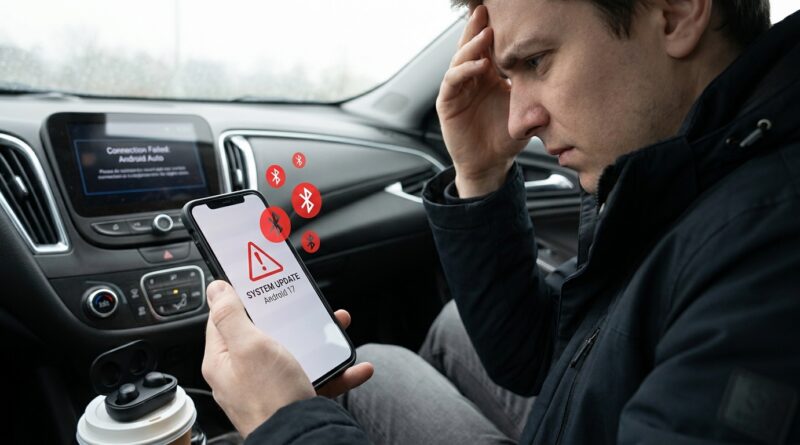
If your Bluetooth suddenly went weird right after installing Android 17, you are not imagining it. A lot of people are seeing the same thing. Earbuds connect, then drop. Cars refuse Android Auto. Smartwatches act like they have never met your phone before. It feels random, and that is what makes it so maddening. You start wondering if your headphones died, your car stereo needs an update, or the phone itself is broken.
The good news is that this usually is not a hardware failure, and you probably do not need to factory reset your phone. In many cases, Android 17 changed or scrambled the saved Bluetooth handshake between your phone and older paired devices. The fix is often a short cleanup job inside Bluetooth settings, app permissions, and network settings. If you follow the steps below in order, most people can get audio, wearables, and car connections working again in about 10 minutes.
⚡ In a Hurry? Key Takeaways
- Android 17 Bluetooth not working after update is often caused by broken saved pairings, not bad hardware.
- The fastest fix is to forget the device, restart both devices, clear Bluetooth-related app data if needed, and pair again from scratch.
- Do the safe fixes first. You usually do not need a factory reset, and resetting network settings is far less drastic.
What probably happened after the Android 17 update
Bluetooth is simple when it works and weird when it does not. After a big Android update, the phone can keep old pairing data that no longer plays nicely with the new Bluetooth stack. That can cause three common problems.
1. Devices connect, then immediately disconnect
This is common with earbuds, speakers, and watches. The phone sees the device, starts the connection, then drops it a few seconds later.
2. Audio works badly or cuts in and out
You may get stuttering music, one earbud failing to reconnect, or phone calls jumping from your headset back to the phone speaker.
3. Cars refuse to connect at all
This is the one that causes the most panic. Hands-free calling may fail, media audio may disappear, or Android Auto may not start even though it worked last week.
The 10-minute fix, in the right order
Do these steps in order. Stop when the problem is fixed.
Step 1. Turn Bluetooth off, then restart your phone
Open Quick Settings and switch Bluetooth off. Now restart the phone fully. Not just screen off. A real restart.
When the phone comes back on, wait 30 seconds, then turn Bluetooth back on and test your device again.
Why this helps: it forces Android 17 to reload Bluetooth services cleanly.
Step 2. Restart the accessory too
This part gets skipped all the time. Restart your earbuds, speaker, watch, or car system if possible.
For earbuds, that may mean placing them back in the case, closing the lid for 10 seconds, then taking them out again. For a smartwatch, reboot it. For a car, turn the engine off, open the door, lock the car, wait a minute, then restart the system fresh.
Step 3. Forget the Bluetooth device and pair it again
This is the step that fixes the biggest number of cases.
On your phone, go to Settings > Connected devices > Bluetooth. Tap the gear icon next to the device name, then tap Forget or Unpair.
Now put the accessory back into pairing mode and add it again as if it were brand new.
If you are dealing with android 17 bluetooth not working after update, this is the most important fix to try before anything more drastic.
Step 4. Check the device type and toggles
After repairing, tap the gear next to the device again. Make sure the right options are turned on.
- Phone calls for headsets and cars
- Media audio for earbuds, speakers, and cars
- Contact sharing for cars that need your address book
Sometimes Android reconnects but leaves one of these toggles off.
Step 5. Clear Bluetooth system app storage
If reconnecting did not help, clear the Bluetooth service cache.
Go to Settings > Apps > See all apps. Tap the menu and choose Show system if needed. Find Bluetooth or Bluetooth Share. Open Storage & cache, then tap Clear cache. If the problem is stubborn, tap Clear storage too.
Restart the phone once more, then pair again.
This will remove saved Bluetooth pairings, so you will need to reconnect your devices.
Step 6. Reset Wi-Fi, mobile, and Bluetooth settings
If nothing above worked, do a network reset. This sounds scary, but it is much safer than a full factory reset.
Go to Settings > System > Reset options > Reset Wi-Fi, mobile & Bluetooth.
This will remove saved Bluetooth devices, Wi-Fi networks, and some network preferences. It will not erase your photos, apps, messages, or files.
After the reset, pair the problem device again.
Fixes for the most common problem types
Earbuds and headphones keep dropping
If your earbuds connect but sound keeps cutting out, try this:
- Forget and re-pair both earbuds, not just one side
- Remove the earbuds from the manufacturer app, then add them again
- Turn off battery optimization for the earbuds app
That last one matters more than people think. Go to Settings > Apps > [earbuds app] > Battery and set it to Unrestricted or Not optimized if your phone allows it.
Car Bluetooth or Android Auto stopped working
Cars are picky because there are often two systems involved. Plain Bluetooth for calls and media, plus Android Auto for the dashboard features.
Try this order:
- Delete your phone from the car’s Bluetooth list
- Delete the car from your phone’s Bluetooth list
- Restart the phone
- Restart the car infotainment system if your car allows it
- Pair the phone again from scratch
If Android Auto is the main problem, open Settings > Apps > Android Auto > Storage & cache and clear cache. If needed, clear storage too, then set it up again.
Also check that your USB cable is not the problem if you use wired Android Auto. It is boring advice, but a flaky cable causes a shocking number of “Bluetooth” complaints.
Smartwatches and fitness bands will not stay connected
Watches often depend on a companion app staying awake in the background. After an update, Android may get more aggressive about battery saving.
Check these:
- Open the watch app and sign in again if asked
- Allow Nearby devices permission if the app requests it
- Disable battery optimization for the watch app
- Reboot both the watch and the phone
A setting worth checking on Android 17
Open Settings > Apps and look at the app tied to your device, such as Pixel Watch, Galaxy Wearable, Sony Headphones, Bose, JBL, or your car app if you use one. Make sure it still has the permissions it needs, especially Nearby devices, Location if required, and background activity access.
Major Android updates sometimes keep the app installed but quietly change how permissions behave. That can make a device look broken when the app just lost a privilege it used before.
What not to do yet
Do not rush into a full factory reset. It takes forever, and for this kind of Bluetooth bug it is often overkill.
Also do not assume the accessory itself is dead. If the problem began the same day Android 17 landed, the timing tells you a lot.
And if a forum post tells you to start messing with Developer Options and Bluetooth codec settings, skip that unless you really know what you are doing. Those tweaks can help in a few edge cases, but they are not the first move for normal users.
When it is probably Google’s bug, not yours
If several different Bluetooth devices all started acting up right after the update, the phone is the common link. That points to Android 17, not your earbuds and not your car deciding to fail together.
In that case, check for a small follow-up update under Settings > System > Software update. Google often pushes a quick patch after a major rollout once the first wave of bug reports comes in.
If you have a Pixel, also open the Tips & Support or feedback app and report the issue. It sounds pointless, but large clusters of similar reports do help speed up fixes.
If none of this works
There are three next steps before you even think about a factory reset.
- Test the accessory with another phone
- Check for firmware updates for the accessory in its companion app
- Install any pending Android 17 patch update
If the accessory works perfectly with another phone, your hardware is probably fine. If it fails everywhere, then the accessory may need its own reset or update.
At a Glance: Comparison
| Feature/Aspect | Details | Verdict |
|---|---|---|
| Fastest fix | Forget the Bluetooth device, restart both devices, and pair again | Best first step for most people |
| Safer deep fix | Reset Wi-Fi, mobile, and Bluetooth settings | More effective than a simple reboot, far less painful than factory reset |
| Last resort | Factory reset the phone after testing accessories and waiting for patches | Only if every other fix fails |
Conclusion
If Android 17 turned your once-reliable Bluetooth setup into a daily headache, you are in very crowded company. The good news is that the fix is often simple. Start with forgetting the device, rebooting both sides, and pairing again. Move to clearing Bluetooth app data and resetting network settings only if needed. Android 17 is rolling out to millions of devices this week, and Bluetooth breakage is already one of the loudest complaints in forums, from wireless earbuds cutting out to cars refusing to start Android Auto. A focused, step-by-step rescue guide like this can save you from factory resets, pointless hardware returns, and hours lost digging through half-correct Reddit threads. Start with the easy stuff. There is a very good chance your phone and your headphones can be friends again by the end of the next coffee refill.