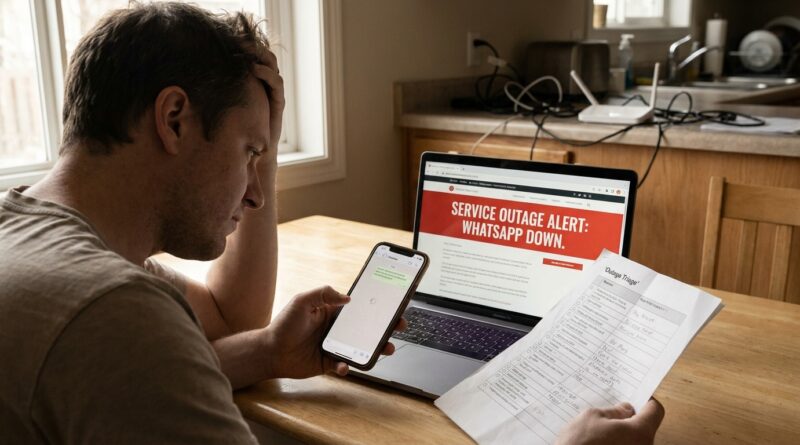
WhatsApp Suddenly Not Working Today? The Simple ‘Outage Triage’ Checklist That Tells You If It’s You, Your Phone Or WhatsApp Itself
When WhatsApp suddenly stops working, it is maddening. Messages sit there with one gray tick, photos refuse to send, and WhatsApp Web acts like it has never met your phone before. The worst part is not knowing whether the problem is your internet, your phone, your account, or WhatsApp itself. That uncertainty is what sends people into full panic mode, rebooting everything in sight, clearing caches, reinstalling the app, and sometimes making the mess worse. If you are searching for “whatsapp not working today,” the good news is that there is a simple way to sort this out fast. Think of it like outage triage. A short checklist can tell you whether to wait it out, fix something on your end, or take action because your account has a real issue. Start with the easy checks first, and save yourself a lot of time and stress.
⚡ In a Hurry? Key Takeaways
- If WhatsApp messages are stuck on one tick for lots of people, the problem is often a WhatsApp or Meta outage, not your phone.
- Test mobile data and Wi-Fi, check if WhatsApp Web alone is broken, and look for account warning messages before reinstalling anything.
- Do not delete your account or factory reset your phone during a suspected outage. Use safe backups like SMS, Signal, or plain phone calls instead.
The fast way to tell what kind of WhatsApp problem you have
Here is the simple version.
If WhatsApp is partly working, that clue matters. Maybe text messages send, but photos do not. Maybe the phone app works, but the desktop app will not sync. Maybe nothing works at all. Those patterns help narrow it down quickly.
Your job is to answer three questions:
- Is it just you?
- Is it your connection or device?
- Is WhatsApp having a wider outage or restriction?
Step 1. Check for a wider outage first
This is the step most people skip, and it is the one that saves the most time.
If you search “whatsapp not working today” and see a spike in reports from lots of users in your country or region, that is your first big hint. Also check social platforms, local news, and outage tracking sites to see whether other people are complaining about the same symptoms. Look for patterns such as:
- Messages stuck on one tick
- Media uploads failing
- Status not loading
- WhatsApp Web showing a connection or sync error
- People across different phone brands having the same trouble
If thousands of reports appear at once, stop troubleshooting for a minute. The problem may be upstream, and no amount of tapping settings on your phone will fix it.
What one gray tick usually means
One gray tick usually means the message left your phone and reached WhatsApp’s servers, but not the recipient’s device. If millions of people are seeing that at the same time, that points strongly to a service problem.
If only one contact shows one tick for hours while other chats work fine, that is different. It may be their phone, their connection, or in some cases a block.
Step 2. Test Wi-Fi versus mobile data
This is the quickest way to find out whether your internet connection is the problem.
Turn off Wi-Fi and try WhatsApp on mobile data. Then do the reverse. If WhatsApp starts working on one connection but not the other, the app is probably fine. Your network is the problem.
Signs your Wi-Fi is the issue
- Websites are loading slowly or not at all
- WhatsApp calls fail on Wi-Fi but work on mobile data
- Photos and videos hang forever only at home or work
What to do
- Restart your router once
- Turn airplane mode on for 15 seconds, then off
- Disable any VPN temporarily
- Try another network if possible
That said, if there is already a confirmed outage, do not keep power-cycling your whole house. One quick network test is enough.
Step 3. See if only WhatsApp Web or desktop is broken
This is more common than people think. Sometimes the phone app still works, but WhatsApp Web or the desktop app refuses to load, sync, or show recent chats.
If your phone app sends messages but Web does not connect, try these checks:
- Make sure your phone is online
- Refresh the browser tab or restart the desktop app
- Log out and relink the device if the outage is not widespread
- Check whether your browser has privacy extensions blocking scripts
If only Web is affected for lots of users, that usually points to a WhatsApp-side issue rather than anything wrong with your laptop.
Do not rush to unlink everything
If there is a known outage, unlinking and relinking devices can just add another headache. Wait until the service stabilizes.
Step 4. Rule out a phone-side glitch
If there are no widespread reports and switching networks does nothing, look at your phone.
Start simple:
- Force close WhatsApp and reopen it
- Restart your phone
- Check for an app update
- Make sure date and time are set automatically
- Confirm you still have storage space
Low storage is a sneaky one. WhatsApp may open, but media downloads and backups can fail if your phone is nearly full.
Check permissions too
If photos will not upload or downloads keep failing, look at permissions. On both Android and iPhone, WhatsApp needs the right access for photos, files, mobile data, and background activity to work properly.
Step 5. Look for account warnings or bans
Not every WhatsApp failure is an outage. Sometimes the app is working, but your account has a restriction.
Watch for warning messages such as:
- Your account is temporarily banned
- This account can no longer use WhatsApp
- You need the official WhatsApp to log in
If you see any of those, this is not a Wi-Fi problem. It is an account issue.
Common causes
- Using unofficial or modified WhatsApp apps
- Bulk messaging or behavior that looks automated
- Reports from other users
In that case, do not keep reinstalling the same setup and hoping for a different result. Use the in-app review process or WhatsApp support channels.
Step 6. Know when not to reinstall
Reinstalling WhatsApp is the internet’s favorite advice. It is also often the wrong move.
If there is a live outage, reinstalling will not fix it. Worse, it can create new problems if your backup is old, your verification SMS is delayed, or your linked devices get wiped.
Only consider reinstalling if:
- There is no sign of a broader outage
- Other apps and services are working normally
- You have already tested both Wi-Fi and mobile data
- You have a current backup
If you are not sure, wait. A lot of WhatsApp issues clear on their own once the service settles down.
What safe temporary alternatives should you use?
If WhatsApp is down and you need to reach people now, keep it boring and safe.
- Regular phone calls
- SMS or iMessage
- Signal or Telegram, if both sides already use them
- Email for files or longer updates
The key phrase is “already use them.” A service outage is not the best time to start uploading your contacts into random apps you do not trust. Stick with known tools, and avoid giving unnecessary access just because you are in a hurry.
A calm checklist you can follow in two minutes
Here is the repeatable flow:
- Search “whatsapp not working today” and check if others report the same thing.
- Send a test message to two different contacts.
- Switch from Wi-Fi to mobile data, then back again.
- Check whether only WhatsApp Web or desktop is failing.
- Restart the app, then the phone.
- Look for account warnings, ban notices, or requests to use the official app.
- Do not reinstall unless you have ruled out an outage and have a good backup.
That is the whole triage process. Quick, practical, and much less stressful than randomly poking at settings for an hour.
At a Glance: Comparison
| Feature/Aspect | Details | Verdict |
|---|---|---|
| Widespread outage | Many users report one-tick messages, media failures, and Web sync problems at the same time. | Wait it out. Local troubleshooting will do very little. |
| Local connection or phone issue | WhatsApp works on one network but not another, or improves after a phone restart, permission check, or update. | Fixable on your side. Test network, storage, and app settings. |
| Account restriction | You see a ban message, a warning about unofficial apps, or login blocks unrelated to service status. | Treat it as an account problem, not an outage. Contact WhatsApp and use the official app only. |
Conclusion
When WhatsApp goes sideways, the temptation is to do everything at once. Do not. WhatsApp has had several waves of instability and regional disruptions over the last days, with millions of users seeing messages stuck on one tick, media not loading, and WhatsApp Web refusing to sync. On days like this, people waste hours rebooting routers, resetting phones, or even wiping accounts when the real issue is often a Meta outage or a regional block that no amount of local fiddling can fix. A simple triage flow keeps you calm. Check whether the outage is wider, test Wi-Fi against mobile data, see if only Web is affected, and look for account warnings before you touch anything drastic. That turns a stressful blackout into a controlled situation. The goal is not to fight your phone harder. It is to figure out what kind of problem you actually have, then respond smartly.