How To Fix Smart TVs That Randomly Stop Streaming While Everything Else On Wi‑Fi Works Fine
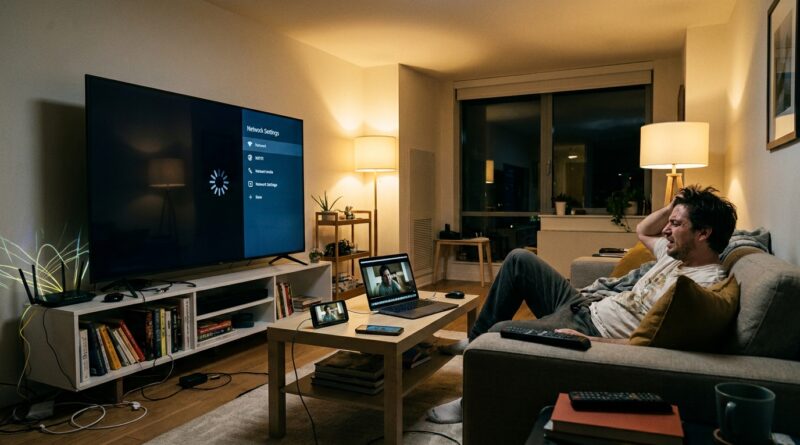
You know the routine. Netflix opens, you hit Play, and your smart TV just sits there spinning like it is thinking very hard about the idea of streaming. Meanwhile, the phone in your hand loads the same show instantly, and your laptop has no trouble pushing 4K on the same Wi‑Fi. That is what makes this so maddening. It feels like the internet is fine, because it is. The problem is often the TV itself, the TV app, or the way that one device is talking to your router.
The good news is that this usually is not a “buy a new TV” problem. It is often a mix of app cache junk, overloaded TV software, weak 5 GHz reception in one corner of the room, or a router setting your TV does not handle well. If your smart tv keeps buffering but internet is fine, the fix is usually to isolate the TV, trim the junk it is running, and give it a cleaner network path. Start simple, then work down the list. Most people solve this in under 30 minutes.
⚡ In a Hurry? Key Takeaways
- The TV is often the weak link, not your internet. Clear the streaming app cache, update the TV, and test a different Wi‑Fi band.
- If buffering happens mostly at night, your TV may be fighting for bandwidth or struggling with signal quality. Move it to 2.4 GHz for stability or use Ethernet if possible.
- You do not need to factory reset everything first. Start with low-risk fixes that save your logins and settings.
Why this happens when every other device works
Smart TVs are not as smart as the name suggests. They are usually slower than your phone, slower than your laptop, and much worse at recovering when an app gets stuck or the network changes slightly.
On top of that, TV makers keep adding more background services. Ads on the home screen. Recommendation feeds. Usage tracking. Auto previews. A bunch of little things that eat memory and network time. So when your TV keeps buffering but internet is fine, the internet may not be the real issue at all.
There are four common causes:
- The streaming app has a bad cache or corrupted data.
- The TV is connected to the wrong Wi‑Fi band for its location.
- The TV software is overloaded or out of date.
- Your router and the TV do not play nicely with certain settings.
First, figure out if it is the app, the TV, or the connection
Try a different streaming app
Open a second app on the TV. If Netflix buffers but YouTube plays fine, that points to a Netflix app problem. If every app buffers, that points more toward the TV or its network connection.
Test the same service on another device
Play the same movie or video on your phone while standing near the TV. If your phone streams perfectly on Wi‑Fi in that exact spot, your router is probably okay. That makes the TV the main suspect.
Notice the timing
If it happens every evening, like clockwork, your home network may be getting crowded. Phones backing up photos, game consoles downloading updates, cameras uploading clips, and a dozen smart gadgets chatting in the background can all pile on at night.
If your whole network has felt a little weird since your provider swapped your router, read How to Fix Wi‑Fi That Randomly Drops or Crawls After Your ISP’s ‘Free’ Router Upgrade. A lot of people blame the TV when the router change is the thing that started the mess.
The fixes that work most often
1. Fully restart the TV, not just with the remote
Pressing the power button on many smart TVs does not really shut them down. It just puts them in a low-power sleep mode.
Instead, do this:
- Turn the TV off.
- Unplug it from the wall.
- Wait at least 60 seconds.
- Hold the TV’s physical power button for 10 to 15 seconds if it has one.
- Plug it back in and try again.
This clears temporary junk from memory better than a quick remote restart.
2. Clear the cache for the streaming app
This is one of the best fixes when a single app keeps freezing or buffering.
On many Android TV and Google TV sets, go to Settings, Apps, pick the app, then choose Clear Cache. On some TVs, you may also see Clear Data. Use Clear Cache first. Clear Data is more aggressive and may sign you out.
Samsung, LG, Roku, and Fire TV sets use different menus, but the idea is the same. If you cannot find a cache option, uninstall and reinstall the app.
3. Update both the TV and the app
Yes, updates can be annoying. But streaming apps break all the time when the TV software is old. Check for:
- TV firmware updates
- Streaming app updates
- System app or app store updates
After updating, restart the TV again.
4. Switch Wi‑Fi bands
This one surprises people. The faster 5 GHz band is not always the better choice for a TV.
Use 5 GHz if:
- The router is in the same room or very close
- You want top speed
- The signal is strong and steady
Use 2.4 GHz if:
- The TV is far from the router
- There are walls in between
- The problem happens more at night or randomly
2.4 GHz is slower, but it often has better range and stability. For streaming, stable usually beats fast.
5. Forget the Wi‑Fi network and reconnect
Sometimes the TV hangs onto an old or messy network profile. Go into the TV’s network settings, forget your Wi‑Fi network, then reconnect from scratch. Make sure you join the correct band if your router shows separate names for 2.4 GHz and 5 GHz.
6. Turn off VPN or DNS tricks on the TV
If you or someone in the house set up custom DNS, a VPN app, ad blocking, or location tools on the TV, disable them for testing. These can slow or break streaming on some apps without affecting phones and laptops in the same way.
When the TV is overloaded, not disconnected
Close background apps
Many smart TVs quietly keep apps running in the background. If you have hopped between YouTube, Netflix, Disney+, Plex, and a web browser, the TV may simply be running out of memory.
If your TV offers an app manager or recent apps screen, close everything except the one you are using.
Turn off junk you do not need
Go into settings and disable things like:
- Auto-play previews on the home screen
- Personalized recommendations if you do not use them
- Usage reporting or diagnostics, where allowed
- Unused voice assistants
- Unused “smart” features tied to ads or promotions
This will not turn your TV into a speed monster, but it can make it noticeably less flaky.
Check free storage
If the TV is almost full, apps may behave badly. Delete unused apps. Remove old downloads if your TV supports them. Restart afterward.
If buffering keeps happening at the same time every night
This is usually a clue, and clues matter.
Nighttime issues often mean one of these:
- Your Wi‑Fi is more crowded when everyone gets home
- Your TV has a weaker signal than your phone or laptop
- The TV app runs scheduled background tasks and bogs itself down
- Your router is auto-switching channels badly
What to do
- Temporarily pause big downloads on consoles and PCs
- Move the TV to the less crowded Wi‑Fi band
- Reposition the router if it is stuffed in a cabinet
- Try streaming over Ethernet for one night as a test
If Ethernet fixes it instantly, you have confirmed the issue is Wi‑Fi quality at the TV, not your internet plan.
Ethernet is boring, but it works
If your TV is near the router, just plug in a network cable and be done with it. Wired is still the cleanest fix for a stubborn streaming setup.
If the router is too far away, you can still use Ethernet as a test by moving the TV or using a long cable for one evening. It is worth doing because it tells you exactly where the problem lives.
Router settings that can trip up smart TVs
You do not need to become a network engineer here. But a few router features can cause smart TVs to act strange while newer phones and laptops shrug it off.
Band steering
This is when one Wi‑Fi name handles both 2.4 GHz and 5 GHz and the router decides where devices go. In theory it is smart. In practice, some TVs get bounced around badly.
If possible, split the bands into separate network names and connect the TV to one manually for testing.
Auto channel selection
Some routers do a poor job picking channels in crowded apartments or neighborhoods. If your buffering started after a router upgrade or reset, auto settings may be the hidden problem.
QoS or “gaming” priority modes
These can accidentally deprioritize the TV if the router decides other traffic matters more. If you enabled fancy traffic controls, turn them off for a day and test.
When a streaming stick beats the built-in smart TV apps
This is the part TV makers do not love hearing. Sometimes the panel is fine, the Wi‑Fi is fine, and the built-in smart system is just bad.
If your TV is more than a few years old, a Roku, Fire TV Stick, Apple TV, or Chromecast with Google TV may run circles around the built-in apps. They usually get updates longer, have better app support, and manage memory better.
You do not need to buy one immediately. But if you have tried the steps above and your TV still buffers while every other device works, an external streamer is often a better fix than replacing the whole TV.
What not to do right away
- Do not factory reset the router first
- Do not assume you need faster internet
- Do not buy a new router before testing Wi‑Fi band changes and app cleanup
- Do not factory reset the TV unless simpler steps fail
A factory reset can help, but it is a last resort because it wipes logins, app setups, and preferences.
A practical order to try these fixes
If you want the shortest path, do this in order:
- Unplug the TV for 60 seconds and restart it fully
- Clear the app cache or reinstall the problem app
- Update the TV and the app
- Switch the TV to the other Wi‑Fi band
- Forget and reconnect to Wi‑Fi
- Close background apps and delete unused ones
- Test with Ethernet
- Only then consider a TV factory reset or an external streaming device
At a Glance: Comparison
| Feature/Aspect | Details | Verdict |
|---|---|---|
| App cache and TV memory | A bloated app or low TV memory can cause endless buffering even when Wi‑Fi is fine. | Best first fix. Low effort, high success rate. |
| 2.4 GHz vs 5 GHz Wi‑Fi | 5 GHz is faster but weaker at distance. 2.4 GHz is slower but often steadier for TVs across rooms. | Switch bands before buying anything. |
| Built-in TV apps vs streaming stick | Older TV software often ages badly, while external streamers get better updates and smoother app performance. | Great fallback if the TV platform is the weak link. |
Conclusion
If your smart tv keeps buffering but internet is fine, trust what you are seeing. You are not crazy, and you are not always dealing with a bad broadband connection. More often, the TV is struggling with app junk, weak signal in that one spot, or software that is trying to do too much in the background. Streaming problems are getting more common as TV makers cram in more ad tech and background services, while homes fill up with phones, consoles, cameras, and every other connected gadget under the sun. The good news is that you can usually isolate and stabilize the TV with a few smart tests, not a new router and not an expensive service call. That is the kind of plain-English, real-world fix that actually saves time, money, and your evening.