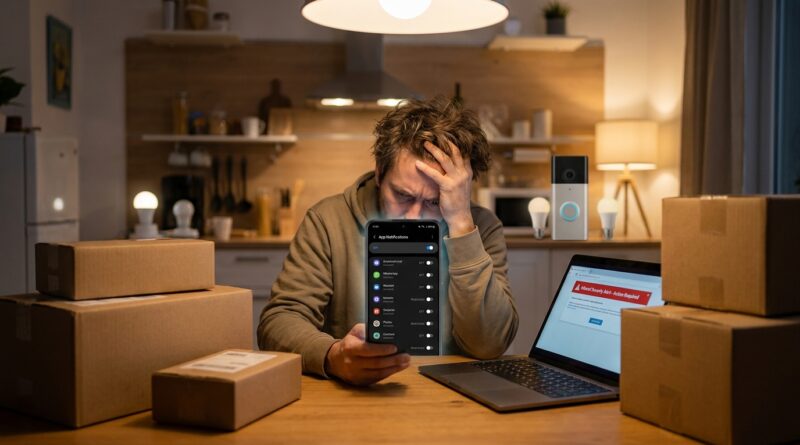
How To Fix Android Apps That Suddenly Stop Sending Notifications After The Latest Update
Your phone updates overnight, and suddenly the apps you count on go quiet. No bank alerts. No WhatsApp ping. No smart doorbell warning. It is maddening, especially when nothing looks broken and every setting seems fine at first glance. If you are dealing with android apps not sending notifications after update, you are not imagining it. Recent Android and security updates have changed how some phones handle background activity, battery use, and notification permissions. That can quietly block alerts from apps that used to work perfectly.
The good news is this usually does not need a factory reset, a repair shop visit, or one of those junk “phone cleaner” apps. In most cases, the fix is buried in two or three settings that got changed during the update. We will walk through the simple checks first, then the settings that most often bring notifications back for banking apps, messaging apps, email, delivery trackers, and smart home tools.
⚡ In a Hurry? Key Takeaways
- Most notification problems after an Android update are caused by app notification permissions, battery restrictions, or background data settings changing silently.
- Start by checking the affected app’s Notifications, Battery, and Mobile Data settings, then restart the phone and update the app.
- Avoid “booster” or “optimizer” apps. They often make the problem worse and can expose you to scams or privacy risks.
Why this happens after an update
Android updates do more than add features. They also tighten security, battery saving rules, and background limits. That is usually good for battery life, but it can be rough on apps that need to stay awake long enough to send you alerts.
Sometimes the update turns on stricter battery management for apps that used to be unrestricted. Sometimes it resets notification categories. On Samsung, Pixel, Motorola, OnePlus, and other brands, the wording is a little different, but the problem is often the same. The app is no longer allowed to run or check in the way it used to.
Start with the quickest fixes first
1. Restart the phone
Yes, really. It sounds basic, but it clears stuck background processes after an update. If notifications stopped right after the patch installed, restart the phone before doing anything else.
2. Open the app once
Some apps do not fully reconnect in the background until you open them after an update. Launch the app, sign in if needed, and leave it for a few seconds. Then send yourself a test message or alert if possible.
3. Check if only one app is affected
If every app is silent, the issue may be a system setting like Do Not Disturb, battery saver, or restricted background activity. If only one app is affected, the fix is usually inside that app’s own settings page in Android.
The settings that usually fix it
Check app notifications
Go to Settings > Apps > [App Name] > Notifications.
Make sure notifications are turned on. Then look one level deeper. Many apps have categories such as messages, alerts, promotions, account activity, deliveries, or device warnings. After updates, the main switch can stay on while the important categories get turned off.
If your banking app sends fraud warnings, for example, make sure “Security alerts” or “Account alerts” is enabled. For messaging apps, look for message notifications, call notifications, and pop-up alerts.
Remove battery restrictions
This is the big one. Go to Settings > Apps > [App Name] > Battery.
Look for options such as:
- Unrestricted
- Optimized
- Restricted
If the app is important, like your bank, authenticator, messaging app, or video doorbell, set it to Unrestricted or the closest “allow background activity” option your phone offers.
On Samsung phones, you may also need to check Settings > Battery > Background usage limits and make sure the app is not in Sleeping apps or Deep sleeping apps.
Allow background data
Go to Settings > Apps > [App Name] > Mobile data & Wi-Fi, or a similarly named menu.
Make sure these are on if available:
- Background data
- Unrestricted data usage
- Allow data usage while Data Saver is on
If background data is blocked, the app may only wake up when you open it manually. That is why messages or alerts suddenly arrive all at once.
Turn off Data Saver and Battery Saver for a minute
If your phone is in Data Saver or Battery Saver mode, some apps will not push alerts reliably. Turn those modes off temporarily and test again.
You can usually find them in Settings > Battery and Settings > Network & Internet.
Check Do Not Disturb
Do Not Disturb can be more aggressive after updates, especially if schedules got reset. Go to Settings > Sound > Do Not Disturb and make sure it is off, or that your important apps are allowed through.
If you use a Samsung, Pixel, or other Android brand
Samsung
Samsung phones are notorious for putting apps to sleep to save battery. Check these spots:
- Settings > Notifications > App notifications
- Settings > Battery > Background usage limits
- Settings > Apps > [App] > Battery
If your app is in Sleeping apps or Deep sleeping apps, remove it.
Google Pixel
Pixels tend to keep things simpler, but battery restrictions still matter. Check:
- Settings > Notifications > App settings
- Settings > Apps > [App] > App battery usage
- Settings > Network & internet > Data Saver
OnePlus, Xiaomi, Motorola, and others
These brands often add extra battery controls on top of Android. If the basic settings do not fix it, search inside Settings for:
- Battery optimization
- Auto-launch
- Background activity
- Sleep standby optimization
Those extra tools can stop notifications cold.
What not to do
Do not install a random notification fixer, RAM cleaner, or battery booster app. Those apps are often useless, and some are downright shady. They can block background tasks even more, not less.
If you start seeing sketchy warnings while searching for a fix, like “your device is hacked” or “clean now to remove viruses,” ignore them. We covered that mess here: How To Stop Fake “Your Device Is Hacked” Pop‑Ups Before They Empty Your Bank Account.
Still not working? Do these next
Update the app itself
Go to the Play Store and check for updates to the problem app. Sometimes the Android update arrives first, and the app developer releases a fix a day or two later.
Clear the app cache
Go to Settings > Apps > [App Name] > Storage & cache, then tap Clear cache.
This does not usually delete your account or messages. It just clears temporary junk that may be causing the app to misbehave after the update.
Sign out and back in
For email, chat, and banking apps, signing out and back in can refresh the app’s connection to its servers. If you do this with a banking or secure app, make sure you know your password first.
Reinstall the app
If one app still will not behave, delete it and reinstall it. This can reset broken permissions and background settings. Just make sure you have your login details and any backup codes before removing apps tied to security or finances.
Check system-level notification history
On some phones, you can go to Settings > Notifications > Notification history. If alerts are showing there but not popping up normally, the issue may be with lock screen, sound, or pop-up display settings rather than the app itself.
For banking apps, 2FA apps, and smart home alerts
These deserve special attention because missed notifications here are more than annoying. They can lock you out of accounts or make you miss fraud warnings.
For those apps, I would check all of these:
- Notifications enabled
- Important notification categories enabled
- Battery set to unrestricted
- Background data allowed
- No sleeping app restrictions
- Do Not Disturb exceptions if needed
If your 2FA codes are sent by text message rather than an app, also make sure your Messages app was not restricted after the update.
When the problem is actually the app, not your phone
Sometimes the app developer broke something. It happens. If social media is full of people saying the same banking app or messaging app stopped sending alerts after the newest Android patch, you may be looking at a server-side or compatibility bug.
Check the app’s Play Store reviews sorted by newest. If dozens of people mention lost notifications in the last day, the app company is probably already working on it. In that case, keep the app updated and use a backup alert method if available, like email or text.
At a Glance: Comparison
| Feature/Aspect | Details | Verdict |
|---|---|---|
| Notification settings | Main app alerts may be on, but important categories like messages or security warnings can be off after an update. | Check this first |
| Battery restrictions | Android may quietly limit background activity, especially on Samsung and other heavily optimized phones. | Most common fix |
| Cleaner or booster apps | These often kill background tasks, add ads, or push fake security warnings. | Avoid completely |
Conclusion
If android apps not sending notifications after update has turned your phone into a silent brick, the fix is usually much simpler than it looks. Most people just need to restore notification permission, remove battery restrictions, and allow background data for the apps that matter. That can take five minutes, not a whole afternoon. Right now a lot of people are missing time sensitive alerts like 2FA codes, delivery updates, and banking warnings because their phones quietly changed how apps are allowed to run after recent patches. The upside is that you can usually put things right without factory resets or sketchy “booster” apps. Once those settings are back where they should be, your phone starts acting like your phone again. Reliable, helpful, and not mysteriously silent when you need it most.