
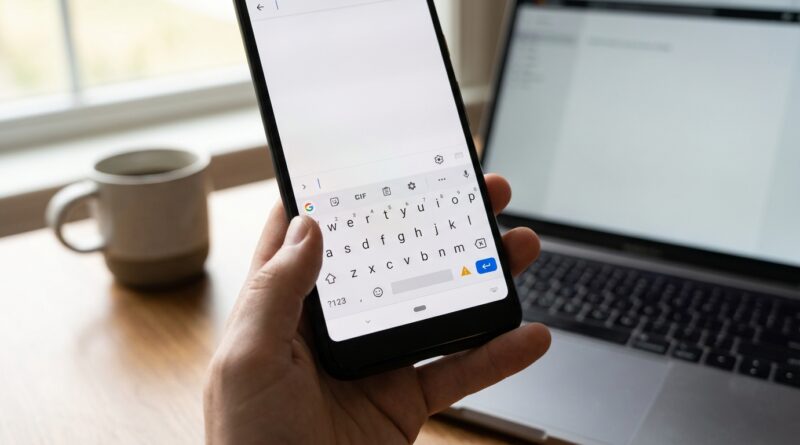
Google Gboard Microphone Suddenly Not Working On Your Phone Today? The One Hidden Permission Reset That Usually Brings Voice Typing Back
You tap the microphone on Gboard to fire off a quick text, and suddenly it is greyed out, frozen, or throws a “no permission” style error. Annoying, right? Especially when it worked yesterday. For a lot of people, voice typing is not a bonus feature. It is how you text, search, reply to emails, and keep moving. When it stops, your phone instantly feels slower.
The good news is this usually is not a bad microphone or a broken phone. In many cases, Android or an app update quietly resets one part of the permission chain that Gboard needs for voice input. The trick is that fixing Gboard alone often is not enough. You usually have to check both the microphone permission and the Google voice input service that sits behind it. Once those are reset, the mic often comes right back without a factory reset or a trip through 20 random help pages.
⚡ In a Hurry? Key Takeaways
- The fastest fix for a gboard microphone not working issue is to re-enable microphone access for both Gboard and the Google app, then reset the voice input service.
- If the mic is greyed out everywhere, go to Settings, Apps, Gboard and Google, Permissions, then allow Microphone and restart the phone.
- This is safe to try and usually does not delete your texts, apps, or personal files. At worst, you may need to re-enable voice typing settings.
Why this happens so suddenly
What makes this problem so frustrating is how random it feels. One day voice typing works fine. The next day, nothing.
That usually points to software, not hardware. After Android updates, Google app updates, privacy changes, or battery optimization tweaks, your phone can reset or block part of the voice typing chain. Gboard is just the keyboard you see. Behind the scenes, it often relies on the Google app and Android speech services to actually listen and turn speech into text.
So if one hidden permission gets flipped off, the mic button may still appear, but it will not work properly.
The one hidden permission reset that usually fixes it
If your gboard microphone not working problem suddenly showed up today, do these steps in order.
Step 1: Check microphone permission for Gboard
Open Settings, then go to Apps, then Gboard. On some phones it may appear as Gboard under the full app list.
Tap Permissions. Make sure Microphone is set to Allow only while using the app or Allow.
If it is denied, that is likely your problem.
Step 2: Check microphone permission for the Google app
This is the part many people miss. Go back to Settings, then Apps, then open Google.
Tap Permissions. Again, make sure Microphone is allowed.
If Gboard has access but the Google app does not, voice typing can still fail.
Step 3: Reset the permission by turning it off, then back on
Even if both apps already show microphone access, turn the permission off, back out, then turn it on again for both Gboard and Google.
This simple reset often kicks Android into reconnecting the voice input service properly.
Step 4: Restart your phone
Yes, the old classic. But here it matters.
After the permission reset, restart the phone before testing voice typing again. That clears stuck background processes and reloads the input engine.
If the mic is still greyed out, reset the voice typing engine
If permissions look fine and the mic still does nothing, the next fix is to reset the apps handling speech input.
Clear cache for Gboard
Go to Settings, Apps, Gboard, Storage & cache, then tap Clear cache.
This will not erase your phone. It just removes temporary files.
Clear cache for Google
Now do the same for the Google app. Go to Settings, Apps, Google, Storage & cache, then Clear cache.
If that does not help, you can also try Clear storage for the Google app, but be aware you may need to re-set some Google app preferences afterward.
Make sure voice typing is actually enabled in Gboard
Open any app where the keyboard appears. Bring up Gboard, tap the gear icon to open settings, then go to Voice typing.
Make sure Use voice typing is switched on.
If it is off, turn it on and test again.
Other settings that can quietly block the mic
If the main fix did not do it, these are the next places to check.
System-wide microphone access
Some Android phones have a global privacy toggle that can shut off the microphone for every app.
Look in Settings, Privacy, and check for a Microphone access switch. If it is off, Gboard cannot listen no matter what its own settings say.
Battery saver or restricted background access
On some phones, aggressive battery settings can interfere with Google voice services.
Go to Settings, Apps, Google, then look for Battery. If it is set to Restricted, switch it to Optimized or Unrestricted and test again.
App update went bad
If this started right after an update, uninstalling app updates can help.
Open the Google app page in settings and look for the three-dot menu. If your phone offers Uninstall updates, try that, then update again later from the Play Store.
You can also do the same for Gboard if needed.
How to tell if it is Gboard, Google, or your phone mic
Here is a quick way to narrow it down.
Test the phone microphone in another app
Open the camera and record a short video with sound. Or use a voice recorder app.
If the audio records normally, your phone microphone hardware is probably fine. That means the issue is almost certainly in permissions, Gboard, or Google voice services.
Test speech input somewhere else
Try the voice search mic in the Google app itself. If that also fails, the problem is likely with the Google app or system microphone permissions, not just Gboard.
What usually fixes it for most people
If I had to bet on one repair path for a sudden gboard microphone not working issue, it would be this:
- Allow microphone for Gboard.
- Allow microphone for Google.
- Turn both permissions off and on again.
- Clear cache for both apps.
- Restart the phone.
That combo solves a surprising number of cases because it addresses the full permission stack, not just the keyboard app you can see.
When you should try a full app reinstall
If none of the above worked, reinstalling updates is the next reasonable step.
Update both Gboard and Google from the Play Store. If they are already updated, uninstall updates if possible, restart, then update again. This can fix a corrupted update or a bad handoff between app versions.
You do not need to jump straight to a factory reset. That is almost never the first answer here.
At a Glance: Comparison
| Feature/Aspect | Details | Verdict |
|---|---|---|
| Most likely cause | Microphone permission reset or blocked Google voice input service after an update | Check this first |
| Fastest fix | Re-enable microphone access for both Gboard and Google, then restart the phone | Usually works in minutes |
| Safest deeper reset | Clear cache for Gboard and Google, then re-test voice typing | Low risk and worth trying before reinstalling apps |
Conclusion
If your Gboard mic suddenly stopped working, you are not imagining it, and you are definitely not the only one. Voice typing is how a lot of people text, email, and search all day, so when it dies, everything feels slower right away. The good news is that this problem is often tied to one hidden permission reset plus the Google voice input service behind the scenes, not a broken phone. With recent spikes in complaints after Android and app updates, this simple, screenshot-friendly repair path can save you a lot of time, stress, and pointless troubleshooting. Start with microphone permissions for both Gboard and Google, reset them, clear cache, and reboot. In many cases, that is the fix that brings voice typing back.