How to Fix “Storage Almost Full” on Your Phone Without Paying for More iCloud or Google One
Your phone says “storage almost full,” you delete a bunch of photos, maybe even remove a couple of apps, and
Read More

Your phone says “storage almost full,” you delete a bunch of photos, maybe even remove a couple of apps, and
Read More
If you have been asking, “how do I stop ChatGPT from using my chats for training?”, you are not overreacting.
Read More
If the update screen has not changed for 45 minutes, hold the power button to shut down, then on the next boot tap F8 or Shift+F8 repeatedly and choose Safe Mode with Networking. Once in, run Windows Update Troubleshooter and then free at least 10 GB by clearing Downloads and old installers before trying the update again, which prevents the same stall from happening twice.
Read More
Open Activity Monitor, sort by CPU, and quit only the top two apps using more than 80 percent that you recognize, then close your browser and relaunch it with only the tabs you actually need, and finally leave the Mac plugged in and awake for one to two hours so Spotlight and Photos can quietly finish reindexing. This combination usually ends the heat spike without scary terminal commands or giving up important apps.
Read More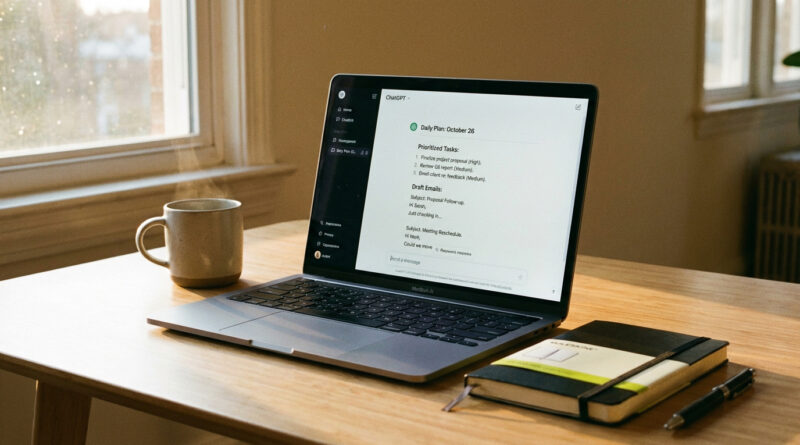
Use a single reusable ‘work day’ prompt where you paste your to do list and say, ‘You are my practical assistant, not a writer, help me turn this list into a today only plan with 3 most important tasks, quick email drafts, and the exact questions I should ask others,’ then reuse and tweak this prompt each morning. Treating the AI like a daily planning buddy instead of a one question search engine transforms it from a toy into an actual productivity tool.
Read More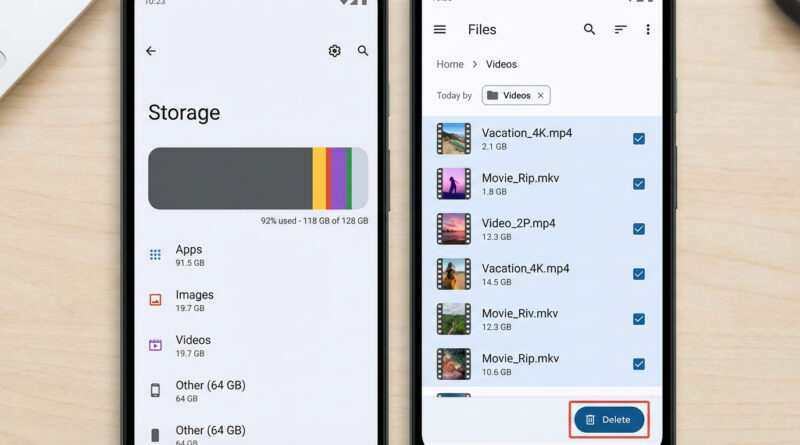
Start by uninstalling and reinstalling just WhatsApp, Chrome, and your main social app, but first use their own in app options to clear downloads and cache, then in Files or My Files sort by size and delete only old screen recordings and large videos you recognize instead of random system folders. This laser focused cleanup often frees several gigabytes of hidden app data and media, which is what ‘Other’ usually is in disguise.
Read More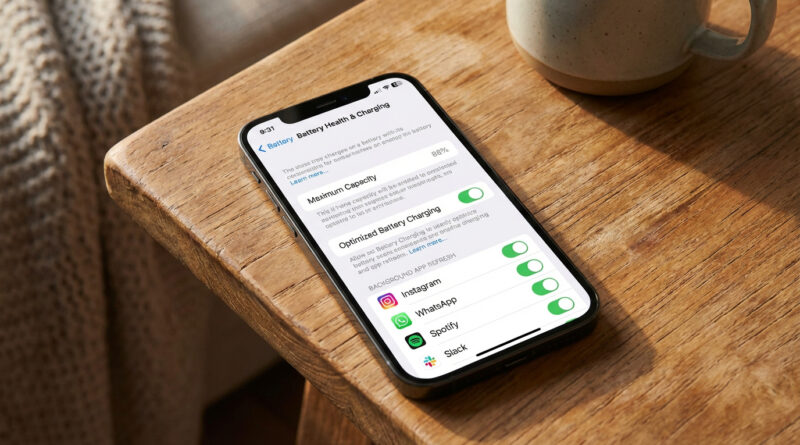
Open Settings > Battery > Battery Health & Charging and turn off Optimized Battery Charging for 24 hours, then in Battery usage tap the top 2 or 3 hungriest apps and disable Background App Refresh only for those specific apps instead of all apps. This targeted reset plus a day of normal use lets iOS finish its reindexing, calms the battery analytics, and usually restores normal battery life without gutting your phone’s features.
Read More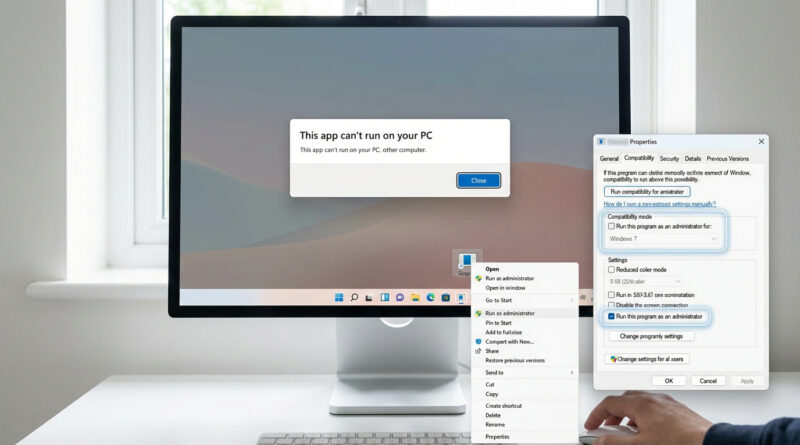
Before you reinstall anything, right click the app, go to Properties, then Compatibility and tick ‘Run this program as an administrator’ and set Compatibility mode to an older Windows version, then move the installer or app to a simple folder like C:Apps (no special characters) and run it from there. This single combo often bypasses silent security blocks and weird permission issues that standard fixes completely miss.
Read More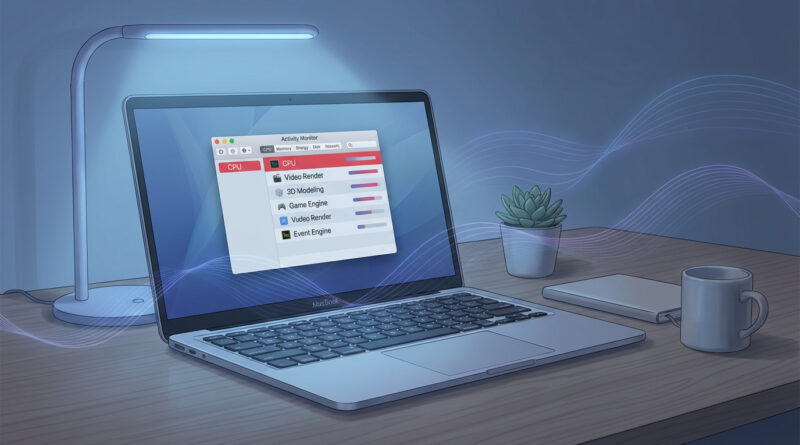
Open Activity Monitor and sort by CPU, then close or uninstall any app that regularly sits near the top when you are not actively using it, especially extra browser extensions. For an easy win, create a ‘Focus’ mode for work that automatically closes video apps, pauses cloud backup and limits notifications, which keeps your Mac cooler and cuts down on those loud fan spikes.
Read More
Check Battery usage in Settings and uninstall or restrict any app that shows up near the top that you do not truly need, then turn on Adaptive Battery and disable ‘Always on’ screen features. As a quick pro move, set a custom bedtime mode that turns off 5G and background syncing while you sleep, which often adds an extra few hours of real‑world battery life.
Read More