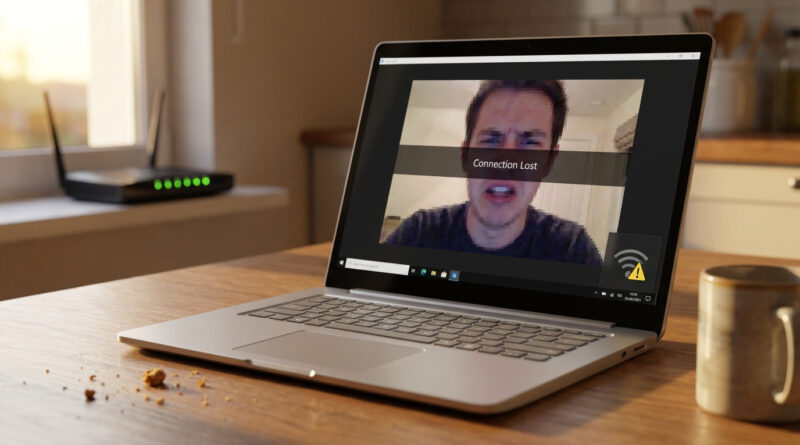
How to Fix Wi-Fi That Keeps Dropping on Windows Without Calling Your Internet Provider
Set your network adapter to stop being ‘too smart’ about saving power: in Windows search for ‘Device Manager’, open ‘Network adapters’, right click your Wi-Fi adapter, choose ‘Properties’, go to the ‘Power Management’ tab and untick the option that lets Windows turn off the device to save power, then in ‘Settings’ search for ‘Power & sleep’, open ‘Additional power settings’ and make sure you are on ‘High performance’ or set the wireless adapter to ‘Maximum performance’ in advanced settings.
Read More