The Best Way to Stop Your Mac From Running Hot and Loud
It’s stressful when your Mac suddenly feels like a space heater. The fans kick up, everything slows down, and you start wondering if you’re hurting it just by having a few apps and tabs open. The good news is that most of the time, nothing is “broken.” One or two background apps are just working overtime, and your Mac is doing its best to keep up.
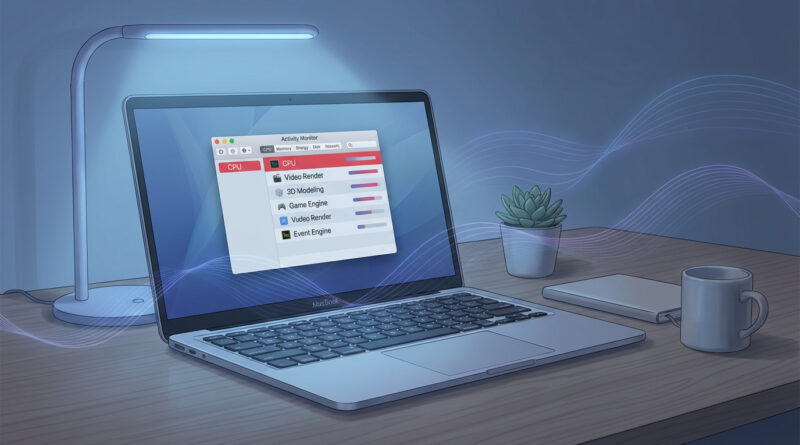
The fastest, safest fix is to catch the real CPU hogs in the act. You do that with Activity Monitor, not guesswork. Once you spot the app that keeps floating to the top even when you are not using it, you can quit it, update it, remove its extras (like browser extensions), or uninstall it. Then for an easy daily win, set up a Work Focus that automatically shuts down the usual troublemakers and quiets the system. One click. Cooler Mac. Fewer surprise fan storms.
⚡ In a Hurry? Key Takeaways
- Open Activity Monitor, sort by CPU, and deal with whichever app stays near the top when you are not using it.
- Trim your browser first. Close heavy tabs, remove extensions you do not need, and restart the browser.
- Quitting a misbehaving app is safe. Avoid force-quitting system processes unless you are sure what they are.
Step 1: Find the one app that’s making your Mac sweat
When your Mac is hot and loud, it’s usually because the CPU is being kept busy. Heat and fan noise are just the side effects.
How to check CPU the simple way
1) Open Activity Monitor (press Command + Space, type “Activity Monitor”).
2) Click the CPU tab.
3) Click the % CPU column header to sort from highest to lowest.
Now watch the top few entries for 20 to 30 seconds. A quick spike is normal. What you are looking for is an app that sits near the top and stays there when you are not actively using it.
What’s “normal” and what’s suspicious?
Normal: Your browser jumps high while loading a site, Zoom spikes during a call, Photos spikes while importing, Spotlight spikes right after a big update.
Suspicious: A menu bar app sitting at 30 to 80% CPU all day. A cloud sync tool grinding when nothing changed. A browser helper that stays hot even with one tab open.
Step 2: Safely close the troublemaker (without breaking anything)
If you spot an app that is clearly misbehaving, start with the safest move.
Try this order
1) Quit the app normally: Click the app, then Command + Q.
2) Reopen it: Sometimes it just gets “stuck.”
3) Update it: Bug fixes often target battery drain and overheating.
4) Uninstall it: If it keeps happening and you do not truly need it.
When to use Force Quit (and when not to)
Force Quit is fine for regular apps that freeze or chew CPU. Use Command + Option + Escape, pick the app, then Force Quit.
Skip force-quitting things you do not recognize in Activity Monitor, especially anything that looks like a core macOS service. If you are unsure, quit the visible app first (Chrome, Dropbox, Teams, etc.) and see if the fans calm down.
Step 3: Your browser is usually the real heater
A “few tabs” can still mean a lot of work. Video, web apps, ads, and extensions can hammer your CPU even when you are not paying attention.
Quick browser cleanup that actually helps
1) Check extensions: In Safari: Settings > Extensions. In Chrome: Window > Extensions. Disable anything you do not absolutely need for work.
2) Close the worst tabs: Especially live dashboards, social feeds, and any tab playing video in the background.
3) Restart the browser: It clears out “hung” processes and can drop CPU use fast.
If you want a simple rule, keep only the extensions you would miss tomorrow morning. Everything else is a maybe. And “maybe” extensions are often the ones that keep fans loud.
Step 4: Build a Work Focus that keeps your Mac cool
This is the underrated trick because it stops the fan spikes before they start. Focus modes are not just for notifications. They are a way to set your Mac into “work shape” with one click.
Create a Work Focus
1) Open System Settings > Focus.
2) Click + to add a new Focus, choose Work.
3) Set who and what apps can notify you.
Make it automatically calm the usual culprits
Close video and chat apps when you start work (or at least keep them from constantly grabbing attention). The goal is fewer background animations, fewer calls trying to auto-connect, fewer surprise syncs.
Pause cloud backup during deep work. If you use Dropbox, OneDrive, Google Drive, or a backup tool that likes to run all day, pause syncing for a couple of hours during heavy work blocks. Then let it catch up at lunch or after you are done.
Limit notifications. Notifications are not the biggest heat source, but they keep apps waking up. Less wake-ups equals a calmer system.
Optional: tie Focus to a schedule
If your fans kick up at the same time every morning, schedule Work Focus to turn on automatically. It feels like your Mac “behaves” on a routine.
Two quick checks that prevent repeat overheating
Check Login Items
Go to System Settings > General > Login Items. If you see five different helpers launching at startup, you are basically starting your day with the fans already warming up. Turn off anything you do not need daily.
Free storage helps performance too
A nearly full drive can make macOS work harder, which can make everything feel sluggish. If your Mac is hot and also “mysteriously slow,” it is worth checking storage. The same “sort and target the real hogs” approach applies on iPhone too. If you are constantly battling “Storage Almost Full,” this guide helps you find the hidden offenders fast: How to Stop Your iPhone Storage From Always Being Full.
At a Glance: Comparison
| Feature/Aspect | Details | Verdict |
|---|---|---|
| Activity Monitor (CPU sort) | Shows which apps and helpers are actively using processing power right now | Best first step. Removes guesswork |
| Browser extensions cleanup | Extensions can run constantly, even when you are not using them | Biggest “easy win” for heat and fan noise |
| Work Focus mode | A one-click setup that reduces background distractions, plus encourages pausing heavy apps like video and syncing | Best long-term fix. Prevents daily fan spikes |
Conclusion
If your Mac runs hot and loud with just a handful of apps, you are not imagining it. Something is stealing CPU in the background. Use Activity Monitor to spot it, then quit, update, or uninstall the repeat offenders, especially browser extensions. After that, set up a simple Work Focus so your Mac starts each day in a calmer state. You end up with a machine that stays quiet, cool, and responsive, without you having to babysit it all afternoon.