The Best Way to Stop Your Mac from Overheating and Sounding Like a Jet
If your Mac’s fans kick on during a simple video call and the bottom gets hot enough to make you flinch, you’re not alone. It feels embarrassing. It also makes you wonder if something is broken. Then you search for help and get buried in scary talk about “processes” and “logs.” Here’s the friendly truth. Most of the time, your Mac isn’t failing. Your browser is just working way harder than you think, usually because of too many open tabs. The easiest fix is also the least technical. Before a call or any heavy task, close every tab you do not need. Then fully quit the browser and reopen only the two or three tabs you actually plan to use. This one habit often cuts fan noise in half because it stops all those leftover tab tasks from chewing up power in the background.
⚡ In a Hurry? Key Takeaways
- Quit and reopen your browser with only 2 to 3 needed tabs before calls. This often drops heat and fan noise fast.
- Don’t just close a tab. Close extra tabs, then fully quit the browser (Command + Q) to truly stop background work.
- If this helps, your Mac is likely fine. It was just doing extra work you didn’t ask for.
Why your Mac sounds like a jet during “nothing” tasks
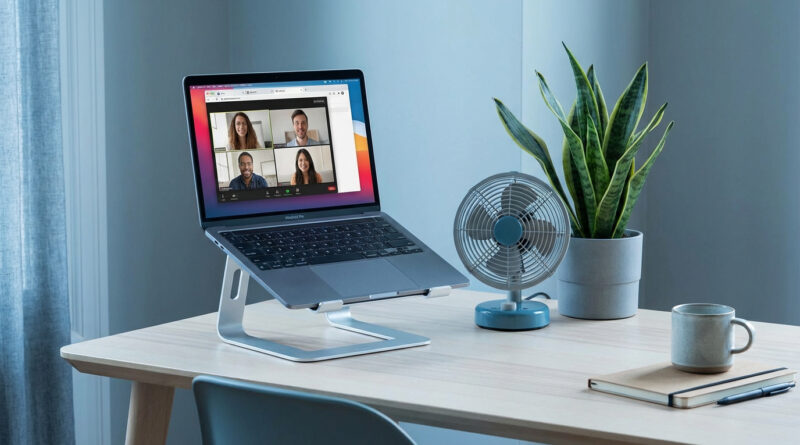
Video calls feel simple, but they are sneaky. Your Mac is handling camera, microphone processing, live video encoding, and network stuff. That’s already a workout.
Now add a browser with 25 tabs open, plus a couple of tabs that are quietly refreshing, running ads, playing hidden video, or syncing something. Your Mac’s cooling system is doing its job. It spins the fans because the machine is generating heat.
The key idea is this. Most “mystery overheating” on a healthy Mac is just “too many browser jobs at once.”
The best habit: the 30-second browser reset
Step 1: Close tabs you don’t need
Be ruthless for 10 seconds. If you are not using it in the next hour, close it.
Step 2: Fully quit the browser (this part matters)
Closing a window is not the same as quitting. Many browsers keep running in the background even after you click the red dot.
Use Command + Q to quit the browser completely, or right-click its icon in the Dock and choose Quit.
Step 3: Reopen only what you need for the call
Open your calendar invite or meeting link, plus maybe one doc or note tab. That’s it. You can always reopen the rest later.
Why quitting helps more than you’d expect
Tabs are not just “pages.” They are mini-apps. Each one can run scripts, video players, trackers, and background refresh. Some keep working even when you are not looking at them.
Quitting the browser is like turning off the lights instead of just closing the door. It stops the stuff you can’t see.
Quick extras that help (without getting technical)
Use one browser for calls, another for everything else
If you tend to keep a ton of tabs open for work, try this: run your video call in a “clean” browser session. For example, use Safari just for meetings, and Chrome for your messy research tabs. Or the other way around. The point is separation.
Restart before a long call day
If you have back-to-back meetings, a restart in the morning can clear out leftover junk and give you a cooler start.
Check the simple physical stuff
Soft surfaces trap heat. Beds and couches are the worst. Use a hard surface. Even a thin book under the back edge (to lift it slightly) can improve airflow.
When should you worry?
Most of the time, fan noise is not a sign of damage. It’s a sign your Mac is trying to stay safe.
But if you notice any of these, it’s worth getting checked:
- The Mac shuts down by itself with a temperature warning.
- Fans run at full blast even with no apps open after a restart.
- The battery swells, the trackpad feels “tight,” or the bottom case looks slightly bulged.
A quick side note if you also feel “slowness” across devices
This same idea applies to phones too. Background tasks add up. If your iPhone has been feeling sluggish lately, this guide is the same kind of low-stress fix: How to Fix a Slow iPhone Without Deleting Your Photos.
At a Glance: Comparison
| Feature/Aspect | Details | Verdict |
|---|---|---|
| Closing tabs vs. quitting the browser | Closing tabs helps, but quitting (Command + Q) stops leftover background work from the browser and its helpers. | Quit and reopen. It’s the biggest payoff for the least effort. |
| Keeping lots of tabs open all day | More tabs often means more scripts, ads, refresh, and video elements running. Heat and fan noise creep up. | Fine for light work, but not before calls or heavy tasks. |
| Physical setup (bed/couch vs. hard surface) | Soft surfaces block vents and trap heat. A desk or table lets the Mac breathe. | Easy win. Do this every time you’re on a long call. |
Conclusion
Working from home means lots of long video calls, and loud fans can feel both embarrassing and worrying. The good news is you usually don’t need to chase “CPU spikes” or read scary system reports. Start with one simple habit: close the extra tabs, quit the browser, reopen only what you need. When the fans calm down, you’ll feel it right away. Quieter Mac. Cooler lap. Less stress.