How to Stop Your Android Battery From Draining So Fast
It’s maddening when your Android can’t even make it to dinner without hitting 15%. You’ve already done the obvious stuff like lowering brightness and swiping apps away, yet the battery still seems to evaporate. The good news is battery drain is usually caused by one or two repeat offenders, not “your phone getting old overnight.” The fix is less about tweaking ten tiny settings and more about finding the real hogs, then letting Android handle the rest automatically. Start by checking what’s actually using power, then tighten up the apps you don’t truly need. After that, flip on a couple of smart system features and set a simple sleep routine so your phone isn’t burning battery while you’re not even using it.
⚡ In a Hurry? Key Takeaways
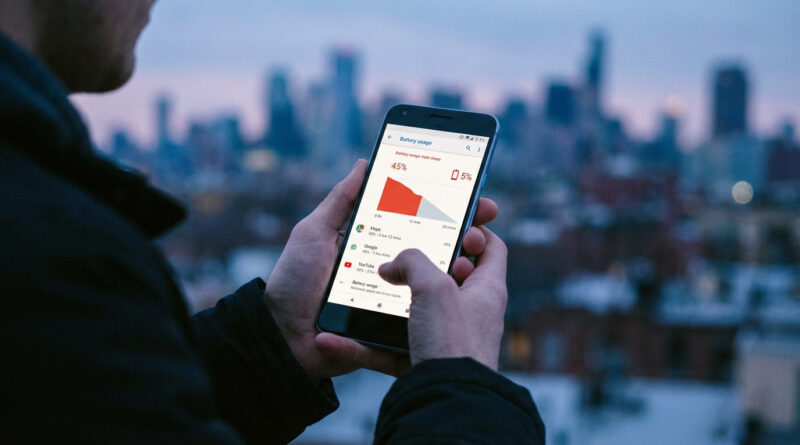
- Check Settings > Battery > Battery usage, then uninstall or restrict the apps sitting at the top that you don’t really need.
- Turn on Adaptive Battery, and disable Always-on display features if your phone has them.
- Pro move: set a bedtime routine that turns off 5G and background syncing overnight, it often adds a few real-world hours.
Step 1: Find the real battery hog (don’t guess)
Closing apps and dimming the screen helps, but it won’t fix a misbehaving app that keeps waking your phone up in the background.
Where to look
On most Android phones: Settings > Battery > Battery usage (sometimes called “Battery usage since last full charge”).
What you’re looking for
Focus on the top few items, especially apps that:
- You barely use, but they’re near the top anyway.
- Show lots of background use.
- Are “always on” types of apps like social, shopping, news, coupon, fitness, or random games.
What to do when you find a culprit
- If you don’t need it: uninstall it. This is the cleanest fix.
- If you need it sometimes: restrict it. Tap the app in Battery usage and look for options like Restricted, Background restriction, or turning off Allow background activity.
- If it’s a messaging or email app: don’t restrict it aggressively unless you’re okay with delayed notifications.
Step 2: Turn on Adaptive Battery (it actually works)
Adaptive Battery learns which apps you use a lot and which ones you rarely touch, then quietly limits the background behavior of the “rarely” group.
Go to Settings > Battery and turn on Adaptive Battery (wording can vary by brand). Give it a few days. It gets better over time.
Step 3: Disable Always-on display (AOD) and “always listening” extras
Always-on display is convenient, but it’s also a constant drip of battery. If you’re barely making it through the day, this is low-hanging fruit.
- Go to Settings > Display and turn off Always-on display, or set it to Tap to show.
- If your phone has options like “lift to wake” or “wake on notifications,” try turning off the ones you don’t care about.
Step 4: The “pro move” that feels unfair. Bedtime mode that saves battery while you sleep
Your phone can spend 7 to 9 hours doing busywork overnight. That’s the easiest time to save power because you won’t miss it.
Option A: Use Bedtime mode (simple)
Go to Settings > Digital Wellbeing > Bedtime mode. Schedule it for your usual sleep window.
Option B: Build a custom bedtime routine (best results)
Use your phone’s Modes and Routines (Samsung) or Rules / Bedtime / Do Not Disturb scheduling (varies by Android). Set it to run nightly and:
- Turn off 5G (switch preferred network to LTE/4G overnight).
- Turn off background syncing or reduce it (especially for non-essential accounts).
- Enable Battery Saver automatically.
This one change alone often adds a few hours of real-world battery the next day, because you start the morning closer to 100% and with fewer background “hangovers.”
Step 5: A few quick checks people skip
Make sure an update didn’t break something
If the drain started suddenly after an update, restart the phone. Then check Battery usage again after half a day. If one app is suddenly on top, that’s your answer.
Check signal strength
Bad reception drains batteries fast because your phone works harder to stay connected. If you’re in a low-signal building all day, switching to LTE/4G (instead of 5G) can be a steady win.
Storage tip (sounds unrelated, but helps performance)
If your phone is constantly struggling, low storage can make everything feel slower and sometimes triggers more background churn. If you also fight the “storage is always full” battle on another device, this guide is worth a quick read: How to Stop Your iPhone Storage From Always Being Full.
At a Glance: Comparison
| Feature/Aspect | Details | Verdict |
|---|---|---|
| Battery Usage screen | Shows the actual top drains, including background activity, so you stop guessing. | Highest impact. Do this first. |
| Adaptive Battery | Automatically limits rarely-used apps from running wild in the background. | Easy win. Leave it on. |
| Custom bedtime routine | Turns off 5G and background syncing overnight so you stop wasting power while asleep. | Best “set it once” battery boost. |
Conclusion
You don’t need to babysit your phone all day to get decent battery life. Check Battery usage, remove or restrict the apps that keep popping up near the top, then let Android help you with Adaptive Battery and a few always-on tweaks. Add a bedtime routine that shuts down 5G and background syncing while you sleep, and you’ll usually feel the difference the very next day. It’s a simple checklist that targets the battery hogs that matter most and builds in automatic savings without needing to remember a dozen tiny settings.