How to Make AI Chatbots Actually Useful for Your Daily Tasks
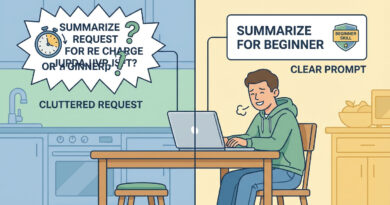
You try ChatGPT or Copilot. You ask a normal question. And you get the kind of answer that sounds “fine” but doesn’t actually help. It’s generic, it’s long, and it leaves you doing the real work anyway. If that’s been your experience, you’re not using it wrong. You’re just talking to it the way you’d talk to Google. These tools do better when you treat them like a junior assistant who needs clear instructions and a tight deadline. The simplest fix is also the most overlooked. Before you ask for answers, tell the AI your role, your goal for today, and your time limit. Then ask for a 3-step plan. That one move pushes it to get practical and stay focused, instead of dumping a mini-encyclopedia on you.
⚡ In a Hurry? Key Takeaways
- Start by giving the AI your role, today’s goal, and your time limit. Then ask it for a 3-step plan before any details.
- Force usefulness by asking for output format (checklist, email draft, table) and one clarifying question if needed.
- Don’t paste sensitive info. Use placeholders, summarize, or redact names and account details.
Why your prompts keep getting “meh” answers
Most people start with one big question: “How do I budget better?” or “Write me a cover letter.” The AI has no clue who you are, what you already know, what you’re trying to do today, or how much time you have.
So it plays it safe. It gives broad advice that could fit anyone. That’s not laziness. That’s a lack of context.
The simple prompt trick that changes everything
Instead of asking for the final answer right away, do this first:
Step 1: Tell it your role
Examples: “I’m a parent managing a busy household,” “I’m a project manager,” “I run a small Etsy shop,” “I’m a college student.”
Step 2: Tell it your goal for today
Not your life goal. Today’s goal. “Plan three dinners,” “prep for a meeting,” “reply to an upset customer,” “clean up my calendar.”
Step 3: Tell it your time limit
This is the magic part. “I have 12 minutes,” “I can spend one hour,” “I can only do the easiest version today.” Time limits make the AI prioritize.
Then ask for a 3-step plan
Say: “Before you answer, suggest a 3-step plan. Keep it realistic for my time limit. Ask one clarifying question only if you truly need it.”
Copy/paste prompt templates (steal these)
The “sharp assistant” starter
Prompt:
“I’m a [your role]. My goal today is [one specific outcome]. I have [time limit]. Before you give me any details, propose a 3-step plan. Then wait for my go-ahead.”
The “don’t drown me in options” version
Prompt:
“Give me a 3-step plan with the simplest workable approach. Limit choices to 2 options max. Use bullet points.”
The “make it a checklist” version
Prompt:
“Turn your plan into a checklist I can follow in order. Each step should take 5 to 15 minutes. Add a quick ‘done when’ line for each.”
Real-life examples (so it clicks)
Example 1: Meal planning without the novel
You type:
“I’m a working parent. My goal today is to plan dinners for the next 3 nights. I have 10 minutes. Before you suggest recipes, give me a 3-step plan. Ask 1 question if needed.”
Why it works: It will stop trying to give you 25 “healthy ideas” and instead ask something useful like dietary limits, then propose a tight plan.
Example 2: Email reply that actually sounds like you
You type:
“I’m a freelancer. Goal today: reply to a client who says the project is late. I have 8 minutes. Give me a 3-step plan, then draft a short email in a calm, confident tone. Ask me 1 question about the timeline if needed.”
Tip: If it drafts something stiff, add: “Make it sound like a real human. Short sentences. No corporate buzzwords.”
Example 3: “My phone is slow” troubleshooting that stays focused
You can use the same method for tech fixes. Tell it what device you have, what you’re seeing, and how much time you’re willing to spend.
You type:
“I’m not very techy. My iPhone feels slow. Goal today: make it feel faster without deleting photos. I have 15 minutes. Give me a 3-step plan with the safest steps first.”
If you want a proven iPhone-specific shortcut, see How to Fix a Slow iPhone Without Deleting Your Photos. It’s the same vibe. Small change, big payoff.
Two extra moves that make AI feel 10x more useful
Ask for the format you want
Don’t accept a wall of text. Ask for one of these:
“Put it in a checklist.”
“Give me a table with pros and cons.”
“Draft a text message under 280 characters.”
“Write it like I’m going to copy/paste it into an email.”
Make it confirm assumptions
This prevents the AI from confidently solving the wrong problem.
Prompt:
“Before you finalize, list what you’re assuming about my situation in 3 bullets. If any are wrong, I’ll correct you.”
One safety rule (that saves regret later)
Don’t paste anything you’d be upset to see on a billboard. That includes personal info, account numbers, client data, medical details, or confidential work docs.
If you need help anyway, use placeholders: “Client A,” “My bank,” “My street,” and summarize the issue instead of pasting the whole thing.
At a Glance: Comparison
| Feature/Aspect | Details | Verdict |
|---|---|---|
| One big question | AI guesses your context, gives broad “covers everything” advice | Usually generic and time-wasting |
| Role + goal + time limit | AI knows who it’s helping, what “done” means, and how much to include | Fast and practical |
| Ask for a 3-step plan first | Turns the AI into a planner and editor, not a random idea generator | Best way to get “assistant” behavior |
Conclusion
AI tools are everywhere right now, but most people bounce off them because the answers feel shallow. You don’t need fancy prompts or secret settings. Just stop asking for the final answer first. Give your role, your goal for today, and your time limit. Then ask for a 3-step plan. Once you try this a few times, the chatbot stops feeling like a search engine clone and starts feeling like a useful helper that keeps you moving.