How to Fix a Slow Windows PC in 5 Minutes Without Buying Anything
Your Windows laptop isn’t “getting old” overnight. It’s doing that annoying thing where it feels brand new right after a restart, then starts crawling once you open a few apps. That’s usually not a mystery virus or some magic setting. It’s just too many things trying to run in the background the moment you sign in, plus a slow buildup of temporary files. The good news is you can fix a big chunk of it in about five minutes, without buying anything or installing sketchy “PC booster” tools.
⚡ In a Hurry? Key Takeaways
- Disable high-impact startup apps you don’t use daily, so your PC stops dragging right after login.
- Turn on Storage Sense to automatically clear temp clutter every day.
- This is safe, reversible, and avoids risky “registry cleaner” myths.
The 5-Minute “Startup Reset” Routine
This is the simple habit that keeps your laptop feeling fast. You’re not deleting programs. You’re just stopping them from launching automatically and hogging memory before you even open what you need.
Step 1 (2 minutes): Stop the startup pile-up
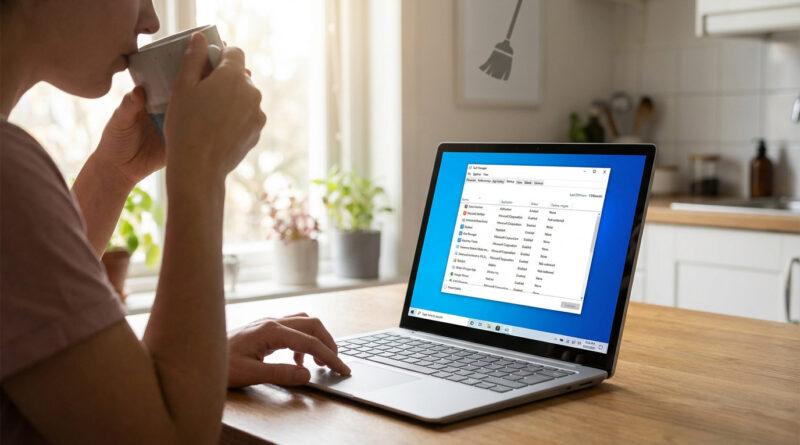
1) Press Ctrl + Shift + Esc to open Task Manager.
2) Click Startup apps (Windows 11) or the Startup tab (Windows 10). If you don’t see tabs, click More details.
3) Click the Startup impact column to sort. Look for High.
4) Right-click anything you don’t use daily and choose Disable.
What’s usually safe to disable: Spotify, Discord, Steam, Adobe “helper” apps, game launchers, Zoom/Teams auto-start (unless you truly need it), printer “status” apps, cloud drives you don’t rely on constantly.
What I’d leave alone: Anything clearly labeled for your touchpad, audio, graphics (Intel/AMD/NVIDIA), security (Windows Security), or your password manager if you use it all day.
If you’re unsure about an item, it’s fine to google the name. If you ask an AI what something is, make it show receipts. This quick guide helps: How to Stop AI Chatbots From Hallucinating and Get More Reliable Answers.
Step 2 (2 minutes): Turn on Storage Sense so your PC stops “gunking up”
1) Click Start and type Storage Sense.
2) Open Storage Sense settings.
3) Turn Storage Sense On.
4) Set Run Storage Sense to Every day.
This automatically clears temporary files and system clutter that builds up and slows things down over time. It’s boring. That’s why it works.
Step 3 (1 minute): Do one restart the right way
Now do a quick Restart (not Shut down). Restart clears out leftover junk in memory and gives your new startup list a clean slate.
What This Fix Helps (And What It Won’t)
This routine targets the most common cause of “fast after reboot, slow after a few apps”: too many background programs fighting for CPU and memory, plus drive clutter. It won’t fix failing hardware, overheating, or a truly tiny amount of RAM. But for a lot of laptops, it’s the difference between “ugh” and “okay, I can work.”
Myth Check: Quick Tips That Usually Waste Your Time
“Download a free PC booster/registry cleaner”
Skip it. Many are aggressive, noisy, or bundled with junk. Windows already handles most of what these tools claim to do.
“Always end random tasks in Task Manager”
That’s like pulling fuses to stop a flickering light. You might close the wrong thing, and the slowdown comes back anyway. Startup control is the real win.
“Disable all services for maximum speed”
Please don’t. That’s how people break Wi-Fi, sound, printing, updates, and then spend their weekend fixing it.
At a Glance: Comparison
| Feature/Aspect | Details | Verdict |
|---|---|---|
| Disabling Startup Apps | Stops non-essential apps from launching at login and hogging CPU/RAM in the background. | Biggest speed boost for most people. Safe and reversible. |
| Storage Sense (Daily) | Automatically clears temp files and reduces clutter without you thinking about it. | Quiet, steady improvement. Prevents slowdowns from creeping back. |
| “PC Booster” Apps | Often run constantly, show scary alerts, and can add more background load than they remove. | Usually a myth-level fix. Avoid. |
Conclusion
If your laptop has that “fresh after restart, slow by lunchtime” problem, this is the no-drama fix: trim your startup list, turn on Storage Sense every day, and restart once. It’s a repeatable five-minute habit that keeps your PC feeling fast without tools, upgrades, or risky tweaks. That’s the kind of small win that makes work and school days go a lot smoother.