The Best Way to Stop Your Mac from Spinning Beachballs and Slowing to a Crawl
If your Mac is living in spinning beachball mode, apps take forever to open, and the fan sounds like it is training for takeoff, you are not alone. It is also not an automatic “time for a new Mac” situation. Most of the time, your Mac is simply running out of memory because one or two apps are quietly eating it in the background. The fix is not a random “cleaner” app. The fix is finding the memory hog, closing it, then restarting so your Mac can breathe again. Once you get used to checking this one screen, you can repeat it anytime your Mac starts crawling, no guessing required.
⚡ In a Hurry? Key Takeaways
- Open Activity Monitor, sort by Memory, and quit the top app you are not actively using.
- Restart your Mac right after, it clears out leftovers and gets you back to “snappy.”
- This is safer and more reliable than most “Mac cleaner” tools because you can see exactly what is using resources.
Why the beachball happens (in plain English)
Your Mac has fast storage (your SSD) and it has memory (RAM). Memory is the short-term workspace where apps keep what they need right now. When memory gets tight, macOS starts shuffling data back and forth to storage. It works, but it is slower. That is when you see beachballs, long app launches, and fans ramping up.
The tricky part is that you can have “only a few windows open” and still be running a lot. Some apps keep working even when you cannot see them. Browser tabs, chat apps, cloud sync tools, and “helper” processes add up.
The 2-minute fix: Find the memory hog and close it
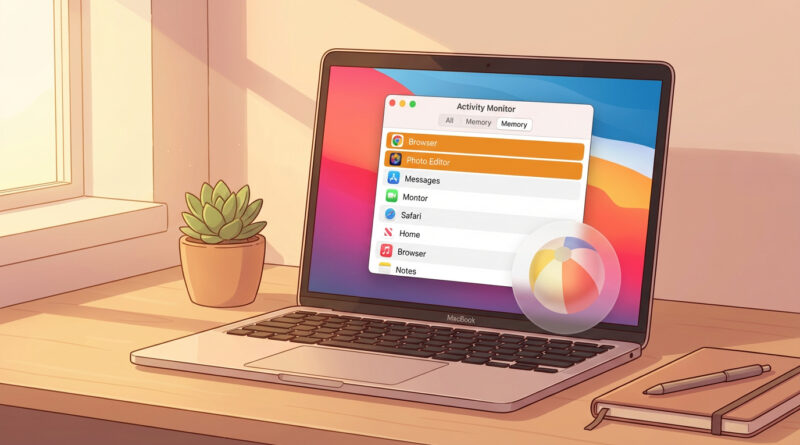
Step 1: Open Activity Monitor
Go to Applications → Utilities → Activity Monitor. Or press Command + Space and type “Activity Monitor.”
Step 2: Click the “Memory” tab
At the top of the window, click Memory. This view is your truth serum. It shows what is actually using RAM right now.
Step 3: Sort by Memory (largest first)
Click the Memory column header so the biggest users float to the top.
Step 4: Quit what you are not using
Look at the top few items and ask a simple question: Am I actively using this right now? If not, close it.
You can quit normally from the app (best option). Or, inside Activity Monitor, select the app and click the X button, then choose Quit. Use Force Quit only if it is frozen.
Tip: If you are not sure what something is, do not kill it. Search the name later, or stick to obvious apps like browsers, video call tools, photo editors, games, or that one Electron app that never stops running.
Step 5: Restart your Mac
After closing the worst offender, restart. This clears out memory that some apps do not fully return until a reboot. It also stops little background processes that can pile up over days or weeks.
How to tell if memory is the real problem
In the Memory tab, look at Memory Pressure at the bottom.
- Green: Memory is fine. Your slowdown might be CPU, storage space, or a stuck process.
- Yellow: You are getting tight. Closing one heavy app can help a lot.
- Red: You are basically forcing your Mac to juggle chainsaws. Close big apps and restart.
The habit that prevents the problem: “Daily use only” Dock
Here is the part most people miss. The Dock is not just a shortcut list. For a lot of apps, it is also a reminder of what you tend to leave open all day.
Try this: keep only your true daily drivers in the Dock. Everything else, remove it (right-click → Options → Remove from Dock). You can still open those apps via Spotlight anytime, but you are less likely to launch five heavy apps “just in case” and forget they are running.
This is the same small-habit approach that works for other tech annoyances too. If you like this style of cleanup, you will probably also like How to Make Android Notifications Less Annoying So You Only See What Matters. It uses your real-life interruptions as your guide, instead of guessing in settings.
What not to do (most “cleaner” apps)
If an app promises to “boost your Mac” with one click, be cautious. Many cleaner tools focus on caches and misc files, which usually does not fix beachballs. Some are fine, some are sketchy, and even the “good” ones can distract you from the real issue: one or two apps eating memory.
Activity Monitor is built-in, clear, and honest. It shows you the culprit.
Quick extra checks if you still feel slow
Check CPU if the fan is screaming
In Activity Monitor, click CPU and sort by % CPU. If something is pinned at the top (especially for minutes), quit that app and restart.
Make sure you have some free storage
Go to System Settings → General → Storage. If you are nearly full, macOS has less room for temporary files and swap, which can make everything feel sluggish. Aim for some breathing room.
Update the one problem app
If the same app is always at the top of Memory, check for updates. A memory leak (an app that keeps grabbing RAM) is a real thing.
At a Glance: Comparison
| Feature/Aspect | Details | Verdict |
|---|---|---|
| Best first move when you see beachballs | Activity Monitor → Memory tab → sort by Memory → quit top non-essential app | Most effective, fastest win |
| Restart after closing apps | Clears leftover RAM use and background processes that linger | Worth it. Makes the fix “stick” |
| Using “cleaner” tools to speed things up | Often focuses on caches and junk files, not the app that is eating memory right now | Usually not the answer for beachballs |
Conclusion
You do not need to become a Mac mechanic to stop the beachballs. You just need one simple, visual routine: check Activity Monitor, close the memory hog you are not using, then restart. For anyone working or studying from home, that is a practical way to squeeze more life out of the Mac you already own, with no scary commands and no mystery “cleanup” apps required.