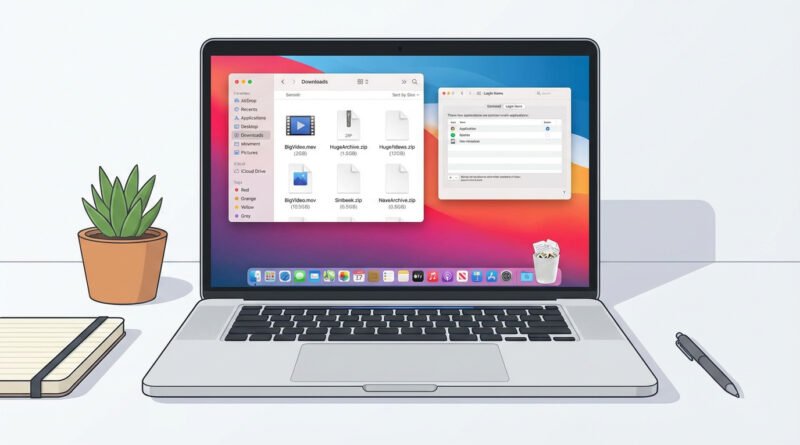
The Best Way to Clean Up a Slow Mac Without Paying for Sketchy ‘Optimizer’ Apps
Your Mac didn’t suddenly “go bad.” It’s usually a slow build. A crowded Downloads folder, a few too many apps opening at startup, and then the ads start screaming that you need a magic “optimizer” to survive. That’s frustrating. It also makes people scared to delete anything because, fair, nobody wants to break their Mac. The good news is you can do a safe cleanup in about 20 minutes, using tools your Mac already has. No subscriptions. No pop-ups. No mystery scans.
⚡ In a Hurry? Key Takeaways
- Skip “optimizer” apps. Do a quick cleanup: Downloads by size, empty Trash, then trim Login Items.
- In Finder, sort Downloads by Size and delete big stuff you recognize like old installers, videos, and duplicates.
- This routine is low-risk because you are avoiding system folders and only turning off startup apps, not deleting them.
The Best 20-Minute Mac Cleanup (That Won’t Break Anything)
This is the routine I use for friends and family because it’s simple, repeatable, and it avoids the areas people accidentally wreck. Set a timer if it helps. You are not “deep cleaning” macOS. You are just removing obvious clutter and stopping unnecessary startup baggage.
Step 1 (10 minutes): Clean the Downloads folder by size
Most slow-Mac stories start in Downloads. It quietly turns into a storage unit for old installers, duplicate PDFs, giant videos, and random ZIP files you needed one time.
Do this:
1) Open Finder.
2) Click Downloads in the sidebar.
3) Switch to List View (the icon with lines) so sorting is easier.
4) If you don’t see a “Size” column, go to View > Show View Options and check Size.
5) Click the Size column header to sort biggest-first.
What’s usually safe to delete here: old .dmg installers, .zip files you already extracted, duplicate photos/videos you already saved somewhere else, and “version 2 FINAL FINAL” documents you know you don’t need.
What to pause on: anything you do not recognize. If you’re not sure, leave it. The goal is quick wins, not perfection.
Step 2 (1 minute): Empty the Trash (yes, it matters)
Dragging files to the Trash does not free up space until you empty it.
Do this: Right-click Trash in the Dock, then choose Empty Trash.
Step 3 (7 minutes): Turn off random startup apps in Login Items
This is the part that often makes a Mac “feel” slow. If a bunch of helper apps launch every time you restart, your Mac spends the first few minutes doing unnecessary work.
Do this:
1) Open System Settings.
2) Go to General > Login Items.
3) Look at two areas: Open at Login and Allow in the Background.
What to remove: anything you don’t use daily or don’t recognize. Highlight it and hit the minus button to remove from “Open at Login.” For background items, turn off anything you don’t need running all the time.
Safety note: You are not uninstalling the app. You are just stopping it from auto-starting. If something stops working later, you can turn it back on.
What to Ignore (So You Don’t Get Spooked by “Cleaner” Ads)
Those optimizer apps love big scary numbers and red warning triangles. They also love suggesting you “clean system junk” with one click. That’s where people get into trouble.
Skip these unless you really know what you’re doing:
– “Cleaning” system files, caches, or language files with a third-party tool
– Deleting anything inside System, Library, or hidden folders because an app told you it’s “safe”
– Permission-repair or RAM-boost promises. Modern macOS does not work like that.
This approach is the same mindset I use for phone troubleshooting too. Instead of flipping every switch, pick a simple test and adjust only a few things. If you like that style, you’ll probably enjoy How to Fix iPhone Photos That Look Blurry or Washed Out After iOS Updates. Same idea. Small, safe steps that you can repeat.
Make It Stick: The Monthly Reminder That Saves You Stress
The secret is not doing a massive cleanup once a year. It’s doing a tiny one regularly so your Mac never reaches the “why is everything beachballing” phase.
Do this: set a calendar reminder for once a month called “Mac 20-minute cleanup.” When it pops up, repeat the three steps: Downloads by size, empty Trash, review Login Items.
At a Glance: Comparison
| Feature/Aspect | Details | Verdict |
|---|---|---|
| Time and effort | About 20 minutes. Focused on two high-impact areas: Downloads clutter and startup apps. | Worth it. Fast wins without a “deep clean.” |
| Safety | You are deleting files you recognize in Downloads, and turning off Login Items without uninstalling apps. | Low risk. Easy to reverse startup changes. |
| Cost and “optimizer” apps | No paid cleaner needed. Avoids vague “system junk” scans and fear-based upsells. | Skip them. Your Mac already has what you need for this routine. |
Conclusion
If your Mac feels sluggish, you don’t need to pay a random app to “fix” it. You need a calm, safe routine you can repeat. Ten minutes cleaning Downloads by size, one minute emptying the Trash, and a quick look at Login Items will handle the most common slowdown culprits, especially after macOS updates when everything feels a bit heavier. Do it once a month and you’ll spend less time worrying, and more time actually using your Mac.