How to Stop Your Mac From Overheating and Blasting Fans After the Latest macOS Update
You’re not imagining it. After a macOS update, a lot of MacBook owners suddenly hear the fans roar and feel the laptop get hot while doing normal stuff like email or a few tabs in Safari. That’s frustrating, and it’s also a little scary because it feels like hardware is failing. Most advice online swings between “it’s just reindexing” (with no help) or “wipe your Mac” (no thanks). The good news is you can usually calm things down with a simple, safe routine: check what’s actually chewing up your CPU, restart your browser in a cleaner state, then give macOS a short window to finish its behind-the-scenes cleanup while the Mac is plugged in.
⚡ In a Hurry? Key Takeaways
- MacBook overheating after macOS update is usually one or two apps spiking CPU plus background indexing, not “your Mac is dying.”
- Use Activity Monitor. Quit only the top 1 to 2 recognizable apps over ~80% CPU, then relaunch your browser with fewer tabs.
- Leave the Mac plugged in and awake for 1 to 2 hours so Spotlight and Photos can finish quietly, without risky commands.
What’s really happening when your Mac suddenly runs hot
Right after a macOS update, your Mac often has extra work to do. Two big culprits:
- Spotlight indexing (search has to re-learn where your files are).
- Photos analysis (face recognition, object detection, new “Memories,” and library cleanup).
On top of that, one normal app can go off the rails after an update. A browser tab, a video meeting app, a cloud sync tool, or even a menu bar utility can peg the CPU and keep the fans loud.
The goal is not to “stop indexing forever.” It’s to remove the one or two things making it worse, then let the Mac finish the boring background stuff.
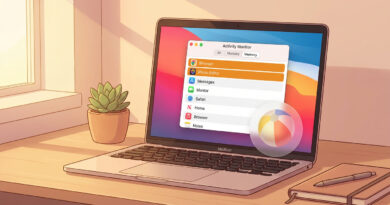
Step 1: Find the real heat source in Activity Monitor (2 minutes)
How to check CPU usage
Open Activity Monitor:
- Press Command + Space, type Activity Monitor, press Return.
- Click the CPU tab.
- Click the % CPU column header to sort highest first.
What to quit (and what not to)
Look at the top of the list. If you see one or two apps you recognize using more than about 80% CPU, those are the first suspects.
- Quit only the top one or two apps you recognize. Select it, then click the X button at the top of Activity Monitor, then choose Quit (not Force Quit unless it’s totally stuck).
- Do not quit things you don’t recognize, especially anything that looks like a system process (examples: kernel_task, WindowServer, spotlightd, photolibraryd). Those names are normal, even if they are annoying.
If the fans drop within 30 to 60 seconds after quitting an obvious offender, you just found the problem. Reopen that app later. If it spikes again, it may need an update itself.
Step 2: Reset the browser the “gentle” way (this fixes more than you’d think)
Browsers are a common reason for macbook overheating after macos update. Extensions, runaway tabs, and video-heavy pages can hit the CPU or GPU hard, especially right after an OS update.
Do this quick browser cleanup
- Bookmark or save what you need (or use Reading List). Don’t rely on “I’ll remember the tab.”
- Quit the browser completely:
- Safari: Safari > Quit Safari
- Chrome: Chrome > Quit Google Chrome
- Firefox: Firefox > Quit Firefox
- Reopen the browser and only open the tabs you actually need right now.
If you normally restore 40 tabs every time, try not doing that for a day. It’s not a lifestyle change. It’s just a cooldown period while macOS finishes settling in.
Step 3: Let macOS finish its background work (without babysitting it)
This is the part most people skip. Indexing and Photos processing can take a while, and they work best when the Mac isn’t bouncing between sleep and battery-saving modes.
The “leave it alone” setup
- Plug the Mac in.
- Keep it awake for 1 to 2 hours. (If you want, set your display to turn off, but don’t close the lid if that makes it sleep.)
- Don’t run heavy tasks during that window. Let it chew through its to-do list.
You’re not doing anything fancy here. You’re just giving Spotlight and Photos time to finish so your Mac isn’t fighting background jobs all day.
How to tell if “reindexing” is actually what you’re hearing
If you want a quick sanity check, go back to Activity Monitor and watch the CPU list for a minute.
- If you see mds, mdworker, or spotlightd near the top, Spotlight is working.
- If you see photolibraryd or photoanalysisd, Photos is working.
Those usually calm down on their own. Your job is mainly to avoid stacking extra chaos on top, like 60 browser tabs and a video call.
When you should worry (rare, but worth knowing)
Most of the time, this resolves within a few hours or a day. But you should dig deeper if:
- The Mac is hot and loud for multiple days, even after the steps above.
- Fans blast on an empty desktop with no apps open.
- Activity Monitor shows nothing using CPU, but the Mac still feels like a space heater.
In those cases, restart the Mac, make sure macOS and your main apps are fully updated, and consider Safe Mode as a next step. You still don’t have to jump to wiping the machine.
At a Glance: Comparison
| Feature/Aspect | Details | Verdict |
|---|---|---|
| CPU spike source | Usually one or two apps (often browser-related) plus Spotlight/Photos background tasks after the update | Check Activity Monitor first, don’t guess |
| Fastest relief | Quit only recognizable apps over ~80% CPU. Restart the browser with fewer tabs | High success rate, low risk |
| “Reindexing” reality | Normal after updates. Finishes faster when plugged in and awake for 1 to 2 hours | Let it finish instead of fighting it |
Conclusion
If your MacBook is overheating after a macOS update, it’s usually not a dying fan or a failing battery. It’s a short-term pileup: one or two apps running too hard, plus macOS doing its post-update housekeeping. Use Activity Monitor to stop the biggest CPU hogs you recognize, relaunch your browser with only the tabs you need, then give the Mac an hour or two plugged in and awake to finish indexing. Calm steps, no scary commands, and very often no trip to the Apple Store.