How to Stop Your iPhone Battery From Melting Away After the Latest iOS Update
If your iPhone battery started dropping like a rock right after an iOS update, you are not imagining it. It is stressful. You glance at the percentage all day, you swear you barely used the phone, and you start wondering if the battery suddenly “went bad.” The good news is that a lot of post-update drain is normal for a day or two. Your iPhone is quietly finishing setup tasks in the background. But if it keeps happening, two quick checks usually fix real-world battery complaints without doing anything dramatic like a factory reset.
⚡ In a Hurry? Key Takeaways
- Turn on Optimized Battery Charging, then check Battery Usage to find the app doing the draining.
- Disable Background App Refresh for only the app that jumped to the top.
- This separates normal post-update “settling” from a real battery hog, no factory reset required.
First: Know What “Normal After an Update” Looks Like
Right after you install iOS, your iPhone may spend hours doing invisible work. Think: re-indexing photos, syncing iCloud, updating apps, and rebuilding system caches. During that window, you can see faster drain and a warmer phone.
If it has been less than 24 to 48 hours, give it a little time. Plug it in when you can, use it normally, and check again tomorrow.
Step 1: Turn On Optimized Battery Charging (Easy Win)
This setting is not magic, but it helps reduce long-term wear. That matters because a worn battery makes every drain problem feel worse.
Where to find it
Go to Settings → Battery → Battery Health & Charging → turn on Optimized Battery Charging.
If you charge overnight, this is especially worth doing. Your iPhone learns your routine and avoids sitting at 100% for long stretches.
Step 2: Find the App That Quietly Became a Battery Hog
Now for the part that fixes the “my battery melts even when I’m not using it” feeling.
Check Battery Usage
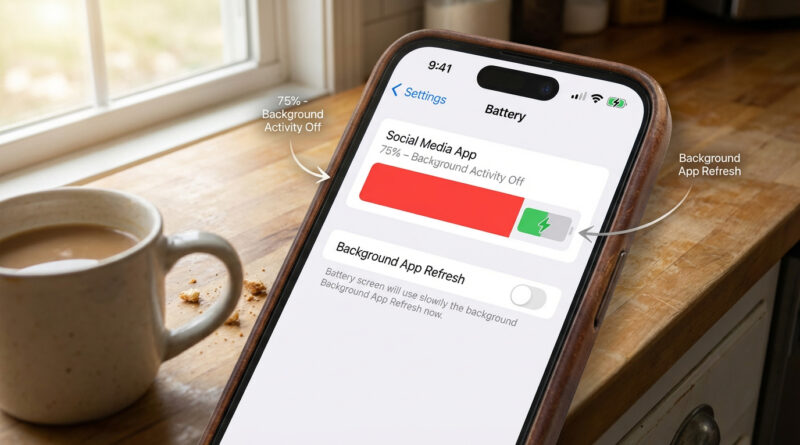
Go to Settings → Battery. Scroll down to Battery Usage by App.
- Look for an app that is suddenly at the top, especially one you did not use much.
- Tap the list to switch between Last 24 Hours and Last 10 Days.
- Watch for a big bar during times you were not actively using the phone.
This is the iPhone version of what we do on computers when a single program goes wild in the background. Same idea as tracking down a runaway browser extension in How to Fix Chrome Using 100% CPU on Windows Without Reinstalling Everything. You do not reinstall everything. You find the culprit first.
Step 3: Turn Off Background App Refresh for That One App
Background App Refresh lets apps update content when you are not using them. That is convenient. It is also a classic battery drainer when an app misbehaves after an update.
Disable it for only the problem app
Go to Settings → General → Background App Refresh.
- Tap Background App Refresh to confirm it is enabled.
- Scroll down and switch off the toggle for the app you saw at the top of Battery Usage.
Keep it on for apps where it truly matters (navigation, messaging, work tools). But for most social, shopping, or media apps, you will not notice a difference. You will notice the battery improvement.
Quick Reality Check: Is It the Battery, or Just the Update?
Signs it is probably “post-update settling”
- Drain is worse only for the first day or two.
- Battery Usage shows system activity and normal-looking app patterns.
- Your phone feels slightly warm after the update, then calms down.
Signs one app is the real issue
- A single app is always #1 even when you barely open it.
- Battery Usage shows lots of background activity for that app.
- Turning off Background App Refresh for that app makes an immediate difference.
At a Glance: Comparison
| Feature/Aspect | Details | Verdict |
|---|---|---|
| Optimized Battery Charging | Reduces time sitting at 100%, helps slow long-term battery wear. | Turn it on. Low risk, solid long-term payoff. |
| Battery Usage (Settings → Battery) | Shows which apps are draining power and whether it happens in the background. | Best first “detective tool” after an update. |
| Background App Refresh (per app) | Stops a specific app from updating quietly all day. | Most effective quick fix when one app is the culprit. |
Conclusion
Post-update battery drain is annoying because it feels like your phone is failing overnight. Most of the time, it is either normal “settling” or one app going a little wild in the background. Turn on Optimized Battery Charging, then build one simple habit: check Battery Usage and switch off Background App Refresh only for the app that shoots to the top. You get control back fast, without scary resets, and you will know whether you are dealing with normal update behavior or a real battery problem.