How to Stop Your Android Battery From Draining Before Lunch
If your Android battery is down 30 percent by lunch and your phone mostly sat in your pocket, you are not imagining it. That “battery saver” toggle feels like it should help, but the charts are confusing and the real drain often comes from apps quietly working in the background. The good news is you do not need to dim your screen into a cave or shut off everything fun. You just need to stop the worst offenders from running when you are not using them. Here’s the simple trick I use for friends and family: find the top two non‑essential apps in your battery list, then block their background activity and auto-start. Two apps. Two switches. Big difference.
⚡ In a Hurry? Key Takeaways
- Go to Battery usage, identify the top two non‑essential apps, and target those first.
- For each one, turn off “Allow background activity” and disable “Auto-start” (or “Run in background”).
- Do not do this to apps you rely on for real-time alerts (bank fraud, navigation, medical, work chat), or you may miss notifications.
Why your battery drops fast “while doing nothing”
Most modern battery drain is not your screen. It is background work. Apps check for new content, refresh feeds, scan location, sync photos, listen for nearby devices, and now, more apps run extra “smart” features after updates.
Your phone can look idle, but the apps are not. The battery chart often shows a bunch of small bars, which makes it feel like nothing stands out. Usually, two apps do stand out. They are just hiding in plain sight near the top of the list.
The two-app fix that actually moves the needle
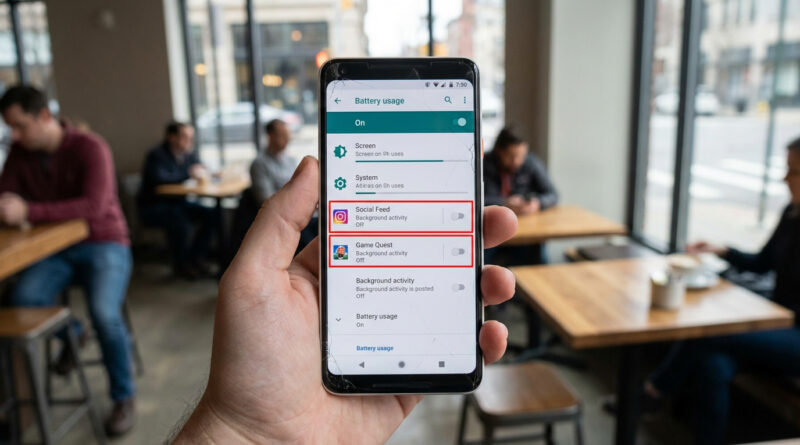
Step 1: Find the real power hogs
Open Settings and search for Battery. Then go to something like:
Battery → Battery usage (names vary by Samsung, Pixel, OnePlus, etc.).
Look at the list of apps. Ignore “Android System” and “Google Play services” for now. You want the top two apps that are not essential to your daily life. Typical culprits are social apps, shopping apps, short-video apps, fitness apps you are not actively using, or games.
Step 2: Turn off “Allow background activity”
Tap the first app in that battery list. Look for a setting like:
Allow background activity or Background usage or Allow in background.
Switch it off. This stops the app from doing “pocket work” all day.
Step 3: Disable “Auto-start” (or “Run in background”)
Now find the second switch. Depending on your phone, it may live in different places:
- Settings → Apps → [App] → Battery → background controls
- Settings → Apps → Special access → Auto-start (common on Xiaomi, Oppo, Vivo)
- Device care or Battery → Background usage limits (common on Samsung)
Turn off Auto-start (or remove permission to start in the background). This prevents the app from waking itself up after reboots, updates, or random system events.
Repeat for the second app
Do the same two switches for your second non-essential top-drainer. Stop there. Two apps is often enough to feel the difference without breaking your phone’s normal behavior.
What changes after you do this
Expect these apps to feel “sleepier.” That is the point.
- They might not refresh until you open them.
- Notifications may arrive late or not at all.
- They should stop burning power while your phone is in your pocket.
If you later decide you want instant alerts from one of them, just flip those two settings back on. No harm done.
Apps you should NOT restrict (most of the time)
Be careful with anything where delayed notifications are a real problem:
- Banking and payment apps (fraud alerts, verification prompts)
- Work chat and email you truly need in real time
- Medical devices or health monitoring apps
- Navigation, ride-share, delivery apps while you are using them
- Two-factor authentication tools
If one of these shows up high on the list, it is still worth investigating. Just do it with a lighter touch. Try restricting a social app first.
If the battery chart still feels like nonsense, do this quick sanity check
After changing those two apps, give it a normal day. Then check Battery usage again. You want to see fewer “background” minutes for those apps and a slower overall drop.
This is the same basic idea iPhone folks use when they stop apps from constantly refreshing in the background. If you are curious, the mindset carries over nicely. See How to Fix a Slow iPhone Without Deleting Your Photos, especially the part about turning off background refresh for apps you do not use daily.
At a Glance: Comparison
| Feature/Aspect | Details | Verdict |
|---|---|---|
| Battery Saver mode | Often dims screen, reduces performance, and limits background across the board. | Helpful in emergencies, but not the best everyday fix. |
| Two-app background + auto-start block | Targets the top non-essential drainers shown in Battery usage. | Best “big impact, low annoyance” move. |
| Screen brightness / display tweaks | Can help, but does nothing for pocket drain caused by background activity. | Good bonus step, not the main culprit for many people. |
Conclusion
Background drain is worse than it used to be. App updates, constant syncing, and new AI-ish features mean more “behind the scenes” work than most of us asked for. The fix does not have to be complicated. Check Battery usage, pick the top two non-essential apps, then turn off background activity and auto-start for those two. It is quick, repeatable, and it puts you back in control of your battery instead of guessing at mysterious charts.