How to Stop iPhone Notifications From Driving You Crazy (Without Missing the Important Stuff)
If your iPhone feels like a tiny slot machine that keeps paying out in pings, you are not imagining it. Between group chats, app “updates,” and random alerts, it gets loud fast. The frustrating part is the fear behind the Settings screen. Turn too much off and you worry you will miss the one call or message that actually matters. Apple’s default notification setup can feel like a junk drawer. Everything is “important,” so nothing is.
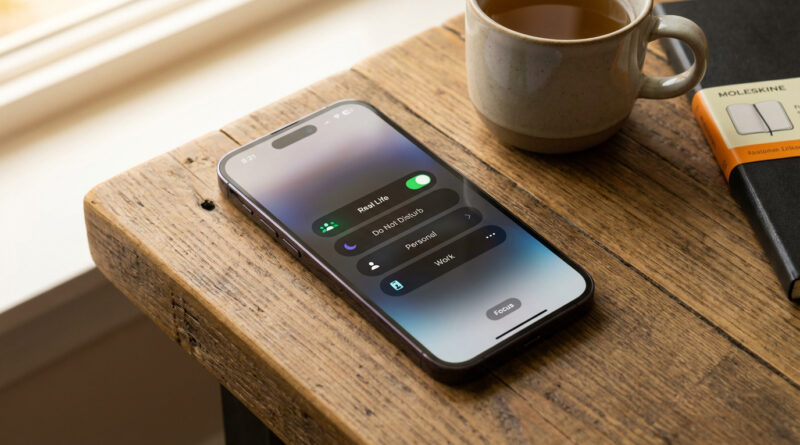
Here’s the fix I set up for friends and family. Make one custom Focus mode called “Real Life” that only lets through calls and messages from your Favorites. Then take every noisy app and put it into one Notification Summary called “Later,” delivered twice a day. You still get the important stuff right away. Everything else shows up on your schedule, not your phone’s. It is simple, reversible, and it usually takes about 10 minutes.
⚡ In a Hurry? Key Takeaways
- Set up a custom Focus called “Real Life” that allows only calls and messages from Favorites.
- Turn on Scheduled Summary and put all noisy apps into one “Later” summary that delivers twice a day.
- You are not “turning notifications off.” You are batching the non-urgent stuff so urgent people can still reach you.
Step 1: Pick your “urgent” people (Favorites)
This whole system works because you decide who can break through. Not apps. Not group chats. People.
Add people to Favorites
1) Open the Phone app. Tap Favorites.
2) Tap the + and add the handful of people who should always reach you. Think partner, kids’ school, close family, your boss if needed.
If you have too many Favorites, you will recreate the problem. Keep it tight.
Step 2: Create a Focus mode called “Real Life”
Now you will make a mode that acts like a bouncer at the door.
Create the Focus
1) Go to Settings > Focus.
2) Tap + (top right) > Custom.
3) Name it Real Life. Pick an icon and color you will recognize.
Allow only your important people
Inside your “Real Life” Focus:
People:
1) Tap People > Allow Notifications From.
2) Choose Favorites (or manually select the same people).
3) Under Also Allow Calls From, pick Favorites.
4) Optional but helpful: turn on Allow Repeated Calls so if someone calls twice within 3 minutes, it can get through. That is a decent “this is urgent” signal.
Keep apps quiet during Real Life
Apps:
1) Tap Apps > Allow Notifications From.
2) Be strict. Usually, you can allow none, or only truly urgent ones (like a medical app, security system, or your work phone system).
Turn it on automatically (so you do not have to remember)
Back in the “Real Life” Focus settings:
1) Tap Add Schedule.
2) Common wins: 9pm–7am (sleep), dinner time, or work hours if you want fewer distractions.
Tip: You can also open Control Center (swipe down from top-right) and tap Focus to turn “Real Life” on anytime.
Step 3: Batch the noisy stuff into one “Later” Notification Summary
This is the part that saves your brain. Instead of dozens of taps on your shoulder all day, you get two neat piles of updates when you are ready.
Turn on Scheduled Summary
1) Go to Settings > Notifications > Scheduled Summary.
2) Turn it On.
Create a simple “Later” schedule (twice a day)
Set two delivery times you actually have attention. Example:
• 12:00 PM (lunch check-in)
• 6:00 PM (after work / after school chaos)
Name the summary Later if iOS offers the label option, or just treat it mentally as “Later.” The important part is that it is one bucket.
Move noisy apps into the Summary
On the app list under Scheduled Summary, toggle ON for anything that is not urgent. Common candidates:
Social apps, shopping, news, games, most “deals” apps, and the apps that send “Someone posted” alerts.
Keep these out of Summary (meaning they can still come in right away), only if you truly need them instantly. For most people, that list is short.
Step 4: Tame Messages without breaking your group chats
Group chats are the biggest source of “why is my phone yelling.” You do not have to leave the chat. You just need it to stop acting like an alarm.
Mute specific group threads
In Messages:
1) Open the chat.
2) Tap the group name at the top.
3) Turn on Hide Alerts.
You will still get the messages. You just will not get pinged for every “LOL.”
Use “Mentions” as your emergency lane
Tell your family or close friends, “If you need me fast in the group, @mention me.” Mentions stand out, even when you are trying to keep things quiet.
Step 5: Quick cleanup that makes everything calmer
This is optional, but it helps a lot.
Turn off Lock Screen notifications for the junky apps
Go to Settings > Notifications. Tap an app. Then:
• Turn off Lock Screen
• Consider switching Banners to Deliver Quietly for non-urgent apps
Think of it like tidying a room. Same stuff exists, but it is not in your face.
Why this works (and why it feels so much better)
This setup does two things your iPhone will never do by default:
1) It defines “urgent” as people, not apps.
2) It switches most notifications from “interruptions” to “updates.”
It is the same idea as cleaning up a slow computer by turning off the junk that starts up automatically. If you like that kind of “simple reset,” you will also like How to Fix a Slow Windows PC in 5 Minutes Without Buying Anything. Different device. Same principle. Stop letting defaults run your day.
At a Glance: Comparison
| Feature/Aspect | Details | Verdict |
|---|---|---|
| Urgent access | “Real Life” Focus allows calls and messages from Favorites. Optional repeated calls. | You stay reachable for real emergencies. |
| Everyday app noise | Scheduled Summary groups non-urgent apps into one “Later” batch, twice daily. | Less interruption, same information. |
| Mental load | Fewer lock-screen banners. Group chats muted. Notifications become predictable. | More focus, better sleep, fewer stress spikes. |
Conclusion
You do not need to go “off the grid” to get your life back. One Focus mode called “Real Life,” plus a single “Later” summary delivered twice a day, is usually enough to turn your iPhone from a constant interrupter into a tool again. You will still get the calls and messages that matter. You will just stop donating your attention to every app that wants it. That is how you reclaim your attention, sleep, and sanity while juggling work, family, and endless group chats on the same phone.