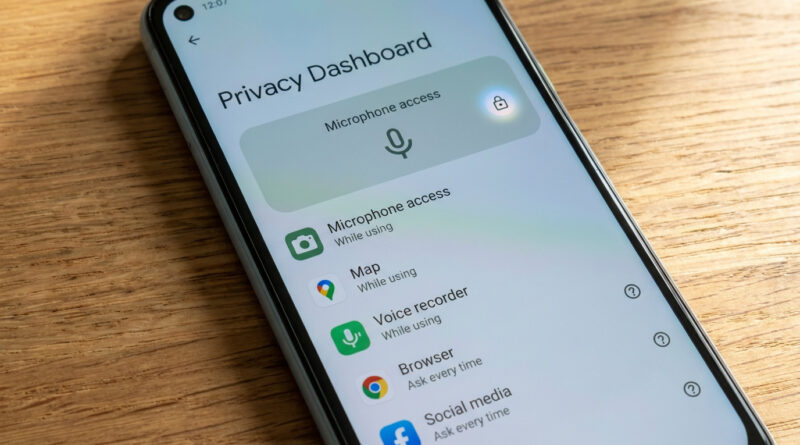
How to Stop Android Apps From Spying on Your Microphone Without Breaking Everything
You’re not paranoid for worrying about microphone spying. The frustrating part is what happens next: you turn off mic access, and suddenly your bank app complains, your social app can’t record video, and half your phone feels like it’s nagging you. Privacy should not come with constant pop-ups and broken features. The trick is to stop trying to “fix everything” in one pass. Pick a few apps, test your settings for a week, and let your phone show you who’s actually asking for the mic and when.
⚡ In a Hurry? Key Takeaways
- Don’t blanket-block the mic. Change mic permissions for just six apps first (3 most used, 3 least trusted).
- For trusted apps, set Microphone to “Only while using the app.” For sketchier apps, set it to “Ask every time” for one week.
- After a week, uninstall or replace any app that nags too much or asks for the mic at weird times.
Why “Deny Microphone” Breaks Things (and Drives You Nuts)
A lot of apps ask for microphone access for obvious reasons, like voice messages, video recording, or voice search. But some apps also request it for less obvious features, like in-app calls, “audio” posting tools, or even customer support chat options.
If you set Microphone to “Don’t allow” right away, you often get one of these outcomes: the feature silently fails, the app throws an error, or you get repeated permission prompts that make you want to give up.
The Low-Stress Plan: Six Apps, One Week
Step 1: Choose your “Top 3” and your “Least Trusted 3”
Your Top 3 most used apps: the ones you open daily. For many people this is something like Messages, WhatsApp, Instagram, Zoom, Teams, or Google Meet.
Your Least Trusted 3 apps: the ones you rarely use, installed on a whim, or that feel ad-heavy or “off.” Think random flashlight apps, free games, coupon apps, or anything you don’t fully recognize anymore.
This is the same idea I use for other annoying tech problems. Don’t flip every switch at once. Do one controlled test and learn what actually changes. It’s like the approach in How to Fix iPhone Photos That Look Blurry or Washed Out After iOS Updates. Make a simple baseline, tweak a few things, then compare.
Step 2: Set trusted apps to “Only while using the app”
This usually keeps everything working without giving the app “background” access.
How to set it (most Android phones):
Settings. Privacy (or Security & Privacy). Permission manager (or Permissions). Microphone. Pick the app. Choose Allow only while using the app (wording varies).
If your phone shows options like “Allow all the time,” “Allow only while in use,” and “Don’t allow,” you want the middle one for your trusted apps.
Step 3: Set less trusted apps to “Ask every time” for one week
This is the sweet spot. It doesn’t break the app instantly, but it makes the app “raise its hand” any time it wants to listen.
For the next week, pay attention to two things:
When it asks. Is it only when you tap a microphone button, or is it asking the moment you open the app?
How often it asks. Once or twice makes sense. Ten times a day is an app training you to hit “Allow” without thinking.
Where to Find Microphone Permissions (Quick Paths)
Option A: From Android Settings
Settings > Privacy (or Security & privacy) > Permission manager > Microphone
Option B: From the app icon (fastest)
Press and hold the app icon. Tap the little “i” (App info). Tap Permissions. Tap Microphone.
What to Do After the Week
If an app nags constantly
If it’s asking for mic access over and over and you can’t connect it to a feature you’re using, that’s your sign. Uninstall it or replace it with a better-known alternative.
If an app only asks when you use a mic feature
That’s normal. If you actually use that feature, switch it from “Ask every time” to “Only while using the app” and move on with your life.
If you’re not sure whether it’s “too much”
Use a simple rule: if you find yourself getting annoyed, it’s already too much. Privacy settings should reduce stress, not create it.
Extra Credit (Optional): Two Settings That Help Without Breaking Apps
Turn off mic access phone-wide when you want quiet time
Many Android phones have a quick toggle for Mic access in Quick Settings (swipe down from the top twice). Turning it off blocks the microphone system-wide until you turn it back on. Great for work meetings, doctor visits, or just peace and quiet.
Watch for the mic indicator
Newer Android versions show a small mic indicator when the microphone is in use. If you see it while you’re doing nothing that should be recording, open Quick Settings and turn the mic off, then investigate which app is active.
At a Glance: Comparison
| Feature/Aspect | Details | Verdict |
|---|---|---|
| “Only while using the app” | Mic works when the app is on-screen. Reduces background access without constant prompts. | Best default for trusted, frequently used apps. |
| “Ask every time” | App must request permission each time it wants the mic. You learn when it tries to listen. | Best for “trial week” on less trusted apps. |
| “Don’t allow” | Blocks mic completely for that app. Can break features or trigger repeated error messages. | Use after you confirm the app doesn’t need the mic, or before uninstalling. |
Conclusion
You don’t need to turn your Android into a locked-down bunker to get real microphone privacy. Start small: your top three apps and your least trusted three apps. Give yourself one week of “Ask every time” on the questionable ones, and let your phone show you who’s being reasonable and who’s being pushy. In a time when microphone fears are all over the news, this is a simple, realistic way to take back control without making your phone annoying to use.