How to Make ChatGPT Actually Useful for Your Real Work
You are not imagining it. You try ChatGPT, ask a normal question, and get a long, polite blob that sounds like it was written for “everyone.” That’s frustrating when you just want help with your real work, like an email you need to send today or a plan you need by lunch. The fix is simple. Stop treating ChatGPT like a magic answer machine and start treating it like a new assistant who knows nothing about your job yet. Give it a one-paragraph “role and goal” briefing once, then reuse it in the same chat. After that, add one real-life detail to every request, like your title, your audience, or the exact tool you use. You’ll be shocked how much less fluffy the output gets.
⚡ In a Hurry? Key Takeaways
- Give ChatGPT a one-paragraph “role + goal” briefing at the start of a chat so it answers like a helper in your context.
- Add one concrete detail every time (your job, audience, tool, deadline, word count) to get specific, shorter results.
- Don’t paste sensitive info. Use placeholders for names and private data, and ask for a checklist if accuracy matters.
Why ChatGPT feels generic (and how to stop it)
Most people ask ChatGPT questions like they’re typing into a search box. That pushes it toward safe, broad answers.
ChatGPT works better when it knows three things:
- Who you are (role, level, and what “good” looks like).
- Who this is for (your boss, a client, classmates, customers).
- Where it will be used (Gmail, Slack, Google Docs, Excel, Notion, Canvas, etc.).
When you give it those, it stops guessing. It starts helping.
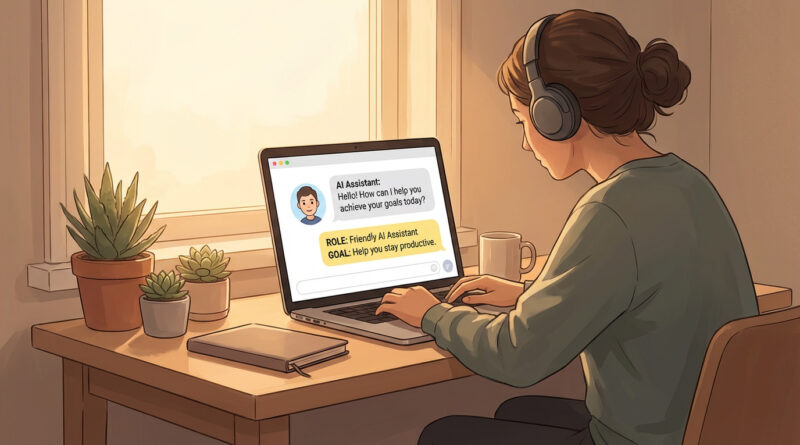
The “Role and Goal” briefing you reuse
Open a new chat and paste something like this. Then keep using that same chat for related work.
Copy/paste template (edit the brackets)
Role: You are my writing and planning assistant. I am a [job title/student in X].
Goal: Help me produce clear, usable drafts fast. I prefer short, practical answers with bullets and examples.
Audience: I usually write for [boss/clients/students/customers] who are [busy/non-technical/etc.].
Tools/format: I work in [Gmail/Google Docs/Slack/PowerPoint/Notion]. Use [tone] tone. Default to [word count] unless I say otherwise.
Rules: Ask up to 3 questions if something is unclear. If you make assumptions, list them. If accuracy matters, give me a quick checklist to verify.
That’s it. You just gave it a job description. Most “generic” problems disappear right there.
The one detail that instantly makes answers better
After your briefing, every single request should include at least one concrete detail. Pick one:
- Audience: “This is for a non-technical client.”
- Tool: “This needs to be a Slack message, under 6 lines.”
- Constraint: “I have 15 minutes. Give me the 3 most important steps.”
- Example: “Here’s the draft I already have. Improve it, don’t rewrite from scratch.”
Think of it like cleaning up iPhone storage. Random deleting apps feels like work, but a small routine gets results faster. Same idea. If you like systems that save you time, you’ll probably also like How to Stop Your iPhone Storage From Always Being Full, because it’s the same “stop guessing, follow a simple process” approach.
Real examples you can steal today
1) Turn a vague email into a good one
Prompt:
“Using our role briefing: Write a reply email to a customer who is upset about a delayed shipment. Audience is a non-technical customer. Tone is calm and confident. Keep it under 120 words. Include: apology, what we know, what we’re doing next, and a clear next update time.”
Why it works: It sets audience, tone, length, and required parts. That removes 90 percent of the fluff.
2) Get a plan that fits your actual day
Prompt:
“Using our role briefing: I have 2 hours tomorrow morning for focused work. I’m using Notion. Create a time-block plan to finish: (1) outline, (2) first draft, (3) review. Add a 5-minute break every 25 minutes.”
Why it works: Time, tool, and outputs are specific. You get something you can follow, not a motivational essay.
3) Make it sound like you, not a robot
Prompt:
“Using our role briefing: Here are three messages I wrote that sound like me: [paste]. Now rewrite this draft in the same voice, keep the meaning, and keep it under 8 sentences: [paste draft].”
Why it works: You gave it samples. That’s the quickest shortcut to “my style.”
How to stop the “too long” problem
Add one line to your briefing (or to the end of your prompt):
- “Start with a 3-bullet summary, then details only if I ask.”
- “Give me one best answer, not five options.”
- “Limit to 150 words.”
- “If the answer needs nuance, ask me 2 questions first.”
Make it reliable, not risky
1) Don’t paste sensitive info
Use placeholders. “Client A,” “Project B,” “$X budget.” You can still get a great draft without sharing private data.
2) Ask for a verification checklist
For anything factual, add: “Give me a quick checklist of what to verify.” Then you can confirm names, dates, policies, and numbers before you send it.
3) Tell it what you already decided
If you already know the direction, say so. Example: “We are not offering refunds. We can offer a discount on next month.” You’ll avoid a lot of back-and-forth.
At a Glance: Comparison
| Feature/Aspect | Details | Verdict |
|---|---|---|
| Starting prompt | No context vs. a reusable “role + goal” briefing (audience, tone, tools, rules) | Briefing wins for work you repeat |
| Specificity | Generic request vs. one real detail each time (tool, audience, length, deadline) | One detail is the fastest upgrade |
| Output quality control | Long answers vs. word limits, “3 bullets first,” and clarify-first questions | You can make it short on purpose |
Conclusion
ChatGPT stops feeling like a toy when you stop making it guess. Give it a one-paragraph “role and goal” briefing, keep that chat for related work, and add one real-life detail every time. That tiny habit turns the chatbot into a practical, repeatable sidekick that understands your context and saves time on emails, planning, and everyday writing.