How to Fix Windows Updates That Are Stuck Without Breaking Anything
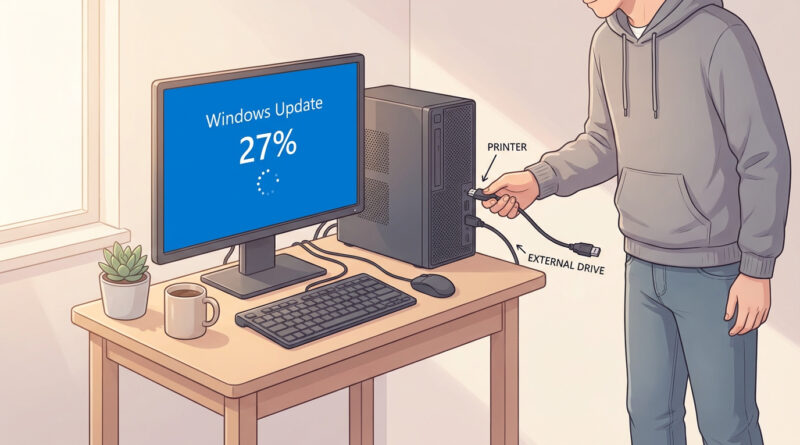
You sit down, ready to get something done, and Windows hits you with “Updating… 27%” for what feels like the rest of your natural life. You do not want to shut it off and risk breaking anything. But you also cannot leave it running all night just to maybe finish. Here’s the low-stress fix I use first because it works surprisingly often. Unplug every non-essential USB device, then restart normally and run Windows Update again. Printers, webcams, external drives, USB hubs, even that little wireless receiver you forgot you had. Stuck updates sometimes happen because Windows is waiting on a finicky device or drive to respond, especially during the “don’t turn off your computer” phase. Strip the setup down to just power, keyboard, mouse, and monitor. Then try again. No registry edits. No sketchy “update fixer” tools. Just a clean, simple test that solves a lot of update jams.
⚡ In a Hurry? Key Takeaways
- Unplug all non-essential USB devices, then do a normal restart and try Windows Update again.
- Leave only keyboard, mouse, and monitor connected to remove device “waiting” issues.
- This avoids risky tools and settings changes, and it is safe to try first.
Step 1: Do the “USB Diet” (The Fix Most People Skip)
Before you do anything fancy, make Windows’s job as easy as possible. Updates sometimes pause because Windows is trying to talk to something connected to your PC and it is not getting a clean answer.
What to unplug
Unplug anything that is not required to see the screen and use the PC:
- Printers and scanners
- External hard drives and USB flash drives
- Webcams and microphones
- Game controllers and racing wheels
- USB hubs and docking stations (if you can)
- Extra monitors connected by USB (USB-C/DisplayLink setups can be a factor)
Leave connected: power, monitor (HDMI/DisplayPort is ideal), keyboard, mouse, and Ethernet if you use it. If your keyboard and mouse are USB, that is fine. Just keep it simple.
Step 2: Restart Normally, Then Try Windows Update Again
Once things are unplugged, do a normal restart. Not a forced shutdown. Click Start. Power. Restart.
After the restart
Go to Settings. Windows Update. Then click “Check for updates” or “Resume updates,” depending on what you see. If the update was stuck because Windows was waiting on a device, this is where you often see it suddenly move again.
What If It’s “Stuck” But Still Moving?
If the percentage changes occasionally, even slowly, it might not be truly stuck. Big cumulative updates can sit on one number for a long time, then jump. A good rule of thumb is to give it 30 to 60 minutes if you see any signs of life like disk activity, fan noise, or the percentage moving at all.
If You’re Tempted to Power It Off
I get it. Staring at “Working on updates” is about as fun as watching paint dry.
If you are on a laptop, plug it in. Let it try a bit longer. If it has been hours with no change and no activity, the USB diet + normal restart is still the safest first move compared to forcing power off mid-write.
A Small Side Tip: Reduce the “Update Stress” Notifications
Part of what makes stuck updates feel worse is the constant pings and warnings across your devices. If your phone is also yelling at you while you are trying to troubleshoot, you might like How to Stop iPhone Notifications From Driving You Crazy (Without Missing the Important Stuff). Fewer interruptions makes it easier to be patient and methodical.
At a Glance: Comparison
| Feature/Aspect | Details | Verdict |
|---|---|---|
| Risk level | Unplugging peripherals + normal restart avoids system changes and avoids interrupting the update mid-write. | Safest first step |
| Time and effort | Takes a couple minutes, no special skills, no extra downloads. | Fast and simple |
| How often it works | Fixes many “stuck at X%” cases caused by USB storage, printers, hubs, or drivers hanging. | Surprisingly effective |
Conclusion
When Windows Update looks frozen, the goal is to fix it without turning your PC into a science project. Unplugging non-essential USB devices, then doing a normal restart and running Windows Update again, clears a lot of jams with almost no risk. That means you can stop staring at the spinning circle and get back to your PC. And with a fresh round of patches rolling out right now, it is a handy trick to keep in your back pocket the next time updates decide to test your patience.