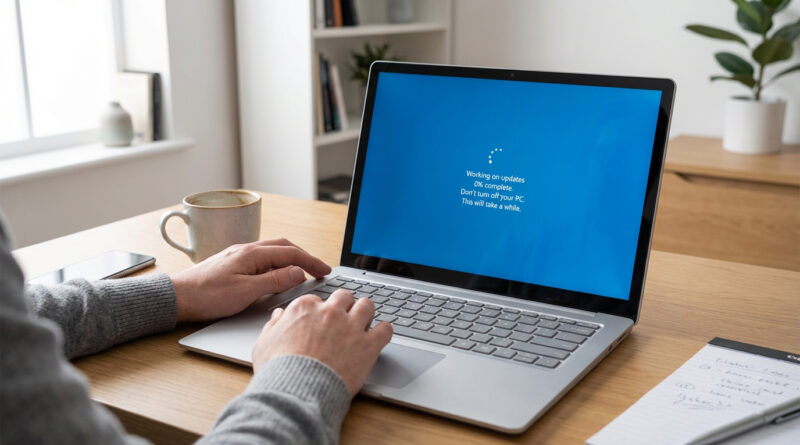
How to Fix Windows Updates Stuck at 0% or 100% Without Losing Your Files
Watching a Windows update sit at 0% forever, or hang at 100% like it’s mocking you, is the kind of stress that makes you hover over the power button. You’re not being dramatic. Nobody wants to “just restart it” and risk a corrupted update or, worse, lost files. The good news is you can usually fix this without nuking your PC or reinstalling Windows. The safest move is to stop feeding the stuck update, boot into Safe Mode, and let Windows rebuild its update process cleanly. That sounds fancy, but it’s really just a calm sequence: disconnect the internet, restart into Safe Mode, run the built-in Windows Update troubleshooter, then reconnect and try again. In many cases, that clears the jam and your documents stay exactly where they are.
⚡ In a Hurry? Key Takeaways
- Don’t force a shutdown first. Disconnect from the internet, boot Safe Mode, and run Windows Update Troubleshooter.
- After the troubleshooter runs, restart normally, reconnect internet, then try Windows Update again.
- This approach targets the stuck update queue and services. It does not delete your personal files.
First, do a quick “is it really stuck?” check
Sometimes Windows looks frozen when it’s just slow. Before you do anything else, give it a fair shot.
How long is “too long”?
If it has been stuck at the exact same percentage for over 60 minutes with no disk activity (no blinking drive light, no fan changes, nothing in Task Manager), it’s probably jammed.
Quick check (safe)
Press Ctrl + Shift + Esc to open Task Manager. If the PC is responsive and you see Windows Update activity, you can wait a bit longer. If it’s totally flatlined, move on.
The calm fix: disconnect internet, Safe Mode, troubleshooter, then reconnect
This is the “stop the train, clear the tracks, start again” method. It works because Windows Update can get stuck on a half-downloaded file or a queue that won’t finish.
Step 1: Disconnect from the internet (important)
Do one of these:
- Turn off Wi‑Fi (laptop) or Airplane mode on.
- Unplug the Ethernet cable (desktop).
This prevents Windows Update from immediately retrying the same bad step while you’re trying to clean things up.
Step 2: Restart into Safe Mode
Windows 11 / Windows 10:
- Click Start → Power.
- Hold Shift and click Restart.
- Go to Troubleshoot → Advanced options → Startup Settings → Restart.
- Press 4 for Safe Mode (not “with Networking”).
If Windows won’t boot normally, interrupt boot 2–3 times (power on, then hold power to turn off as soon as you see the spinning dots). Windows should load Recovery options on the next start, then follow the steps above.
Step 3: Run Windows Update Troubleshooter
While still offline and in Safe Mode:
- Windows 11: Settings → System → Troubleshoot → Other troubleshooters → Windows Update → Run
- Windows 10: Settings → Update & Security → Troubleshoot → Additional troubleshooters → Windows Update → Run the troubleshooter
Let it finish, even if it takes a few minutes. If it says it “fixed” something, that’s a good sign.
Step 4: Restart normally, reconnect, and try Windows Update again
Restart the PC normally. Then reconnect Wi‑Fi or plug Ethernet back in.
Now go to Settings → Windows Update and hit Check for updates. If the stuck update resumes and completes, you’re done.
If it’s still stuck: two safe “next moves” that don’t touch your files
If the troubleshooter didn’t unjam it, don’t jump straight to reinstalling Windows. Try these first.
Option A: Restart Windows Update services (the “unclog the pipes” method)
This resets the update engine without touching your personal data.
- Press Windows key, type cmd.
- Right-click Command Prompt → Run as administrator.
- Paste these commands one by one:
net stop wuauserv
net stop bits
net stop cryptsvc
net stop msiserver
Then rename the update cache folders:
ren C:WindowsSoftwareDistribution SoftwareDistribution.old
ren C:WindowsSystem32catroot2 catroot2.old
Start services again:
net start wuauserv
net start bits
net start cryptsvc
net start msiserver
Restart, then try Windows Update again.
Option B: Fix system files (SFC and DISM)
If the update is stuck because system files are damaged, these built-in tools can help.
Open Command Prompt as admin again, then run:
sfc /scannow
After that finishes, run:
DISM /Online /Cleanup-Image /RestoreHealth
Restart and try the update again.
What not to do (because it causes the panic)
- Don’t hold the power button as your first move. Use the steps above first. A forced shutdown can make an in-progress update messier.
- Don’t download random “update fixer” apps. Windows already has the tools you need.
- Don’t reinstall Windows unless you’ve tried the safe fixes. Reinstalling is rarely the first answer.
If you like short, non-annoying instructions
If you ever use ChatGPT for tech help and it keeps repeating generic steps, you’ll probably like this: How to Make ChatGPT Actually Remember Your Style and Stop Repeating Useless Tips. The trick is telling it your preferences up front, like “keep it under five steps” and “don’t suggest reinstalling unless I ask.”
At a Glance: Comparison
| Feature/Aspect | Details | Verdict |
|---|---|---|
| Safest first fix | Disconnect internet → Safe Mode → Windows Update Troubleshooter → restart normally | Best starting point for 0%/100% stalls |
| Deeper reset | Stop update services and rebuild SoftwareDistribution/catroot2 cache | High success rate, still file-safe |
| Repair Windows components | Run SFC and DISM to fix corrupted system files that block updates | Great when updates fail repeatedly |
Conclusion
Windows updates getting stuck at 0% or 100% is common, and it pushes people into panic restarts or pricey repair visits. You don’t have to do that. Disconnecting from the internet, booting into Safe Mode, and running the Windows Update troubleshooter is a calm, file-safe way to clear the update queue and let Windows rebuild it cleanly. Most of the time, that’s enough to get you back to work today without losing data or spending hours staring at a frozen progress bar.