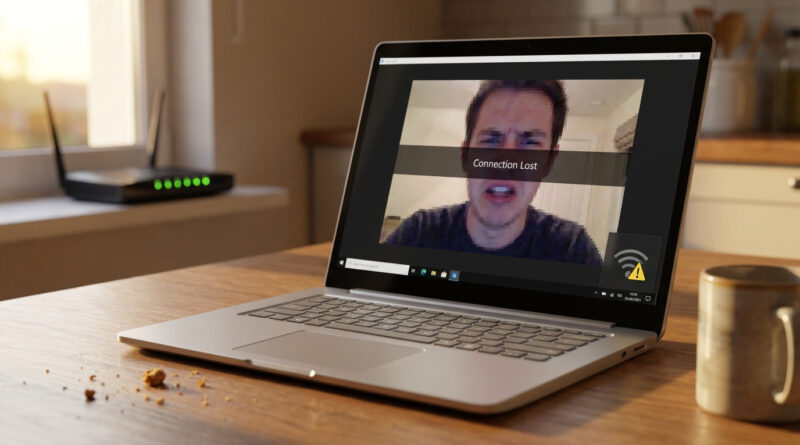
How to Fix Wi-Fi That Keeps Dropping on Windows Without Calling Your Internet Provider
If your Windows laptop drops Wi‑Fi right in the middle of a meeting or class, you’re not alone. It’s extra annoying because you can reboot the router, restart the laptop, and the problem still comes back. And nobody tells you what to change on the computer itself. Here’s the sneaky culprit I see all the time. Windows tries to “save power” by putting your Wi‑Fi adapter to sleep. Great for battery. Terrible for video calls. The fix is simply telling Windows to stop being so clever with your wireless card, then making sure your power plan isn’t quietly throttling Wi‑Fi in the background.
⚡ In a Hurry? Key Takeaways
- Turn off “Allow the computer to turn off this device to save power” for your Wi‑Fi adapter in Device Manager.
- Set your power plan to High performance, or set Wireless Adapter Settings to Maximum performance.
- This change is safe and reversible. It usually stops those random mid‑call disconnects without touching your router.
Step 1: Stop Windows from putting your Wi‑Fi to sleep
This is the big one. Windows can literally power down the Wi‑Fi adapter for battery savings, then “wake it up” later. In real life, that wake-up can look like a random disconnect.
What to click
1) Click the Windows search box and type Device Manager, then open it.
2) Expand Network adapters.
3) Right‑click your Wi‑Fi adapter (often says Intel, Realtek, Qualcomm, “Wireless,” or “Wi‑Fi”). Choose Properties.
4) Go to the Power Management tab.
5) Untick Allow the computer to turn off this device to save power.
6) Click OK, then restart your laptop.
Tip: If you’re not sure which adapter is Wi‑Fi, look for the one that says “Wireless,” “Wi‑Fi,” or “802.11.” Avoid changing settings on things like “WAN Miniport” or “Bluetooth.”
Step 2: Set your power plan so Wi‑Fi stays at full strength
Even with the Device Manager fix, your power plan can still dial down Wi‑Fi to save battery. That’s fine on a flight. Not fine on Zoom.
Option A (quick): switch to a stronger plan
1) Open Settings.
2) Search for Power & sleep.
3) Click Additional power settings (this opens the classic Control Panel view).
4) Choose High performance (or “Best performance” depending on your laptop).
Option B (best): force the wireless adapter to “Maximum performance”
1) In Additional power settings, click Change plan settings next to your current plan.
2) Click Change advanced power settings.
3) Expand Wireless Adapter Settings → Power Saving Mode.
4) Set On battery to Maximum Performance (or at least “Medium,” if you want a compromise).
5) Set Plugged in to Maximum Performance.
6) Click Apply, then OK.
If you like getting step-by-step checklists for stuff like this, bookmark The Best Way to Make ChatGPT and Other AI Tools Give You Straight Answers. The “numbered checklist” trick works surprisingly well when you’re trying to fix tech without wading through a wall of theory.
Quick checks if it still drops (no router blaming required)
Update the Wi‑Fi driver (it matters more than people think)
Go back to Device Manager → Network adapters → right‑click your Wi‑Fi adapter → Update driver. If Windows says you’re up to date but the issue persists, grab the driver directly from your laptop maker (Dell/HP/Lenovo) or the Wi‑Fi chip maker (Intel is common).
Turn off “Random hardware addresses” for your Wi‑Fi network (optional)
Sometimes privacy features can confuse certain networks.
Settings → Network & Internet → Wi‑Fi → Manage known networks → pick your network → toggle Random hardware addresses off, then reconnect.
Run the built-in troubleshooter (quick sanity check)
Settings → System → Troubleshoot → Other troubleshooters → run Network and Internet.
At a Glance: Comparison
| Feature/Aspect | Details | Verdict |
|---|---|---|
| Device Manager power saving | Untick “Allow the computer to turn off this device to save power” on the Wi‑Fi adapter. | Best first fix. Often solves mid-call drops immediately. |
| Power plan wireless performance | Set Wireless Adapter Settings to Maximum performance (battery and plugged in). | Strong follow-up. Prevents “quiet throttling” during meetings. |
| Downside | May use a bit more battery because Wi‑Fi stays fully awake/active. | Worth it for reliability. You can switch back anytime. |
Conclusion
Random Wi‑Fi drops on Windows feel mysterious because they look like a router problem. A lot of the time, they’re not. They’re your laptop trying to save a tiny bit of battery at the worst possible moment. Turning off Wi‑Fi power saving in Device Manager, then setting your power plan so the wireless adapter runs at maximum performance, is the fastest way to get back to stable calls and fewer “Sorry, I disconnected” moments.