How to Fix ‘This App Can’t Run on Your PC’ on Windows Without Losing Your Mind
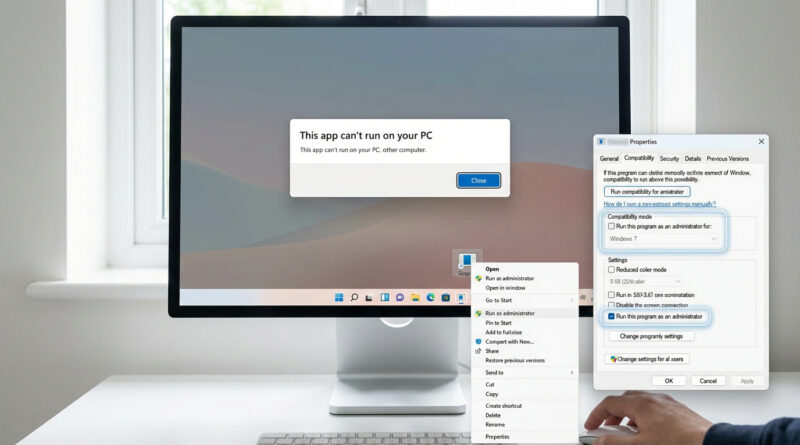
You download an app, double-click it, and Windows hits you with “This app can’t run on your PC.” No helpful details. No clear reason. It often shows up right after a Windows 10 or 11 update, or when you grab an installer from the web. And the advice online? Half of it is “reinstall Windows” (no thanks) and the other half reads like a computer science exam. Let’s do the simple fix that works surprisingly often: change how Windows launches the app, and run it from a boring, plain folder. This combo gets around silent permission issues and overly strict security checks that can block perfectly normal installers, especially ones sitting in Downloads or inside deeply nested folders.
⚡ In a Hurry? Key Takeaways
- Move the installer/app to a simple path like C:Apps, then run it from there.
- Right-click the file. Go to Properties > Compatibility. Turn on Run as administrator and try an older Windows compatibility mode.
- This avoids risky “fixes” like registry edits, disabling antivirus, or reinstalling Windows.
Step 1: Put the app somewhere boring (seriously)
Windows is picky about where an installer lives. Files in Downloads, cloud-synced folders (OneDrive), or folders with long names and odd characters can trigger security or permission weirdness.
Do this
1. Create a folder: C:Apps
2. Move the installer (or the app’s .exe) into C:Apps
3. Try running it again from that folder
This sounds too simple. It’s also one of the most common real-world fixes for the “how to fix this app can’t run on your pc windows 11” problem when the file was downloaded from the web.
Step 2: Use Compatibility mode and “Run as administrator”
If Windows thinks an app is “too old,” “not allowed,” or just suspicious, Compatibility mode can nudge it past that first hurdle. Running as administrator helps when the app needs permission to write files or install components.
Do this (Windows 10 and Windows 11)
1. Right-click the app or installer (.exe)
2. Click Properties
3. Open the Compatibility tab
4. Check Run this program as an administrator
5. Check Run this program in compatibility mode for: and pick Windows 8 first (then try Windows 7 if needed)
6. Click Apply, then OK
7. Run it again
Which compatibility option should you pick?
Start with Windows 8. If that doesn’t work, try Windows 7. If it’s a very old app, Windows 7 is sometimes the sweet spot. Don’t bounce through ten options. Two tries is usually enough to confirm whether this is the issue.
Step 3: Quick checks that save you from chasing the wrong problem
Make sure you have the right version (32-bit vs 64-bit, ARM vs Intel)
This error can be legit. If you accidentally downloaded an app that doesn’t match your PC, Windows blocks it.
Check your PC type: Settings > System > About.
Look for System type (64-bit vs 32-bit) and whether it mentions ARM.
If you have an ARM-based Windows laptop (some Surface models do), you may need an ARM version of the app, or a version confirmed to work with emulation.
If it came from a zip file, extract it first
Running an app while it’s still inside a compressed folder can cause odd failures.
Right-click the zip > Extract All. Then run the .exe from the extracted folder (ideally still in C:Apps).
Check if Windows “blocked” the download
Sometimes Windows marks downloaded files as unsafe and quietly prevents them from running normally.
Right-click the file > Properties > (General tab) and look for an Unblock checkbox. If you see it, check it, then click Apply.
Step 4: If it’s still blocked, don’t jump to a Windows reinstall
A reinstall is the tech equivalent of moving houses because a door sticks.
Try the “new copy” test
Download the installer again from the official site, save it directly to C:Apps, and run it. If your original download was incomplete or altered by a browser extension, this often fixes it.
Make sure Windows isn’t in S mode
If you’re in Windows S mode, Windows only allows apps from the Microsoft Store.
Check: Settings > System > Activation. If it mentions S mode, that’s your answer.
Basic housekeeping helps more than you’d think
If your drive is nearly full, installers fail in strange ways. Different error messages, same root cause. If you also use a Mac and have ever hit the “disk full” surprise, the mindset is similar: clean safely, don’t panic-delete. This guide is a great example of that approach: How to Fix a Mac That Suddenly Says Its Disk Is Full (Without Deleting Your Photos).
Why this “C:Apps + Compatibility + Admin” combo works so often
Because it addresses the three most common silent blockers:
1) Folder permissions and controlled locations. Downloads and synced folders can have extra rules.
2) Compatibility checks. Some installers use older launchers that Windows 11 dislikes.
3) Elevation. Installers often need permission to write to Program Files, system folders, or system-wide settings.
At a Glance: Comparison
| Feature/Aspect | Details | Verdict |
|---|---|---|
| Move to C:Apps | Avoids Downloads/OneDrive quirks, long paths, and special character issues | Fastest, lowest risk first step |
| Compatibility mode + Admin | Helps older installers run and fixes common permission blocks | High success rate for “random” blocks |
| Nuclear options (reset/reinstall) | Time-consuming, risks data loss, often unnecessary | Only after simpler causes are ruled out |
Conclusion
When Windows 11 says “This app can’t run on your PC,” it feels personal. It’s not. Most of the time, it’s Windows being overly cautious about where the file lives, how it launches, or what permissions it gets. Try the simple combo first: move the app to C:Apps, turn on Run as administrator, and test Compatibility mode. You’ll often get the app running again without registry edits, without turning off security, and definitely without wiping your PC. That saves your time and protects your data.