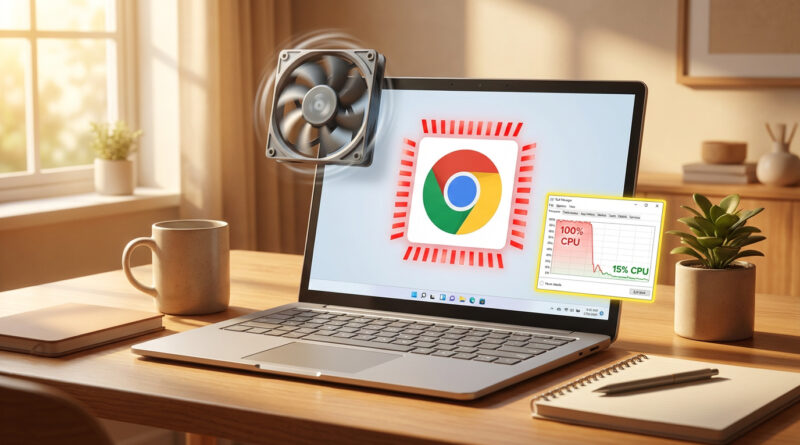
How to Fix Chrome Using 100% CPU on Windows Without Reinstalling Everything
Your laptop sounds like a jet engine, Chrome is freezing, and you only have a few tabs open. That’s the kind of thing that makes you wonder if your computer is dying. The good news is it’s usually not. Most of the time, it’s a stuck Chrome process or a misbehaving extension, and you can fix it without reinstalling Chrome, resetting Windows, or losing bookmarks and passwords. The trick is to fully stop Chrome even after the window is closed, then turn extensions off and back on in a controlled way until you catch the culprit. It’s a little like flipping breakers in your house. You are not guessing. You are narrowing it down calmly, one switch at a time.
⚡ In a Hurry? Key Takeaways
- Close Chrome, then use Task Manager to end every leftover Chrome/Google process so nothing is secretly chewing CPU.
- Disable all extensions, then re-enable them one at a time while watching CPU usage to find the one causing the spike.
- This method is safe. It won’t wipe your Windows install or erase bookmarks and saved passwords.
Step 1: Actually close Chrome (including the “hidden” leftovers)
First, close every Chrome window like you normally would.
Now do the part most people skip.
End leftover Chrome processes
1) Press Ctrl + Shift + Esc to open Task Manager.
2) Click More details if you see the simple view.
3) In the Processes tab, look for anything named Google Chrome, Chrome, or sometimes Google items that clearly relate to Chrome.
4) Click each one, then click End task.
Yes, even if Chrome “looks closed.” Chrome can keep running in the background, and one stuck tab or extension can peg your CPU at 100% all by itself.
If Windows won’t let you end them
If one process refuses to die, restart your PC. That sounds basic, but it clears out the jammed process in one move. Then come right back to the next step.
Step 2: Reopen Chrome and turn off every extension
Open Chrome again. Don’t open a bunch of tabs yet.
Click the address bar and type:
chrome://extensions
You’ll see your list of extensions with little toggles.
Disable everything (temporarily)
Turn every extension off. Don’t uninstall anything yet. We are testing, not cleaning.
Now watch two things for about 20 to 60 seconds:
- Your fan noise (it should calm down).
- Task Manager’s CPU column (Chrome should drop a lot).
If Chrome behaves normally with extensions off, you just proved the point. An extension is the problem.
Step 3: Turn extensions back on one by one (this is where you catch the culprit)
Go back to chrome://extensions.
Turn on one extension. Wait 20 to 30 seconds. Check Task Manager CPU and whether Chrome starts freezing.
Repeat. One at a time.
When you flip on an extension and suddenly the CPU jumps or the fan kicks up, you found your troublemaker.
What to do when you find the bad extension
- Leave it off for now. That alone should stop the freezing.
- Click Details and check if it has a recent update or suspicious permissions.
- Consider Remove if you don’t truly need it, or replace it with a well-known alternative.
If you love what it does, try disabling it, restarting Chrome, then enabling it again. Sometimes the extension just needs a clean restart. If it still spikes CPU, it’s not you. It’s the extension.
Quick sanity checks (still no reinstall)
Make sure Chrome isn’t running in the background
In Chrome, open Settings and search for “background.” Turn off the option that lets Chrome keep running background apps when Chrome is closed. This prevents “phantom Chrome” from coming back after you think you quit.
Look for one tab that’s the real problem
If extensions aren’t the issue, a single tab can still melt your CPU. Press Shift + Esc inside Chrome to open Chrome’s built-in Task Manager. Sort by CPU and see what’s on top.
Don’t “randomly delete stuff” to fix performance
When a computer is acting up, it’s tempting to start deleting files and hoping the problem goes away. That can backfire. If you’re dealing with storage problems on another machine, this same calm, step-by-step approach applies. I like this guide for Mac users: How to Fix a Mac That Suddenly Says Its Disk Is Full (Without Deleting Your Photos).
At a Glance: Comparison
| Feature/Aspect | Details | Verdict |
|---|---|---|
| Time required | Usually 5 to 15 minutes to end processes and test extensions one by one | Fast enough for most people, no “all-day” troubleshooting |
| Risk to your data | No Windows reset. No Chrome reinstall. Extensions are only disabled during testing | Low risk, bookmarks and passwords stay put |
| Most common root cause | A stuck background Chrome process or one misbehaving extension | This method targets the usual suspects first |
Conclusion
If Chrome suddenly goes full jet-engine mode, it doesn’t mean your laptop is toast. Ending leftover Chrome processes and testing extensions one by one gives you a clear, non-scary way to find the real cause of the slowdown without reinstalling Windows or losing bookmarks and passwords. Better yet, you can use this same “turn it off, then add things back slowly” method any time your browser starts acting weird again.