Mac

Mac

How to Stop Your Mac From Overheating and Blasting Fans After the Latest macOS Update

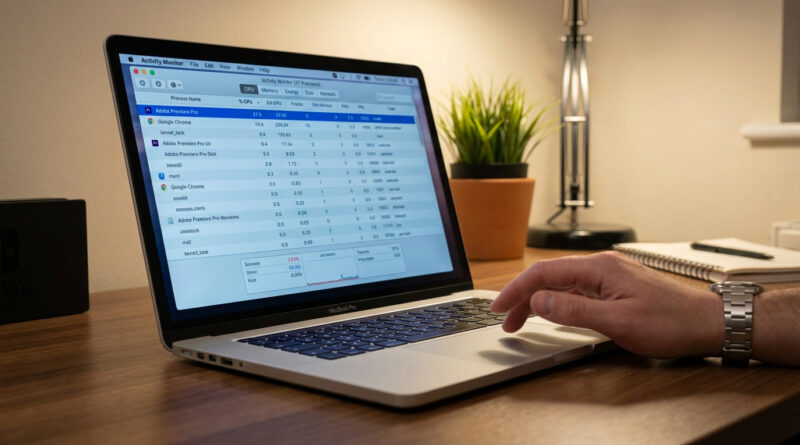
Open Activity Monitor, sort by CPU, and quit only the top two apps using more than 80 percent that you recognize, then close your browser and relaunch it with only the tabs you actually need, and finally leave the Mac plugged in and awake for one to two hours so Spotlight and Photos can quietly finish reindexing. This combination usually ends the heat spike without scary terminal commands or giving up important apps.

Read More
Mac

The Best Way to Stop Your Mac from Spinning Beachballs and Slowing to a Crawl

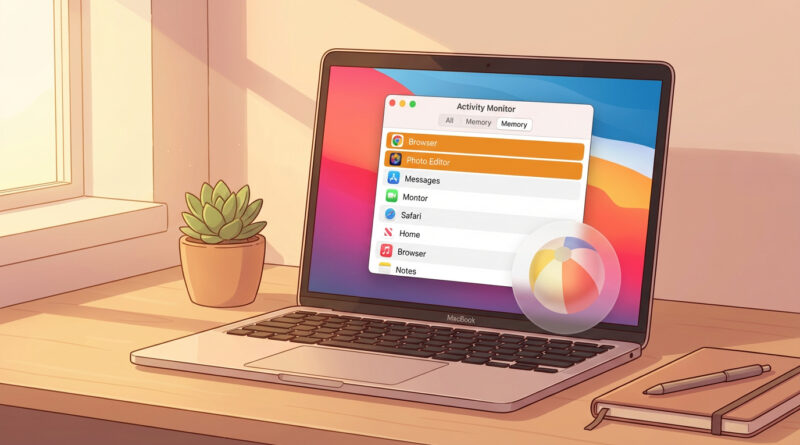
Open Activity Monitor, sort by ‘Memory’ and close any app sitting at the top that you are not actively using, then restart the Mac and, as a new habit, keep your Dock to a ‘daily use only’ list so you do not leave heavy apps running in the background out of sight. This focus on memory-hungry apps is more effective than random ‘cleaner’ tools and gives you a clear, repeatable way to keep the Mac feeling fresh.

Read More
Mac

The Best Way to Clean Up a Slow Mac Without Paying for Sketchy ‘Optimizer’ Apps

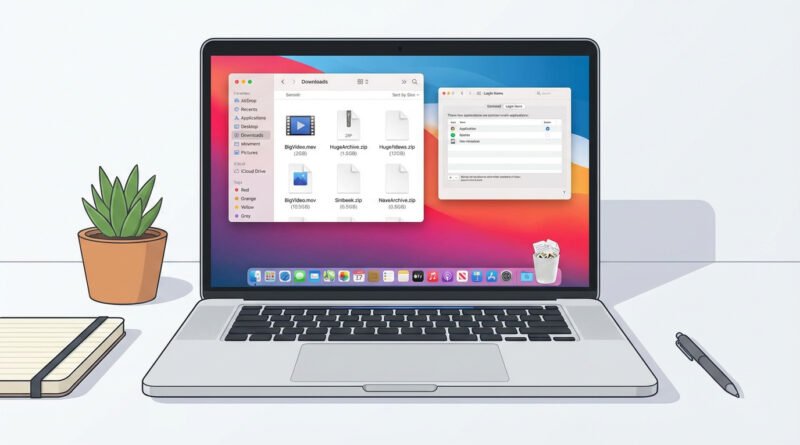
Skip the paid cleaners and do one focused 20 minute session: open your Downloads folder and sort by size, delete anything you know you do not need, then empty the Trash, and finally review only the ‘Login Items’ list so you turn off any apps you do not recognize or use daily. Set a calendar reminder to repeat this once a month instead of waiting until the Mac feels unusable.

Read More