The Best Way to Stop Android Phones From Showing So Many Annoying Notifications
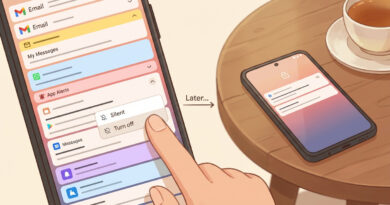
If your Android phone buzzes all day with “deal alerts,” game rewards, and social updates, you are not overreacting. It is exhausting. And the worst part is the guilt. You think, “I should be able to handle this,” then you try turning a few things off and suddenly you are lost in a maze of settings. Here’s the simplest fix I know that actually sticks. Pick one normal day. When a notification annoys you, do not swipe it away. Press and hold on it. Tap “Turn off” or set it to “Silent.” Repeat as the day goes on. It takes seconds each time, and by dinner you will have knocked out most of the noise without a big “settings project.” Then you finish with one calm night rule: a Do Not Disturb schedule that still lets your favorite people reach you.
⚡ In a Hurry? Key Takeaways
- Use the “one-day rule”: long-press annoying notifications as they arrive, then choose Turn off or Silent.
- Don’t swipe first. Long-press first, so Android takes you to the exact notification setting you need.
- Set a simple night Do Not Disturb schedule, and allow only calls (or messages) from your Favorites.
The easiest way to tame notifications: fix them as they appear
Most people attack notifications the hard way. They open Settings, see a giant list of apps, and either give up or accidentally turn off something they needed.
Instead, let the phone show you what’s actually annoying you. That’s the whole trick.
Your “one normal day” plan
Pick a day you’ll use your phone like usual. Work, errands, scrolling, whatever. Then do this every time a notification bugs you:
- Press and hold the notification (from the lock screen or notification shade).
- Tap Turn off, Disable, or Silent (wording varies by phone).
- If you see categories like “Promotions,” “Order updates,” “Messages,” pick the noisy one and leave the important one on.
That’s it. You are not doing research. You are not digging through menus. You are making tiny decisions in the moment, with the notification sitting right in front of you as evidence.
“Turn off” vs “Silent”: which one should you pick?
This is where people get stuck, so here’s a simple rule.
Choose “Silent” when you might still want it later
Silent is great for things that are useful, just not “buzz my pocket” useful. Examples:
- Shipping updates
- Calendar “up next” reminders (if you still want them, just not loud)
- Smart home alerts that aren’t urgent
Silent usually keeps the notification in your shade, but stops sound, vibration, and pop-ups.
Choose “Turn off” when it’s pure marketing or nagging
- “Flash sale ends soon”
- “Your friend posted” (when you didn’t ask)
- Games begging you to come back
If you never want to see it again, turn it off. No guilt.
What to do when Android shows “Notification categories”
On many Android phones, one app can send different types of notifications. This is good news because you can keep the useful ones and shut down the rest.
Common categories you can safely disable in many apps:
- Promotions and Offers
- Tips and News
- Recommendations
- Social (depending on the app)
Common categories you might want to keep:
- Security alerts
- Receipts and Order status (for shopping apps)
- Direct messages
Finish the job: a simple Do Not Disturb schedule at night
Once you’ve quieted the worst offenders during the day, add one “guardrail” so nights stay quiet even when a random app sneaks something through.
Set up DND in under two minutes
The exact names vary by phone, but the path is usually:
Settings → Notifications (or Sound & vibration) → Do Not Disturb
Then:
- Turn on a Schedule (for example, 10:30 PM to 7:00 AM).
- Under “What can interrupt,” allow Calls from Favorites (or “Starred contacts”).
- If you want, allow Repeat callers so a true emergency can get through.
One small heads-up about alarms
Most phones let alarms ring even when Do Not Disturb is on. Still, it’s worth checking once so you’re not stressed about it at bedtime.
Why this approach works (and why it feels less stressful)
This “fix them as they appear” method works for the same reason good troubleshooting works on anything. You change one thing at a time, based on what you can actually see, instead of poking around in a giant list and hoping. It’s the same mindset I recommend when your internet is acting up. Don’t randomly reboot everything forever. Test one thing, then the next. If you want an example of that style of calm troubleshooting, here’s a good one: How to Fix Slow Wi-Fi On Your Laptop Without Buying a New Router.
At a Glance: Comparison
| Feature/Aspect | Details | Verdict |
|---|---|---|
| One-day long-press cleanup | Long-press each annoying notification and choose Turn off or Silent right there | Best “most impact for least effort” move |
| Turning off notifications inside each app | Hunting through app menus, often inconsistent and easy to miss categories | Works, but feels like homework |
| Night Do Not Disturb schedule | Automatically blocks noise during sleep, while Favorites can still reach you | Perfect “set it and relax” safety net |
Conclusion
You don’t need to win a battle against every app setting on your phone. You just need a calmer default. Pick one normal day, and handle notifications the moment they show up by long-pressing and choosing Turn off or Silent. Then add a gentle Do Not Disturb schedule at night so only your favorites can break through. People are overwhelmed by constant phone noise and distracted scrolling, and this approach gives you a quieter phone without needing to dig through every settings screen at once.