The Best Way to Make Windows 11 Stop Nagging You About Microsoft Accounts
Windows 11 has a habit of acting like your PC is incomplete until you “just sign in” with a Microsoft account. That gets old fast. Especially when you only want a simple local account, you want your files saved where you choose, and you do not want surprise pop-ups after every restart. The good news is you can calm most of this down without breaking anything. You just need to make one clean switch to a local account, then flip off a couple of sneaky “helpful suggestions” that keep reappearing. After that, when a Microsoft app asks you to sign in, you can usually say no. The trick is knowing where the tiny “Skip” link is hiding.
⚡ In a Hurry? Key Takeaways
- Create a local account in Settings, then sign into it to stop Windows pushing Microsoft sign-in as the default.
- Turn off “Let Microsoft suggest ways to finish setting up your device” to reduce the recurring setup nags after restarts.
- This does not delete your files. It just stops the constant “please connect everything to the cloud” pressure.
Step 1: Create a local account (the clean, safe way)
Do this from inside Windows. It is the least confusing route, and it keeps your existing stuff intact.
Where to click
Settings → Accounts → Family & other users (sometimes shown as Other users) → Add account.
How to force it to be local
Windows will try to steer you into an email sign-in. Look for wording like:
“I don’t have this person’s sign-in information” → then “Add a user without a Microsoft account”.
Create a username and password (or leave the password blank if you understand the risk), then finish.
Step 2: Sign into the new local account
Save your work. Then go to Start → click your profile icon → Sign out. Pick the new local account on the sign-in screen and log in.
If this PC is shared, consider making your local account an admin account, and leaving any Microsoft-account profile as a standard user. That gives you control without mixing everything into OneDrive.
Step 3: Stop the “Finish setting up your device” nags
This setting is the main reason Windows keeps popping up those “complete your setup” screens after updates and restarts.
Go to Settings → Privacy & security → General.
Turn off:
“Let Microsoft suggest ways to finish setting up my device”
If you also see prompts suggesting Microsoft services, you can turn off similar “suggestions” options in that same area. The wording changes a bit between Windows 11 updates, but it is usually obvious once you are on that page.
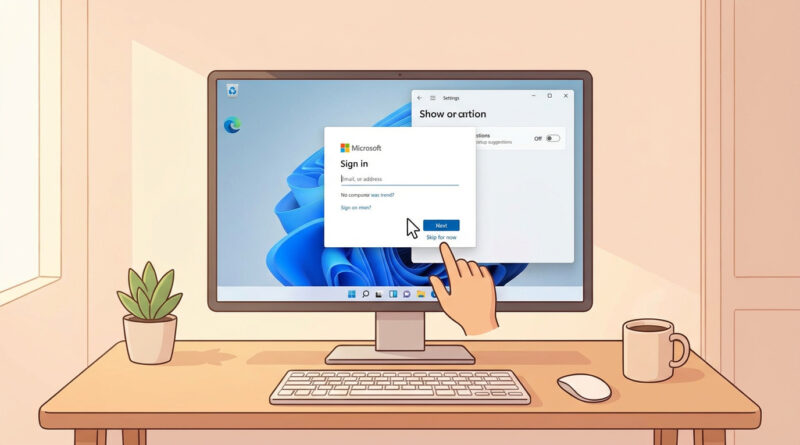
Step 4: When apps ask you to sign in, look for the tiny “No”
Even with a local Windows login, Microsoft apps will still try to connect you. When a sign-in window appears, do not panic-click “Next.”
Look for small links like:
- Skip for now
- No, sign in to this app only (instead of Windows)
- Continue without signing in
- Not now
This comes up a lot in OneDrive, Microsoft 365 (Office), Teams, and even the Microsoft Store. The “no thanks” option is often there. It is just visually de-emphasized.
Optional: Keep file saving local (and stop OneDrive guilt trips)
If your real annoyance is Windows trying to funnel your Desktop/Documents/Pictures into OneDrive, you can keep things local.
- If OneDrive is running, click the OneDrive cloud icon in the taskbar → Settings → look for Sync and backup and turn off folder backup for Desktop/Documents/Pictures.
- If you do not want OneDrive at all, you can unlink it from that same settings area.
This is the same general “take back control” mindset as phone troubleshooting. If you have ever chased down a battery drain after an update, the steps feel familiar. You find the hidden switch, flip it once, then life gets quieter. (Related: How to Stop Your iPhone Battery From Melting Away After the Latest iOS Update.)
What not to do (quick safety notes)
- Do not use random registry hacks unless you know exactly what they change and why. They can create weird side effects after updates.
- Do not delete your old profile until you confirm your files are where you want them in the new local account.
- Do not confuse “sign into Office” with “sign into Windows.” You can often sign into an app for licensing without turning your whole PC into a Microsoft-account login.
At a Glance: Comparison
| Feature/Aspect | Details | Verdict |
|---|---|---|
| Windows sign-in type | Microsoft account ties the PC login to online services. Local account keeps login on the device. | Local account = fewer nags and more control. |
| Recurring prompts after restarts | “Finish setting up your device” suggestions keep resurfacing unless disabled. | Turn the suggestion setting off. Big reduction in pop-ups. |
| App sign-in popups (OneDrive/Office/Store) | Apps can still request sign-in even if Windows is local. Usually there is a small “Skip” option. | Look for “Skip/Not now.” You can stay local and still use the PC normally. |
Conclusion
Once you create a local account, sign into it, and turn off the “finish setting up” suggestions, Windows 11 gets a lot quieter. Then it becomes a simple routine: when an app pops up a Microsoft sign-in box, you look for the tiny “Skip” link and move on. That is the whole win here. You are finding the hidden “no thanks” switches so you keep control of your own computer without feeling tricked into more cloud sign-ins. One time cleanup. Daily peace.