The Best Way to Clear ‘Other’ Storage on Android Without Breaking Your Apps
You go to install an update or snap a quick photo, and Android hits you with “Storage full.” Then you open Storage and see it. A huge chunk labeled “Other” or “System,” with no clear “delete” button. It’s frustrating, and the internet’s favorite advice, “Just factory reset,” feels like telling you to burn the house down because the trash is full. You do not need to do that. In most cases, “Other” is just hidden app data: cached video, bloated downloads, old media inside chat apps, and leftover files that never got cleaned up. The safest fix is a targeted cleanup of the biggest offenders, then a quick sweep of your largest personal videos. You can free multiple gigabytes in 15 to 30 minutes, without breaking your apps or losing your important stuff.
⚡ In a Hurry? Key Takeaways
- “Other” storage is usually hidden app cache, downloads, and media inside apps, not a mysterious system file you should delete.
- Start by cleaning WhatsApp, Chrome, and your main social app from inside the app, then reinstall them if space is still tight.
- Only delete big files you recognize (old screen recordings, large videos). Avoid random “system” folders.
What “Other” Storage Usually Is (In Plain English)
Android groups storage into buckets, and “Other” is the junk drawer. It often includes:
- App cache (temporary files, thumbnails, offline bits)
- In-app downloads (especially browsers and social apps)
- Chat media (WhatsApp images, videos, voice notes)
- Leftovers from app updates or removed apps
The trick is to clean the apps that create the most hidden stuff first, before you go hunting through folders you do not recognize.
Step 1: Do the “Big 3” Cleanup First (Safe and Fast)
If you only do one thing, do this. These apps are repeat offenders on “Other” storage.
WhatsApp: Clear downloads the safe way (without nuking your chats)
Inside WhatsApp:
- Open WhatsApp → Settings → Storage and data → Manage storage.
- Sort by Largest or review big chats.
- Delete big videos, repeated forwards, and “good morning” GIF collections you do not need.
Important: If you care about chat history, confirm your backup first. WhatsApp → Settings → Chats → Chat backup.
Chrome: Dump the cache and old downloads
- Open Chrome → tap the three dots → History → Clear browsing data.
- Select Cached images and files.
- Optionally select Downloaded files only if you do not need them.
Clearing cache is safe. It can log you out of some sites, but it will not delete your photos.
Your main social app (Instagram, TikTok, Facebook): clear downloads, then consider reinstall
These apps cache a lot of video. Many do not have a great “clear cache” button inside the app.
- First, look in the app’s settings for Downloads, Media, or Storage, and clear what you can.
- If storage is still tight, uninstall and reinstall. This wipes the hidden cache in one clean step.
Tip: Before uninstalling, make sure you know your login. If you use two-factor authentication, keep access to your phone number or authentication app.
Step 2: Clear Cache the Right Way (Without Breaking Anything)
Android has two “clear” buttons, and only one is usually safe for non-techies.
- Clear cache = safe. Frees space. App may load slightly slower the first time after.
- Clear data / Storage = resets the app. Can sign you out and remove offline files and settings.
How to clear cache on Android
Names vary a bit by phone brand, but the path is similar:
- Settings → Apps → See all apps
- Tap an app you use a lot (Chrome, WhatsApp, TikTok, Instagram)
- Storage → Clear cache
If you are unsure, stick to Clear cache. It is the “won’t ruin my day” button.
Step 3: Use Files or My Files, Sort by Size, Delete Only What You Recognize
This is where most people either win big or accidentally delete something important. The rule is simple: sort by size, delete known large personal files. Do not delete random folders because they “look technical.”
Google Files (Pixel and many Android phones)
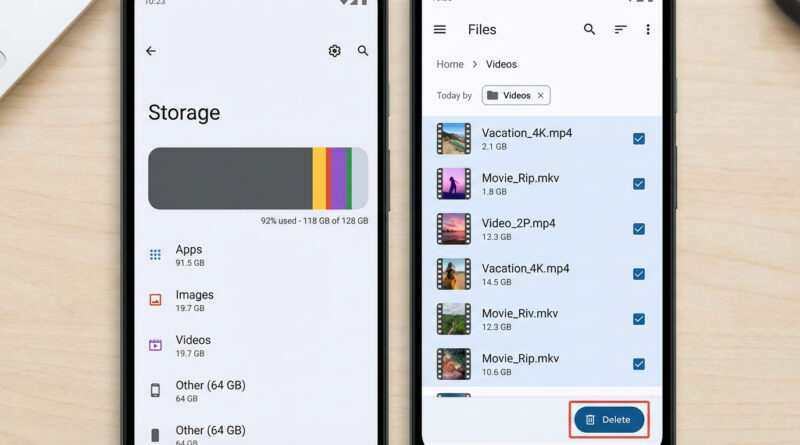
- Open Files by Google → Browse → Videos (or Downloads)
- Sort by Size
- Delete old screen recordings and large videos you recognize
Samsung My Files (Galaxy phones)
- Open My Files → Manage storage or Analyze storage (wording varies)
- Go to Large files
- Remove big items you are sure about
If you want a safe step-by-step order that protects your photos first, use this guide: The Best Way to Free Up Space on a Full Android Phone Without Deleting Your Favorite Photos. It walks you through cleaning temporary files, backing up big videos, then deleting locally.
Step 4: The “Reinstall Trick” (Why It Works So Well)
Uninstalling and reinstalling a bloated app sounds dramatic, but it is often the cleanest way to wipe hidden junk that Android counts as “Other.” It works especially well for:
- WhatsApp (after you confirm backup settings)
- Chrome
- Instagram, TikTok, Facebook
Order matters: clean what you can inside the app first, then reinstall only if you still need more space. This keeps the process calm and predictable.
What Not to Do (These Tips Cause Panic Later)
- Do not delete random folders inside Android, System, or “.something” directories just to see what happens.
- Do not install “RAM booster” or “super cleaner” apps. Many are aggressive, ad-heavy, and can create new problems.
- Do not factory reset unless you have tried the focused steps above and you have a complete backup.
At a Glance: Comparison
| Feature/Aspect | Details | Verdict |
|---|---|---|
| Clear cache (Settings → Apps) | Removes temporary files. Does not erase your account or chats. Frees modest to large space depending on the app. | Best first move. Low risk. |
| Uninstall + reinstall WhatsApp/Chrome/social app | Wipes hidden cache and leftovers. You may need to log back in. WhatsApp needs backup awareness. | Most effective “Other” storage fix for many people. |
| Manual delete from Files/My Files (sorted by size) | Targets big personal files like screen recordings and large videos you recognize. Avoid system folders. | High value when done carefully. |
Conclusion
“Other” storage feels mysterious, but it is usually just hidden app clutter and forgotten media. Start with the Big 3 apps, clean them from inside their own settings, then reinstall if you still need space. After that, sort your files by size and delete only old screen recordings and large videos you recognize. This gets you back gigabytes fast, without risky system tweaks or losing important photos and chats. It is also one of the easiest ways to keep an older Android phone feeling usable for a lot longer.